
AI Assistance
Runlet can ask an AI model why a run failed and how to fix it, and chat with one about your code, with your own Anthropic or OpenAI API key. You see exactly what would be sent before anything leaves your Mac, nothing is sent until you click Send, and Runlet never runs code a model writes.
Providers and Keys
Runlet works with two providers. You bring the API key: requests go straight from your Mac to the provider, and the provider bills your account. Runlet has no account or subscription of its own.
| Provider | Default model | Get a key |
|---|---|---|
| Anthropic | Claude Opus 5.5 (claude-opus-5-5) | platform.claude.com |
| OpenAI | GPT-6 Astra (gpt-6-astra) | platform.openai.com |
To add a key:
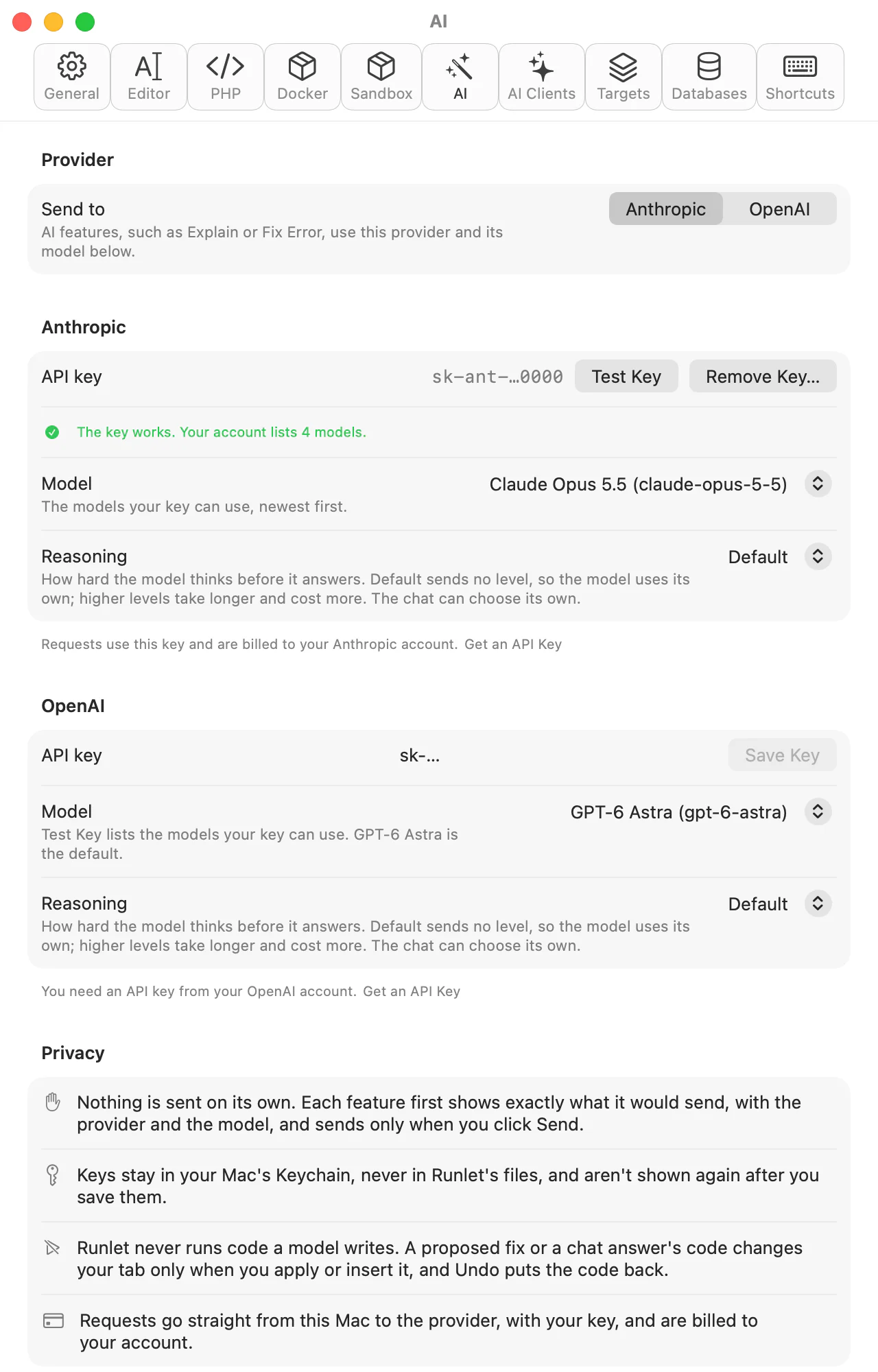
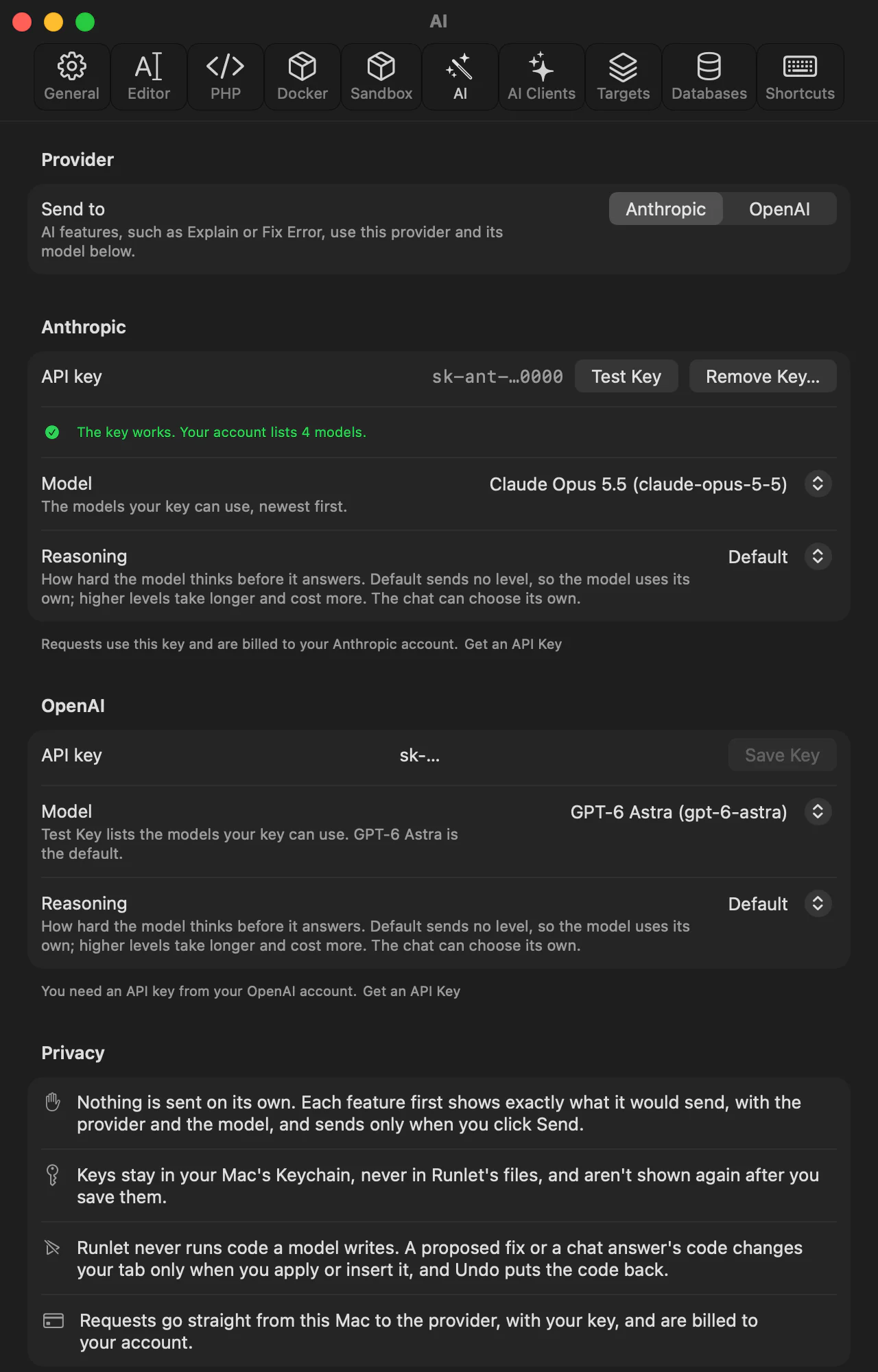
- Open Settings ▸ AI, or choose Runlet ▸ AI Settings….
- Paste the key into the provider's API key field and click Save Key.
- Click Test Key. Runlet asks the provider which models the key can use, which sends the key and nothing else. "The key works" means you're set.
Send to at the top of the pane picks the provider that AI features use. You can save a key for each and switch between them.
Where Keys Are Kept
- In your Mac's Keychain, never in Runlet's files or settings. Keychain Access lists them as "Runlet AI key: Anthropic" and "Runlet AI key: OpenAI", each with its masked form.
- Masked once saved. Settings shows only the start and the last four characters, such as
sk-ant-…Q2c4. To change a key, remove it and save the new one. - Remove Key… deletes it from the Keychain. The key itself keeps working at the provider until you revoke it there.
- Never in a message. When a provider rejects a key, Runlet says so without repeating it.
After an update, macOS may ask once before Runlet can read a key it saved. Choose Always Allow.
Choosing a Model
Each provider has a Model setting. Before you test the key, it offers the provider's current models; after Test Key, it lists the ones your account can use, newest first. When the model you chose isn't in that list, Settings warns you.
Larger models explain more carefully and cost more. Smaller ones, such as Claude Haiku 5.5 or GPT-6 Luna, are cheaper and faster. Each provider's pricing page has the prices.
Choosing a Reasoning Level
Current models think before they answer, and the Reasoning setting under each provider's model says how hard. Default sends no level, so the model uses its own default; the other choices are the levels that model takes:
| Provider | Levels | Models without one |
|---|---|---|
| Anthropic | Low, Medium, High, Extra High, and Max on the current models; Claude Opus 4.6 and Sonnet 4.6 have no Extra High, and Claude Opus 4.5 goes up to High | Claude Haiku 4.5, Sonnet 4.5, and older |
| OpenAI | Low to Max on GPT-6 Astra and GPT-6.1 Sol; GPT-6 Luna and GPT-5.5 also take None | GPT-4.1, GPT-4o, and the chat models |
Higher levels take longer and cost more, since the thinking is billed as output. When you switch to a model that doesn't take the level you chose, Runlet sends none. Explain or Fix uses this setting; the chat can choose its own.
What Is Sent, and When
Every AI feature follows the same rules:
- Nothing is sent on its own. Opening a sheet, a run that fails, or an error card sends nothing. A request leaves your Mac only when you click Send.
- You see exactly what's sent: the provider, the model, every part of the message with a checkbox, and the instructions Runlet adds. Only the parts you leave checked are sent, word for word as shown.
- Only what the feature shows. Your other tabs, files you don't name, history, the run inspector's records, saved passwords, and environment values are never sent.
- Generated code never runs. A proposed change goes into your tab only when you apply or insert it, and running it is your Run, with production's confirmation as always.
Runlet asks OpenAI not to keep the response for later retrieval. Each provider's own data policy applies to what you send.
Explain or Fix an Error
When a run fails, the error card has an Explain or Fix… button. You can also choose Run ▸ Explain or Fix Error… for the tab's last error, or find it in Open Anything.
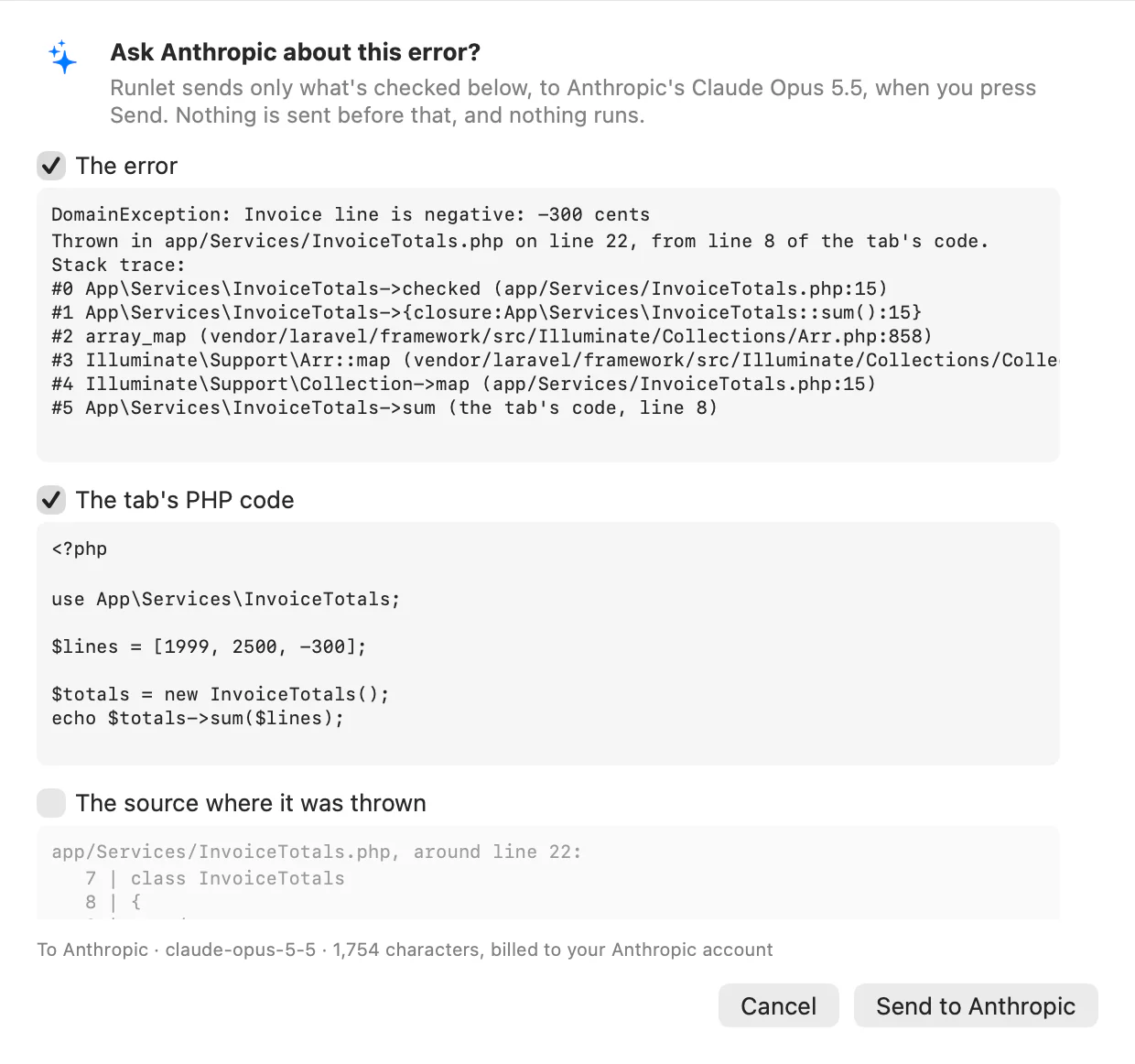
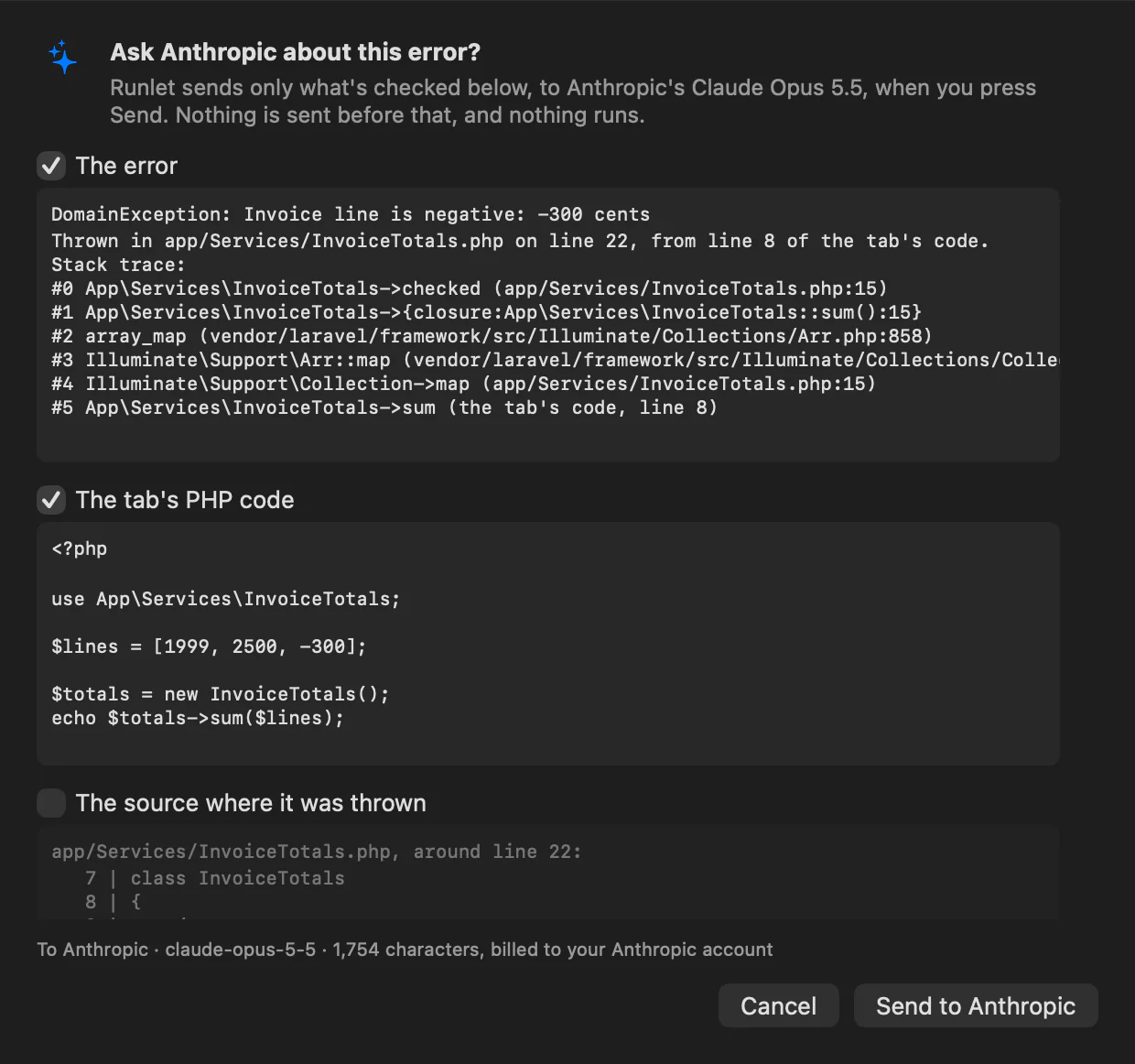
The sheet first shows what it would send, in three parts:
| Part | What it holds | Checked |
|---|---|---|
| The error | The exception's class and message, where it happened, its cause, and up to 12 frames of the stack trace. Paths are relative to your project. | Yes |
| The tab's code | The whole tab, as it was when you opened the sheet. | Yes |
| The source where it was thrown | About 30 lines around the line in a project or vendor file, when the error was thrown outside your tab. | No: it's your project's code |
Below them, it says where the request goes, with the model and its size in characters. Uncheck what you'd rather not send, then click Send to Anthropic (or OpenAI).
The answer appears as the model writes it. Stop (⌘.) ends the request and keeps what arrived, marked as incomplete.
Applying a Fix
When changing your tab's code fixes the error, the answer ends with a proposed fix, shown as a diff of your tab: removed lines in red, added lines in green.
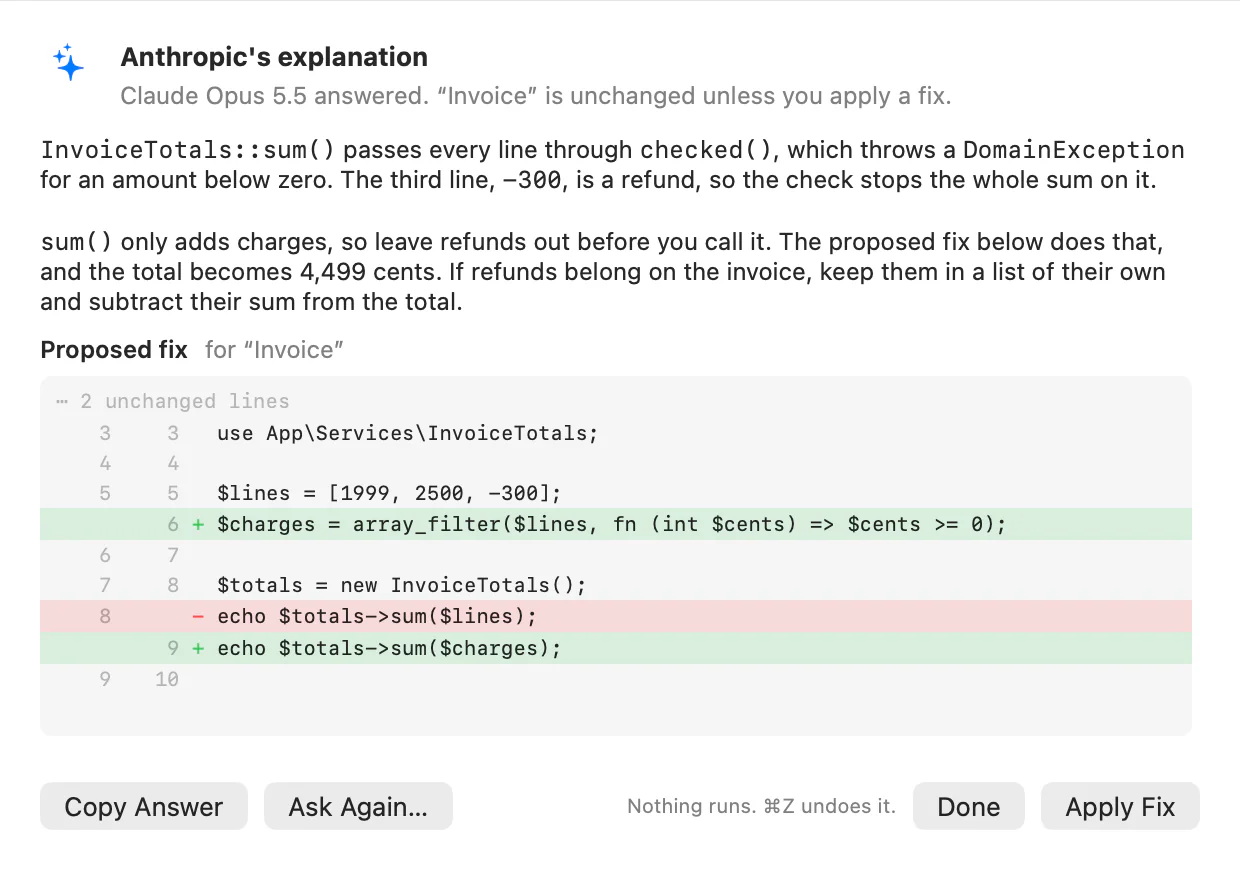
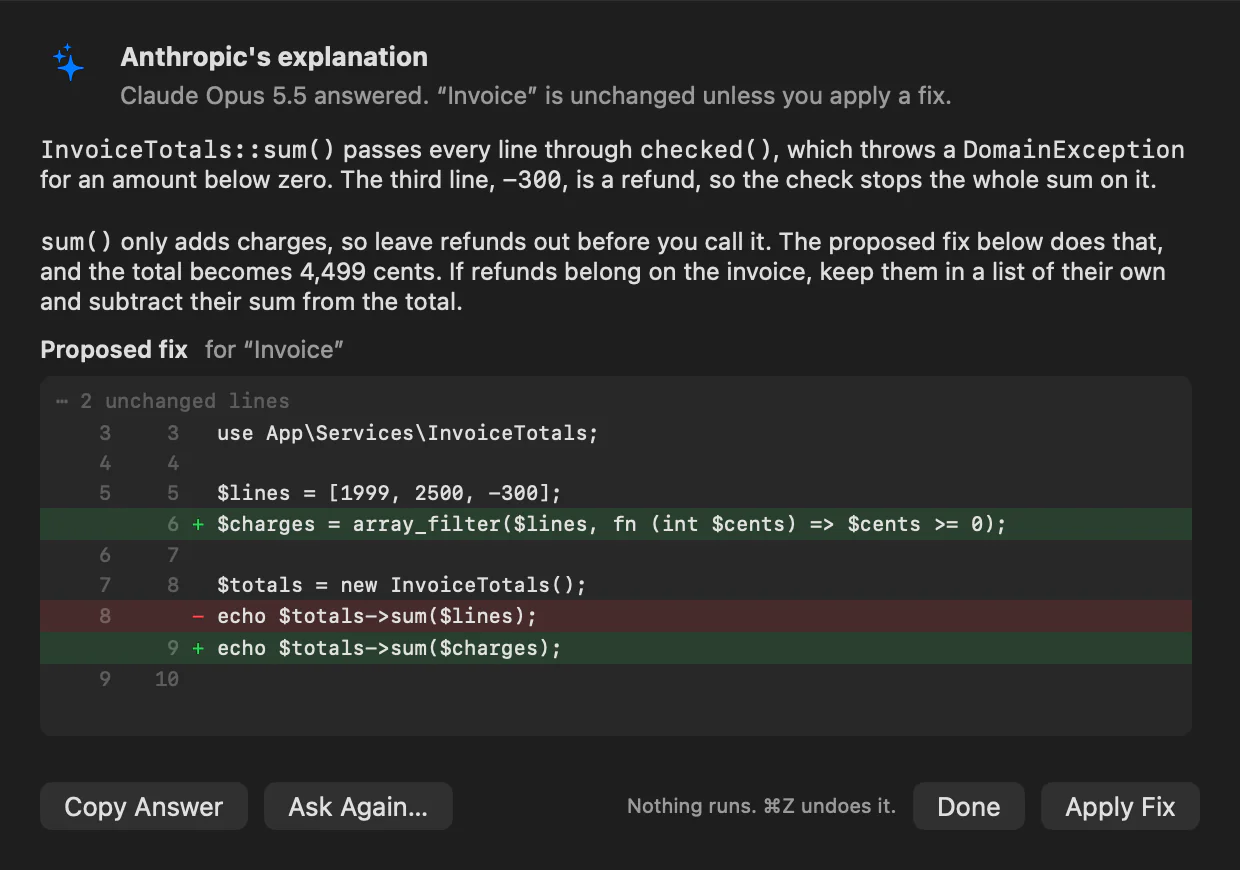
- Apply Fix replaces the tab's code with the fix, as one undoable edit. Nothing runs, and sandbox auto-run turns off for the tab.
- Undo Apply Fix, or Edit ▸ Undo in the editor, puts the old code back.
- The tab changed? If you edited the tab after asking, Apply Fix refuses, since the fix may no longer fit. Close the sheet and click Explain or Fix… again to send the code as it is now.
- No fix? When the cause is elsewhere (a project file, the database, the environment), the model says what to change instead, and the sheet notes that it proposed no change.
Copy Answer copies the whole answer as Markdown. Ask Again… goes back to what's sent, so you can check or uncheck parts and send again.
Without a Key
Without a key for the chosen provider, the sheet still shows what it would send, says that no key is saved, and offers Open AI Settings…, which opens Settings ▸ AI and leaves the sheet where it is. Send stays off until you save a key.
Chatting About Your Code
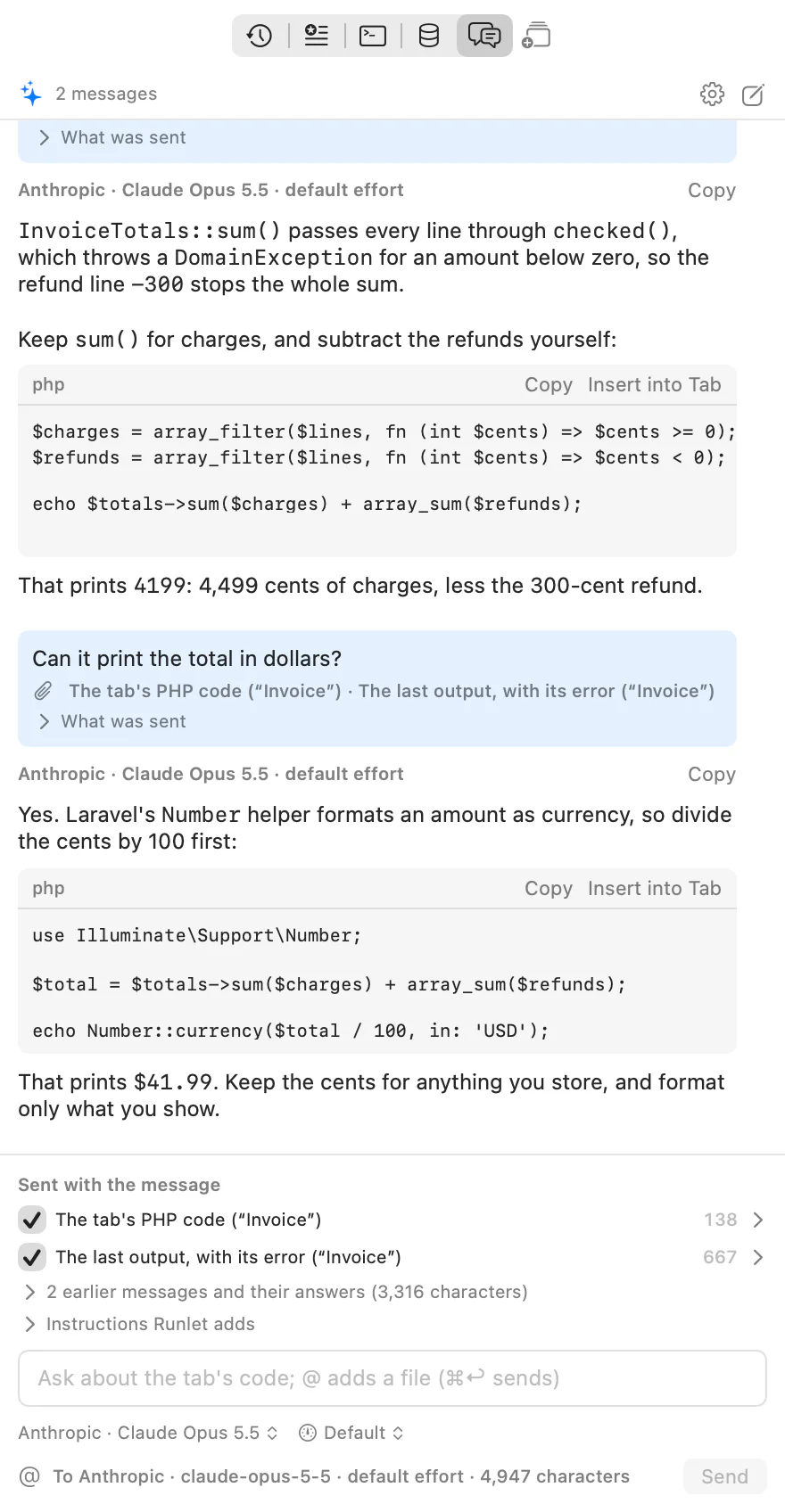
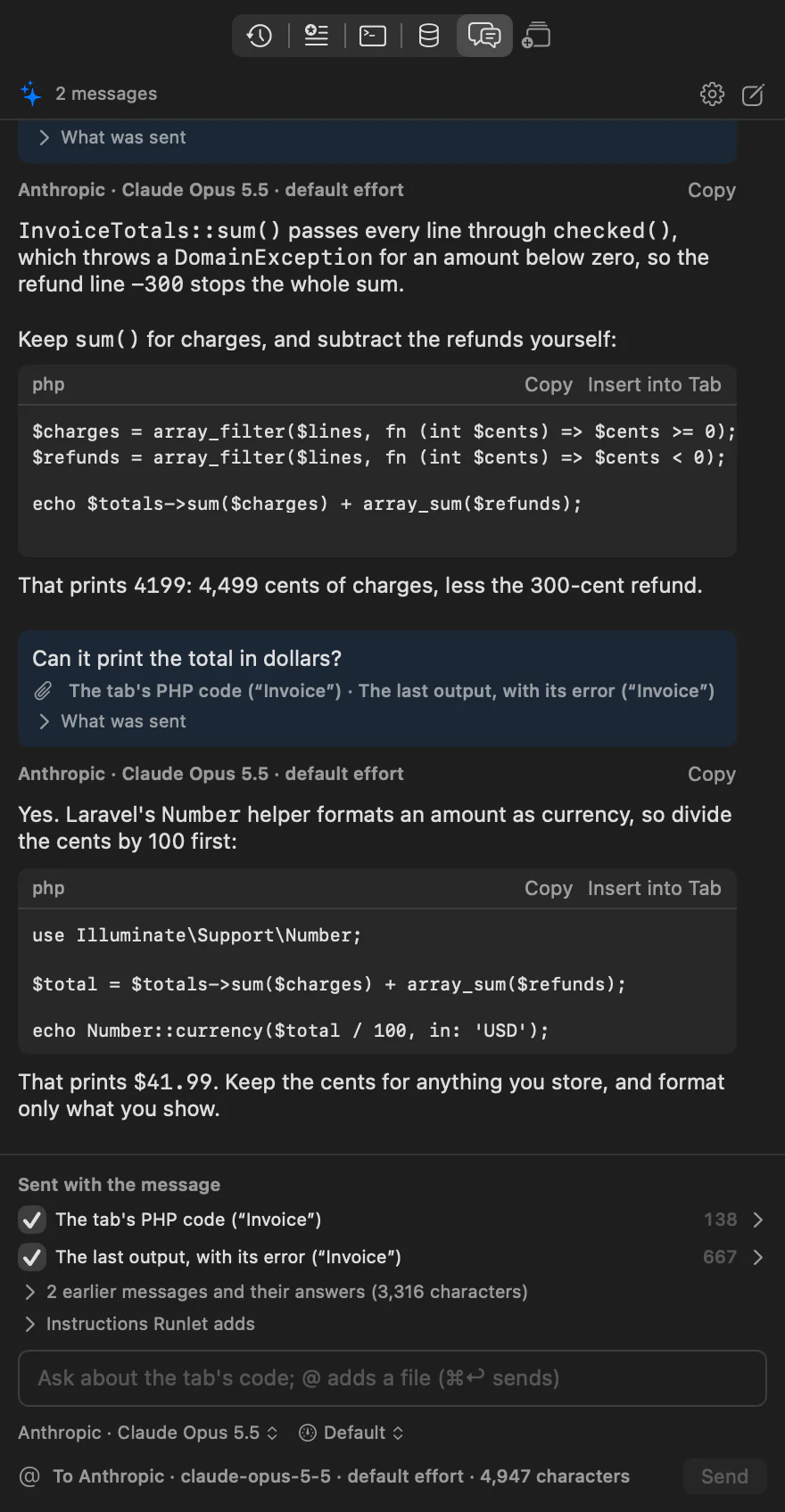
The chat sits in the panel next to the editor, beside History, Snippets, Commands, and Database. Ask about the tab's code, its last output, or a file of your project, follow up on the answer, and insert the code it suggests into the tab.
Open it with Library ▸ Show/Hide Chat (⇧⌘I), or pick Chat at the top of the panel.
Asking
Type your question, then click Send or press ⌘Return. Return starts a new line, and Esc goes back to the editor.
The answer appears as the model writes it. Stop (⌘.) ends it and keeps what arrived. While a run is going on in the tab, ⌘. stops the run unless the message field has the keyboard.
Each message continues the conversation: Runlet sends the earlier messages and their answers again, so the model knows what you're following up on. The pencil button at the top, New Conversation, starts over. A message that got no answer (it failed, or you stopped it before any text arrived) stays in the list, and isn't sent again.
Choosing the Provider, Model, and Reasoning
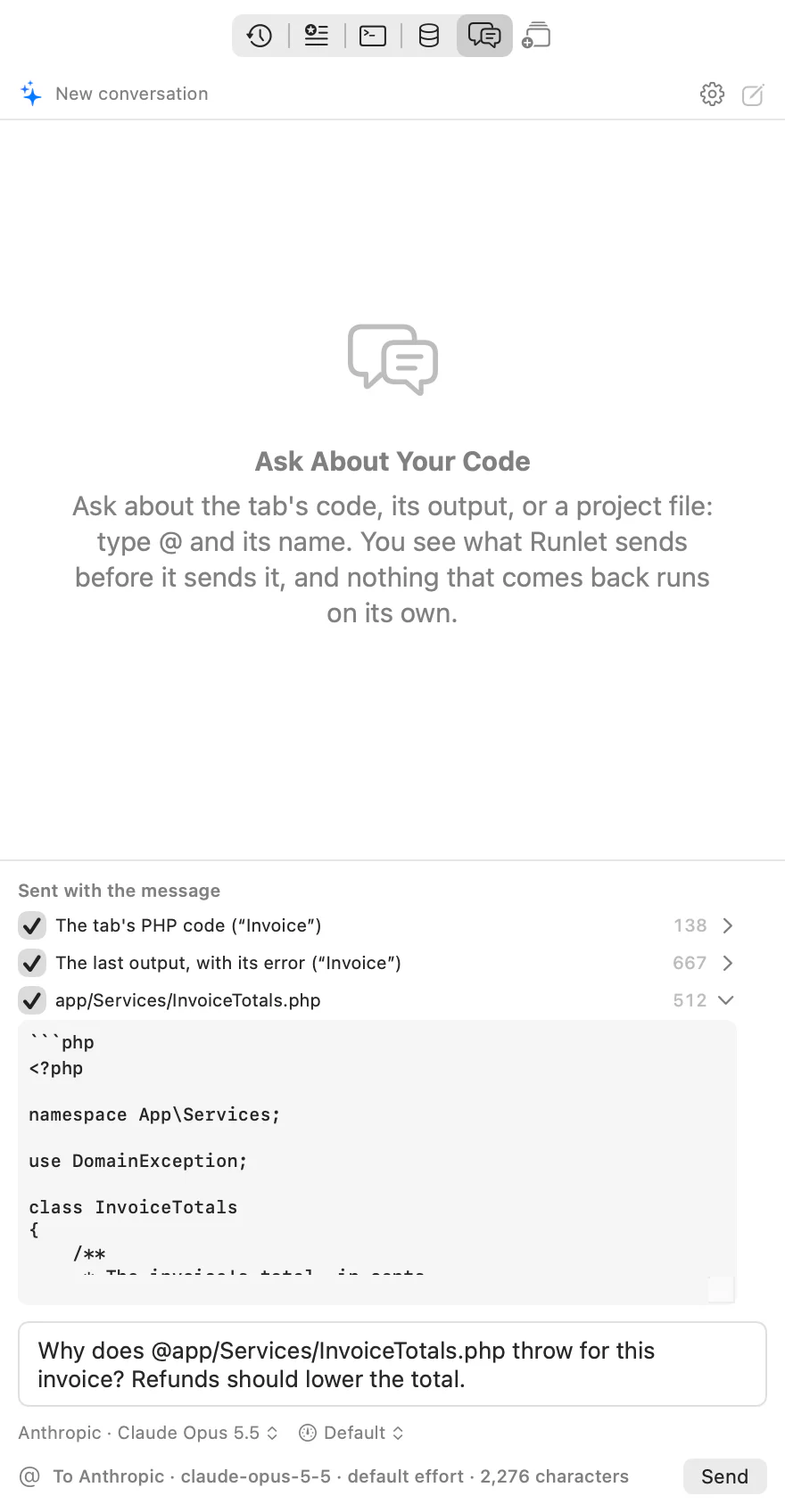
Under the message field, the chat shows where your next message goes, such as Anthropic · Claude Opus 5.5 and the reasoning level next to it. Click either to change it; Library ▸ Chat ▸ Choose Chat Model… and Choose Chat Reasoning… open them too, and Chat With Anthropic and Chat With OpenAI are in the command palette (⇧⌘P).
- Only providers with a key. A provider without a key in Settings ▸ AI is listed but can't be chosen, with how to add one, and the chat never sends to it. If you remove the key of the provider the chat uses, it goes on with the other one; with no key at all, it shows the notice below.
- The models are the ones Settings ▸ AI lists for the provider: your account's own after Test Key. The reasoning levels are the ones the model takes, and Default sends none.
- The chat's own choice. It starts from Settings ▸ AI's provider, model, and level, and what you choose here stays for the chat, also after you quit Runlet, without changing Settings ▸ AI.
- It applies to the next message. Each answer says who wrote it, and how hard it thought: "Anthropic · Claude Opus 5.5 · effort high". The line below the field names the exact model and level the next message goes to: "To Anthropic · claude-opus-5-5 · effort high · 2,275 characters".
Switching Mid-Conversation
You can switch to another provider or model at any point. The new one gets the whole conversation as text, with the code, output, and files that went with each earlier message, and goes on as if it had been there all along. What a model keeps for itself, such as its thinking, never goes to another one; the conversation doesn't need it.
Before the first message after a switch, a note says that the whole conversation goes to the new model, and how long it is. The new model reads all of it again, so it's billed again: nothing carries over from the provider or model you switched from.
Long Conversations
Each model reads only so much at once, its context window: about 1 million tokens for current Claude and GPT-6 models, less for older ones. When the conversation and your message are more than the chosen model reads, the chat says so before sending, and Send stays off. Runlet never cuts a conversation short on its own. Instead you can:
- click Leave Out Earlier Attachments: later messages send your earlier questions and the answers, but not the code, output, and files that went with them, oldest first, until it fits. A note takes their place, so the model knows something was left out;
- uncheck what goes with this message, or start a new conversation;
- choose a model that reads more.
What Goes With a Message
Under Sent with the message, above the field, the chat lists everything it would send with your message. The arrow next to each part shows its exact text.
| Part | What it holds | Checked |
|---|---|---|
| The tab's code | The current tab's code, or only the selected lines when you've selected some. | Yes |
| The last output | Everything the tab's last run printed, with its error. Paths are relative to your project. | No |
| A file you name | The text of a project file you mention with @. | Yes |
| Earlier messages | The conversation so far, as it was sent, with the answers. | Always |
| Instructions Runlet adds | What Runlet tells the model about itself and how to answer. | Always |
Uncheck what you'd rather not send. The checkboxes stay as you set them for the next message. Below the field, the chat says where the request goes and how long it is: "To Anthropic · 2,275 characters". To keep a conversation short, and cheaper, uncheck the tab's code once the model has seen it, or start a new conversation.
Project Files
Type @ and part of a file's name, and the chat suggests files of the tab's project. ↑ and ↓ choose one, and Tab or Return adds it; Esc closes the suggestions. The @ button below the field starts a mention too.
Why does @app/Services/InvoiceTotals.php throw for this invoice?The file's text goes with the message, as Runlet read it when you mentioned it. The rules:
- Only the tab's project. Files come from the tab's project folder: a local project, or the local folder of a Docker or SSH profile. A sandbox tab has none.
- Nothing outside it. Absolute paths,
.., and links that lead out of the folder are refused. - Never secrets.
.envfiles (but.env.exampleis fine), keys and certificates, credentials files such asauth.json, and anything in.gitare never sent. - Text only, and not too much. Files up to 1 MB that are text; Runlet sends the first 20,000 characters of each, and at most 5 files with a message.
- Suggestions skip
vendorandnode_modules. Type a package file's whole path to send it anyway:@vendor/laravel/framework/src/Illuminate/Collections/Collection.php.
A file that can't be sent stays in your message as text, and the list says why it isn't sent.
Hidden Secrets
Before the chat shows the tab's code, its output, or a file, it hides values that look like secrets: private keys, API keys and tokens of well-known services (OpenAI and Anthropic, Stripe, AWS, GitHub, Slack, Google), Laravel's APP_KEY, JSON web tokens, bearer tokens, and passwords in URLs. Each becomes [hidden by Runlet], and the part says how many it hid. The message you type isn't changed.
WARNING
Hiding secrets is a safety net, not a guarantee: a password in a variable looks like any other string. Open the parts and check them before you send code that handles credentials.
Using an Answer
Each code block in an answer has two buttons:
- Insert into Tab puts the code at the cursor in the current tab, or over the selection, as one edit that Edit ▸ Undo Insert into Tab (⌘Z) takes back. In a PHP tab that has other code, the block's opening
<?phptag is left out. Nothing runs, and sandbox auto-run turns off for the tab. - Copy copies the code.
Copy next to the model's name copies the whole answer as Markdown. Library ▸ Chat ▸ Insert Chat Code into Tab inserts the last answer's last code block.
Conversations Aren't Kept
Each window has a conversation of its own, in memory only. Closing the window or quitting Runlet ends it: Runlet never writes conversations to disk, because they hold your code, your runs' output, and your project's files. Each provider's own data policy applies to what you sent.
Continuing From Explain or Fix
When Explain or Fix has answered, Continue in Chat adds its question and answer to the window's chat and opens it, so you can follow up there. Nothing is sent until you send a message.
Chat Without a Key
Without a key for either provider, the chat shows the same notice as the sheet, with Open AI Settings…, and Send stays off. When a message fails, the answer says why, with Try Again, which sends the same message and context again, and Open AI Settings… when the key or the model is the problem.
When Something Goes Wrong
Each failure says what happened and what to do next.
| Message | What to do |
|---|---|
| Anthropic (or OpenAI) didn't accept the key | Check the key in Settings ▸ AI and click Test Key, or create a new one. |
| Is limiting requests | Wait the time it names, then click Try Again. |
| Is overloaded | Try again in a minute, or choose another model. |
| Needs billing set up | Add credits or a payment method in your provider account. |
| Doesn't offer the model | Choose another model; Test Key lists the ones your key can use. |
| The model declined to answer | The provider's safety checks stopped the request. Leave out part of the code, then try again. Anthropic first retries a declined request on another model by itself; the sheet says when that happened. |
| Couldn't reach the provider | Check your internet connection, then Try Again. |
| The answer is cut off | It reached its length limit. Ask again with less code. |