
SQL Tabs
An SQL tab is a scratch SQL client for its tab's target. By default, a statement runs through your application's own database connection, the one its code uses, so Runlet needs no credentials from you:
SELECT id, email, created_at
FROM users
ORDER BY created_at DESC
LIMIT 10;
For a database your application doesn't configure, you can save a connection yourself. Its password is kept only in the macOS Keychain.
NOTE
Nothing in an SQL tab runs by itself. Opening, restoring, or switching to an SQL tab, and choosing its connection, never connects or runs anything.
Creating an SQL Tab
- Choose File ▸ New SQL Tab (also in the command palette). The new tab uses the current tab's target.
- Switch an existing tab with Window ▸ Switch Tab Language (PHP/SQL), or Switch to SQL in the tab's context menu.
- Open a
.sqlfile with File ▸ Open…, from Finder, or withrunlet report.sql. The tab follows the file, and Save As writes.sql.
The tab's language is saved with your session, in workspaces, and in run history. Duplicate Tab and Reopen Closed Tab keep the language and the connection. New SQL Tab has no default shortcut; give it one in Settings ▸ Shortcuts.
SQL tabs highlight keywords, strings, comments, numbers, placeholders, function names, quoted identifiers, and table names, and Toggle Line Comment uses --. They have their own completion instead of PHP's, and the status bar shows SQL.
Running Statements
Running One Statement
Run (⌘R) sends one statement:
- The selection, if there is one. It must hold exactly one statement.
- Otherwise, the statement at the caret. With the caret right after a
;, that's the statement that just ended.
Run Selection (⇧⌘R) needs a selection. Statements are separated by semicolons outside strings, quoted identifiers, comments (--, #, /* */), and PostgreSQL's dollar-quoted bodies. The output says which lines ran, and on which connection.
When the selection holds several statements, nothing runs, so a script never runs halfway. Use Run All Statements for that.
NOTE
Client commands such as MySQL's DELIMITER aren't supported. Write strings the standard way ('it''s'): MySQL's backslash escapes inside strings can confuse the statement splitter.
Run All Statements
Run ▸ Run All Statements (⌥⇧⌘R), or Run All in the SQL bar, runs every statement of the selection, or of the whole tab:
- In order, on one connection. Each statement gets its own result card, such as Statement 2 of 5, with its line, its text, and its rows or affected-row count.
- It stops at the first error. The failing statement's card says which statement failed and why, and which statements didn't run.
- In a transaction, with the In a Transaction checkbox in the SQL bar (on by default, saved with the tab). The script is committed after its last statement and rolled back when a statement fails: "Rolled back the transaction: statements 1–2 were undone." With the checkbox off, each statement commits on its own.
WARNING
MySQL and MariaDB commit some statements at once, with everything before them, even inside a transaction: CREATE, ALTER, DROP, RENAME, TRUNCATE, GRANT, REVOKE, LOCK, and table maintenance. When a script holds one, the output says so before the first statement runs, and a later failure rolls back only the statements after it. PostgreSQL and SQLite roll back schema changes too.
A script that manages its own transaction (BEGIN, COMMIT, ROLLBACK, SAVEPOINT, …) is refused while In a Transaction is on: turn it off to run the script as written. Statements that can't run inside a transaction, such as PostgreSQL's VACUUM, need it off too.
Run History keeps the whole script as one entry. Run (⌘R) still runs one statement: Run All is always a separate action.
Stopping a Statement
Stop (⌘., or the running row's button) ends a statement on the database server too, not only in Runlet. That matters: MySQL and MariaDB keep executing a long UPDATE after its client goes away, and PostgreSQL usually finishes the statement while holding its locks.
Runlet sends the database's own cancel (KILL QUERY on MySQL and MariaDB, pg_cancel_backend() on PostgreSQL) from a second, short-lived connection, after checking that it reached the same server and the same session. The output says what happened: "Cancelled the statement on the server (KILL QUERY 4711).", or why it couldn't. A statement you stopped shows a grey "Interrupted by Stop." line instead of an error card.
- Stop waits at most 8 seconds for the cancel, then stops the run anyway.
- Stop never asks, on production too: it only stops what you already confirmed.
- In a Run All transaction, the cancelled statement fails like any failing statement, and the transaction is rolled back.
- Cancelling your own statement needs no privilege on MySQL, MariaDB, or PostgreSQL.
- SQLite needs no server cancel: stopping the run stops the database too.
WARNING
Behind a transaction-pooling proxy (PgBouncer in transaction mode, ProxySQL), a session id can belong to another client's connection by the time you press Stop. Runlet's checks make cancelling someone else's statement unlikely, not impossible.
The Connection Manager (Window ▸ Connections, ⇧⌘C) lists every statement that runs, with its connection, tab, and session id, and its Close is the same Stop. Runlet opens a database connection per statement and keeps no idle ones.
Bound Parameters
A statement can use :name and ? placeholders, such as one copied from the Queries inspector or from your application's code. You give the values in the parameters drawer under the editor, and the database driver binds them:
-- @param :status text paid
SELECT id, total FROM orders WHERE status = :status AND total > :minimum;
SELECT * FROM orders WHERE id IN (?, ?);
The Parameters Drawer
When the statement the next Run would send has placeholders, a drawer opens at the bottom of the editor. It has one row per value: each :name once, however often the statement uses it, and each ? in order (?1, ?2, …). Each row has a type and a value:
| Type | Use it for |
|---|---|
| Text | Strings, as typed. An empty field is an empty string. |
| Integer | Whole numbers (64-bit). Use it for LIMIT ? on MySQL. |
| Decimal | Numbers such as 19.99 or 1e3. They're sent as text, so a DECIMAL column keeps every digit. PostgreSQL may need a cast: CAST(:price AS numeric) + 1. |
| Boolean | A checkbox. MySQL stores it as 1 or 0. |
| NULL | No value. |
- It follows the text and the caret. The rows update a moment after you stop typing. Values stay with the tab, even when a placeholder goes away for a while, and a
:nameyou rename keeps its value. - Missing values. A row is not set until you type in it or a
-- @paramcomment gives its value. A value that doesn't fit its type (12aas an integer) says why in red. - Collapse the drawer with its chevron to one line, such as "2 parameters: :min_rent = 1000, :skip = 'Linus'".
- Keyboard. Tab and ⇧Tab move between fields, Return (or ⌘R) runs, and Esc returns to the editor.
Run uses the drawer's values right away, without asking. When a value is missing or doesn't fit, nothing runs: the drawer focuses that field and says why ("Set a value for :skip to run.").
With several statements in the tab, the drawer's Statement | All Statements switch shows the values that Run or Run All Statements needs. A name used by several statements is one row; each statement's ?s are rows of their own.
Writing Values as Comments
Values you type last until Runlet quits; they're never saved to a file. To keep them with the SQL (in a saved file, a snippet, or for a colleague), click Write as @param Comments in the drawer. Runlet writes them as comments, in one edit you can undo:
-- @param :status text paid
-- @param :minimum decimal 100
SELECT id, total FROM orders WHERE status = :status AND total > :minimum;
A -- @param comment presets its row (marked @param). Write -- @param :name <type> [value] anywhere in the tab, or -- @param ?2 <type> [value] in a statement's own leading comments for its second ?. The types are text, integer, decimal, boolean, and null (or string, int, number, bool, …). The value is the rest of the line, or a quoted string: 'it''s', or "two\nlines" as JSON. A value you set in the drawer wins over the comment.
What Counts as a Placeholder
? and :name (letters, digits, and _) count; nothing inside strings, comments, or quoted names does. PostgreSQL's :: casts and MySQL's := aren't placeholders, and ?? stands for a literal ?, so PostgreSQL's ? JSON operators are written ??, ??|, and ??&, as in PHP code.
Runlet refuses, before anything runs:
:nameand?in the same statement;- numbered placeholders such as PostgreSQL's
$1; - names PDO reads differently, such as
:café; - on MySQL and MariaDB, one name in several places of a statement (
WHERE a = :id OR b = :id): give each place its own name, or use?.
Connections that can't bind values (WordPress's $wpdb fallback, Doctrine without a PDO connection, a project driver's callable) refuse statements with placeholders. Runlet never writes values into the SQL instead. On WordPress, use $wpdb->prepare() in a PHP tab.
Values and Safety
- Values never become part of the SQL text: a value of
'; DROP TABLE orders; --is just text. - A read-only connection still refuses
UPDATE … = :value: write detection reads the statement, whatever the values. - Production confirmations list the values next to the statement, and the output's first line names them.
- Run History keeps the values with the statement, as
-- @paramlines, so opening the entry again presets the drawer.
WARNING
Values are no more hidden than literals typed into a statement. Don't put secrets in them on a shared Mac.
Results
While a statement runs, the output shows where and for how long ("Running on the default connection… 1.2 s") with a Stop button. Runlet stays responsive meanwhile.
A statement that returns rows shows a table with its columns in order, the rows, the row count, and the time it took. Duplicate column names (two id columns of a join) are kept. Any other statement shows how many rows it affected.
- Filter rows keeps the rows with a cell that contains your text ("12 of 1,000"). Click a header to sort (numbers as numbers, NULLs last), and drag its edge to resize the column.
- Copy: select rows and press ⌘C for tab-separated text. The context menu has Copy Value, Copy Row, Copy Row as CSV, and for one row, Copy Row as JSON and Copy Row as PHP Array.
- Copy CSV and Export CSV… write the rows shown. Open in Window opens the result window.
A line under the result names the driver (sqlite, mysql, pgsql, …), the connection, and where it came from, such as via Laravel DB::connection(). Database errors show as the run's error.
A statement that returns several result sets, such as a MySQL stored procedure (CALL stock_report()), shows one card per result: "Result 1 of 2", "Result 2 of 2".
Limits. Runlet shows at most 1,000 rows per statement (change it in Settings ▸ General ▸ SQL Results ▸ Rows per page: up to 10,000), 200 columns, 8 KiB per text cell, and 8 MiB per result. A cut read statement offers Load Next. Binary values show their size and first bytes in hex.
TIP
PostgreSQL's driver loads a whole result into PHP's memory before Runlet reads the first rows, so add LIMIT when you query a large table.
Loading More Rows
When the row limit cut a result, Load Next 1,000 under the table runs the statement again for the following rows, and adds them to the same table. Filtering, sorting, and CSV export then cover every loaded row: "First 2,000 rows in 2 pages (more not shown)", and at the end, "End of the result: all 2,600 rows, in 3 pages."
- Only plain reads page: statements that start with
SELECT,WITH,TABLE, orVALUES, can't write, and lock no rows. Writes such asUPDATE … RETURNING, locking reads (FOR UPDATE), andSHOW,EXPLAIN, orPRAGMAnever page; the card says why. A statement of a multi-statement Run All doesn't page either: run it on its own. - Each page is a separate run, on the same target and connection, with the same bound values. If the tab moved to another target or its saved connection changed, Load Next asks you to run the statement again.
- Production asks again for every page: "Load the next page on production (rows 1,001–2,000)?"
- Run History keeps each page as an entry, ending with a line such as
-- Load Next: rows 1,001–2,000.
WARNING
Rows can shift between pages when the data changes, and without ORDER BY the database may return rows in a different order each time. Add ORDER BY on a unique key for stable pages.
A card keeps at most 50,000 rows, 500,000 cells, and 64 MiB; then it suggests narrowing the statement or paging with LIMIT and OFFSET yourself.
The Result Window
Open in Window above any result table opens it in a resizable window of its own. It works for an SQL tab's rows and for a PHP collection shown as a table, and it never runs anything: it shows rows the run already returned.
- Search all columns, and Add Filter rules per column: contains, doesn't contain, =, ≠, <, ≤, >, ≥, is empty or NULL, and isn't empty. Text comparisons ignore case, and numbers compare as numbers.
- Columns: sort, resize, drag to reorder, and hide or show them from the Columns menu.
- Rows: ⌘C copies them tab-separated. The context menu adds Filter: column = value for the clicked cell.
- The footer counts what's shown ("11 of 50 rows · 5 columns"), and Copy CSV and Export CSV… write it. A window opened from a cut result has Load Next too.
Result windows aren't saved with your session.
Exporting a Whole Query
Run ▸ Export Query to CSV… writes every row of a read statement to a CSV file on your Mac, with no row limit. Under a cut result, Export All Rows… does the same. (A card's own Copy CSV and Export CSV… write only the rows it holds.)
The sheet has the delimiter (comma, semicolon, or tab), a header row, and how NULL is written: an empty field, or \N as MySQL's LOAD DATA and PostgreSQL's COPY read it. Values are written in full, as UTF-8 with RFC 4180 quoting.
- Only statements that Load Next would page can be exported. Placeholders take their values from the drawer.
- The rows stream to the file as the database sends them, so a large export doesn't fill Runlet's memory. The sheet counts the rows and bytes, and Stop cancels the statement on the server.
- The file appears only when every row arrived: a stopped or failed export leaves no partial file, and a file you chose to replace stays as it was.
- The rows go only to the file, never to the output, the run log, or an AI client. Run History records the statement with a line such as
-- Export Query to CSV: 100,000 rows to orders.csv.
Explain Statement
Run ▸ Explain Statement (⌥⌘E), or Explain in the SQL bar, shows the database's plan for the selected statement or the one at the caret. It never runs the statement: Runlet puts the database's own EXPLAIN in front of it and sends that alone.
| Database | Explain | Explain Analyze |
|---|---|---|
| MySQL 5.6+ | EXPLAIN FORMAT=JSON | EXPLAIN ANALYZE (8.0.18+), reading statements only |
| MariaDB | EXPLAIN FORMAT=JSON | ANALYZE FORMAT=JSON, reading statements only |
| PostgreSQL | EXPLAIN (FORMAT JSON) | EXPLAIN (ANALYZE, FORMAT JSON), in a transaction that's rolled back |
| SQLite | EXPLAIN QUERY PLAN | none |
The output shows the plan as a tree: each step's operation (Seq Scan, Hash Join, Index lookup, …), its table and index, the estimated rows and cost, and its conditions. Collapse a step with its chevron, or Collapse All.
- Full scans are highlighted: a step that reads every row of a table gets an orange row and a FULL SCAN badge, and the card counts them. On a small table, a full scan is often the cheapest plan.
- Raw shows the database's own output. Copy gives the tree as indented text.
- Placeholders take their values from the parameters drawer.
- Production asks before an Explain, like every SQL action, although the statement doesn't run.
Other databases, and connections whose database Runlet doesn't know, say so and run nothing: write EXPLAIN in the tab and Run it instead. A statement that already starts with EXPLAIN or DESCRIBE is refused: run it with Run.
Explain Analyze
Run ▸ Explain Analyze… (also in the Explain button's menu) runs the statement, and shows the plan with what happened: the rows each step returned and its time, and on PostgreSQL, the planning and execution time.
- A statement that can change data asks first ("EXPLAIN ANALYZE runs the DELETE"), with Cancel as the default.
- PostgreSQL runs it in a transaction that Runlet rolls back, so a write's changes don't stay; the card says Rolled back. Sequences it advanced, and anything it did outside the database, do stay.
- MySQL and MariaDB refuse writes under Explain Analyze, because Runlet couldn't undo them. Reads run as written.
- SQLite has no
EXPLAIN ANALYZE.
Completion
SQL tabs complete as you type (after two letters, or . after a table or alias), and on Show Completions (⌃Space):
- Keywords and functions, always, even with no connection:
SELECT,LEFT JOIN,IS NOT NULL,COUNT(),COALESCE(), … Keywords follow the case you type. - Tables after
FROM,JOIN,UPDATE,INTO,TABLE, andDESCRIBE. - Columns of the tables the statement names, first, wherever a column fits.
alias.andtable.list that table's columns (FROM orders o…o.), andschema.lists a PostgreSQL schema's tables. - Names that need quotes are inserted quoted: backticks on MySQL, double quotes elsewhere.
Tables and columns come from the schema of the tab's connection. Runlet reads it, names and types only, never rows:
- when you choose Load Schema in the SQL bar's schema menu (production asks first, every time);
- along with the first successful run on a connection, except on production.
The schema stays in memory until you choose Forget Schema, edit the target, or quit Runlet. A schema that can't be read never fails a run; the menu says why.
Schema Explorer
Library ▸ Database (⇧⌘B) shows the database of the current tab's target: an SQL tab's connection, or the default connection of a PHP tab. It shows the same schema completion uses, so nothing loads until you choose Load Schema or run a statement.
- Tables and views, each with its column count and, on MySQL, MariaDB, and PostgreSQL, the estimated number of rows.
- Columns of an expanded table: the type, the primary key, a foreign key's target (
→ customers.id), NOT NULL, and the default. Then the table's indexes. - Filter by table or column name.
Hover over a table to see its buttons for the first four actions below, each with a tooltip that says what it does. Right-click a table for all of its actions, by name. The rest of the time, a table shows only its name and its size, so long names fit.
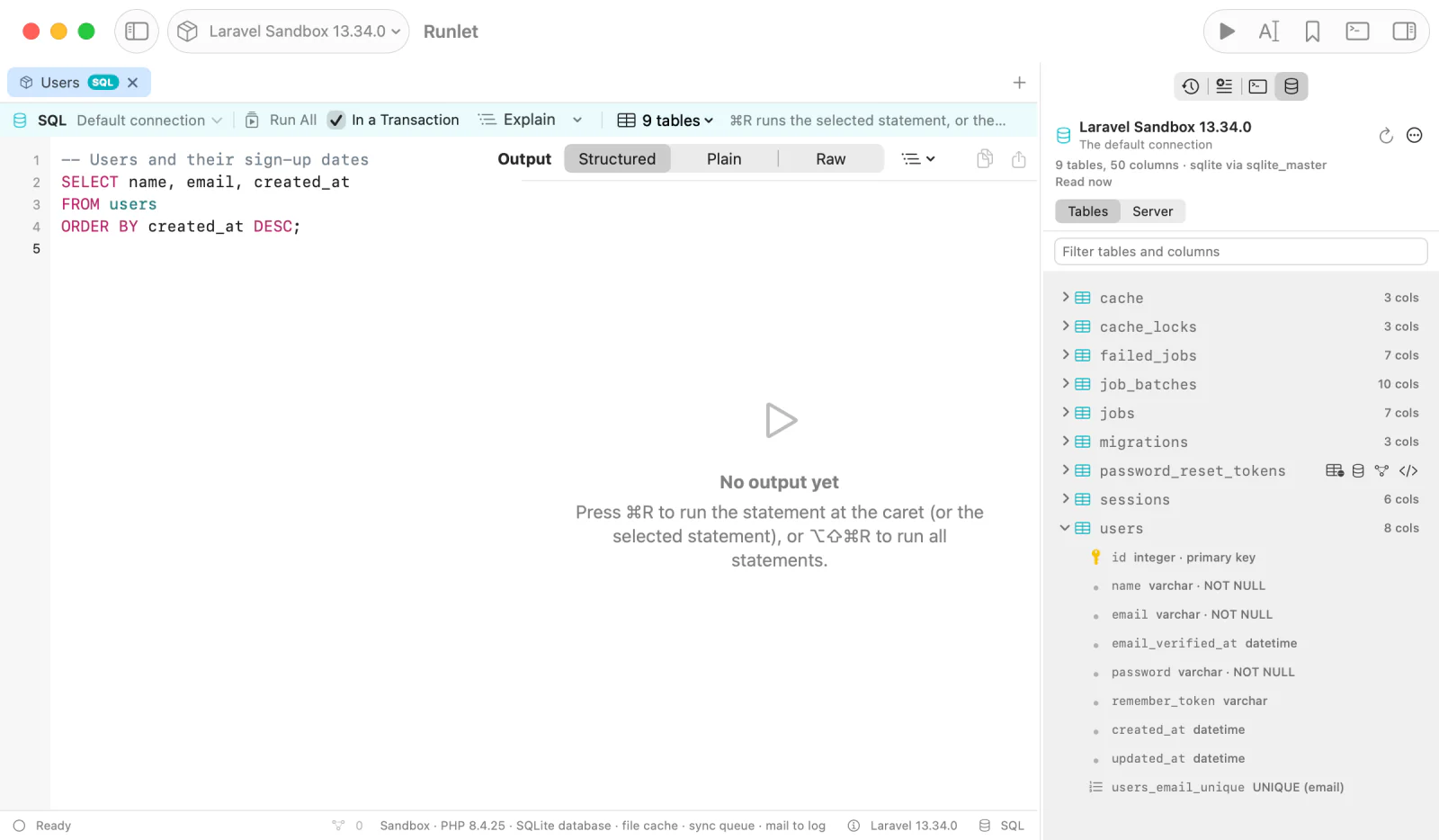
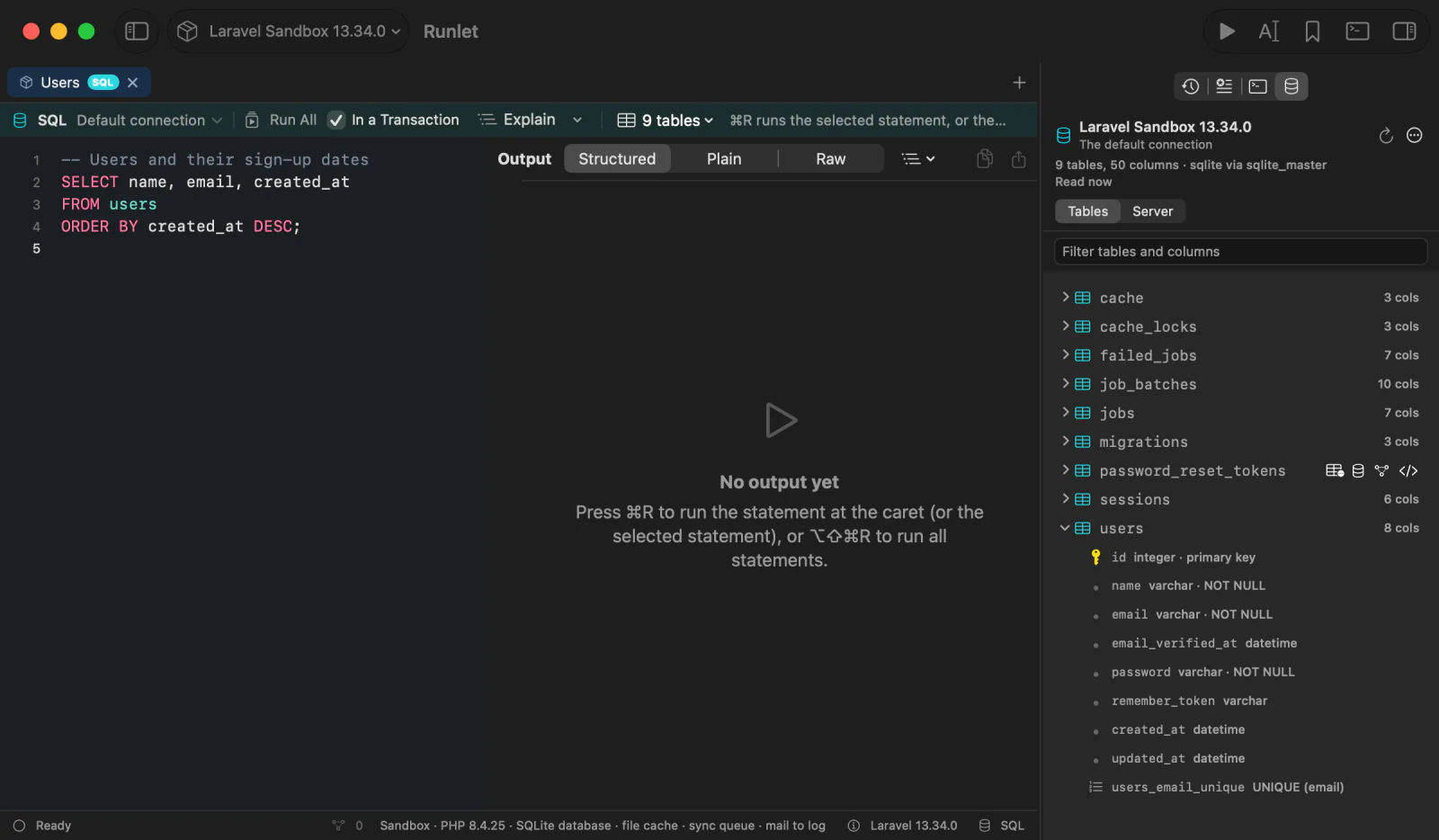
None of its actions runs anything by itself:
| Action | What it does |
|---|---|
| Browse Table (Browse View) | Opens the table's rows in a window, a page at a time, where you can edit them. |
| Open in SQL Tab (double-click a table) | Opens SELECT * FROM <table> LIMIT 50 in a new SQL tab, without running it. |
| Show Relations | Draws the table and the tables its foreign keys connect it to. |
| Show Definition | Shows the table's or view's CREATE statement. |
| Open as PHP (Query Builder) | On Laravel: opens DB::table('<table>')->limit(50)->get(); in a new PHP tab. |
| Import CSV… | Inserts the rows of a CSV file into the table. |
| Insert Name (double-click a column) | Inserts the name at the cursor, quoted as completion quotes it. Copy Name and Copy table.column copy it. |
With VoiceOver, the first four are the table's actions.
Browsing and Editing a Table
Browse Table opens a table in a window of its own, titled "orders · Browse", on the pane's target and connection. It reads one page when it opens, and another when you ask.
- Pages on the server. A page holds 25 to 1,000 rows (100 by default). Previous and Next are in the footer, which says which rows show ("Rows 101–200"), and Reload reads the page again.
- Order. Pages follow the primary key, so they stay stable. Click a header to sort on the server; click it again to reverse.
- Filters on the server. Add Filter adds a rule for a column, and Apply Filters (⌘Return) reads the first page with them. Values are bound, never written into the SQL, and checked against the column's type first ("“seven” isn't a whole number").
On a table with a primary key, you can edit rows. Nothing is sent while you edit: changed cells show in orange, rows to delete are struck through in red, and new rows show in green.
- Edit Value (double-click a cell) shows the column's type, NOT NULL, and default. NULL is a checkbox; the text "NULL" is text. The context menu also has Set to NULL and Revert.
- Add Row adds an empty row. Columns left on Default get the database's default, such as an auto-increment key. Delete Row marks the selected rows.
- Text longer than 8 KB and binary values can't be edited.
Review Changes lists the exact statements Apply will run, with their values:
DELETE FROM "products"
WHERE "id" = ?
-- ?1 = 5
UPDATE "products"
SET "price" = ?
WHERE "id" = ? AND "price" = ?
-- ?1 = 129.90, ?2 = 2, ?3 = 26.9
INSERT INTO "products" ("name", "category", "price")
VALUES (?, ?, ?)
-- ?1 = 'Reading light Gale', ?2 = 'Lighting', ?3 = 79.90
Apply runs them in one transaction. Each statement must change exactly one row. An UPDATE also checks the old value of each column it changes, so if someone else changed the row since you read it, nothing is applied: Runlet rolls everything back, and the footer says which change failed and why. Discard drops your pending changes; closing the window does too.
Rows are read-only for views, tables without a primary key, read-only connections, and connections that can't bind values. On production, every read asks first, and Apply always asks, listing every statement. Every Apply is one entry in Run History; reading pages isn't recorded.
Showing a Definition
Show Definition reads a table's or view's definition from the database's catalog and shows it in a sheet. No rows are read, and nothing is changed or run.
| Database | How |
|---|---|
| MySQL, MariaDB | SHOW CREATE TABLE or SHOW CREATE VIEW, and SHOW CREATE TRIGGER for the table's triggers: the server's own text. |
| SQLite | The CREATE statement as it was written, then the object's indexes and triggers. |
| PostgreSQL 12+ | Rebuilt from pg_catalog, since PostgreSQL has no SHOW CREATE: columns, constraints, partitioning, indexes, triggers, comments, and the enum types the columns use. Owners, privileges, policies, and rules are left out. |
A comment header above the definition says what was read, from which server, and that nothing ran. Copy copies it, and Open in SQL Tab opens it in a new tab without running it. SQL Server isn't supported yet.
Showing Relations
Show Relations opens a diagram of one table: the table in the middle, the tables it references on the left, and the tables that reference it on the right. It's drawn from the schema the Database pane already loaded, so it reads and runs nothing.
- 1 Hop shows the tables one foreign key away; 2 Hops adds the tables connected to those.
- Each table shows its keys and the columns other tables reference; All Columns shows every column.
- Click a table to centre the diagram on it. Back and Forward go through the tables you centred on.
- Click a key's label to select it. The footer shows its join, such as
JOIN customers ON customers.id = orders.customer_id, with Copy Join and Insert Join, which inserts it into the SQL tab without running it. - Export saves the diagram as a PNG image or an SVG drawing.
Server Details and Sessions
The Database pane's Server section (the Tables | Server switch) shows the database server of the same connection. Nothing is read until you click Read Server Details:
- Server: the product and version, the current database and user, uptime, the number of connections, and whether the connection is encrypted.
- Sizes: the database's size, and its 20 largest tables with their data and index sizes.
- Sessions: who is connected, active ones first: the user and host, the state, how long it has run, how long its transaction has been open, what it waits for ("waits for #4711"), and its statement. The pane's own session is marked THIS PANEL.
A session's menu has Cancel Query…, which stops its statement and keeps the session, and Kill Session…, which ends it (the server rolls back its open transaction). They always ask, on every connection, and never act on the pane's own session. Runlet checks that the session is still the one listed before it sends anything.
Each part is read separately, so a missing privilege hides only what it covers, and the section says what you can't see. The Sessions header can refresh the list every 5, 10, or 30 seconds; it stops when the section hides or Runlet goes to the background, and isn't offered on production. MySQL, MariaDB, PostgreSQL, and SQLite are supported.
Importing CSV
Import CSV… in a table's context menu inserts the rows of a CSV file into that table:
- Choose a file. Runlet reads UTF-8 files up to 8 MiB and 100,000 rows. It detects the delimiter and whether the first row is a header; you can change both.
- Map the columns. Each column takes the CSV column of the same name, or the CSV's columns in order. Choose Don't import to leave a column to its default. Empty fields are NULL is on by default.
- Preview the first five rows and the
INSERTstatement. - Import. Every row is inserted with bound values, in one transaction. At the first error, everything is rolled back, and the sheet names the failing line: "Line 213 of parts.csv (row 212) failed: … Duplicate entry '5' for key 'PRIMARY'."
Imports are refused on read-only connections and into views, and production asks first with the row count and the table. For larger files, use the database's own loader (LOAD DATA, COPY).
Snippets
Save as Snippet… (⌥⌘S) in an SQL tab saves an SQL snippet. Saved to the project, it's a .sql file in .runlet/snippets/. SQL snippets show an SQL badge in the Snippets panel and open as SQL tabs, never running. See personal snippets and project snippets.
A snippet can remember its connection: these are Runlet's saved queries. The Save SQL Snippet sheet has Open on the saved connection “Reporting”, on by default. Runlet stores only the connection's name, so the snippet works on other targets and Macs.
History
Run History keeps each statement with the connection it ran on, by name, never its host, user, or password:
- Rows show the connection after the target: "orders · Reporting".
- Search matches the connection's name, and a Connection menu shows one connection's runs.
- The same statement on another connection is an entry of its own.
- Opening an entry puts the SQL tab on its connection. Restoring never runs anything.
Which Connection Opens
An entry or a snippet opens on its connection as it's found on the tab's target: an application connection by its name; a saved connection of that target or of all targets, by name (ignoring case). Another target's own connection is never used. When the connection doesn't exist there, the tab uses the default connection, and the SQL bar says so: "The connection “Archive” from this entry no longer exists; using the default connection."
Connections
The SQL bar above the editor picks the tab's connection. Choosing one never connects or runs anything. Its list has two parts:
- Application connections: Default connection, or a connection your application configures. After a run, the list shows the names the framework reports, such as Laravel's
database.connections. Other Connection… takes any name. - Saved connections: the ones you saved for this target or for all targets, then New Connection… and Edit Connections….
Runlet finds an application connection inside your app, in the same PHP process that boots it for a run:
- A project driver's
sqlConnection(). - The framework's own connection: Laravel's
DB::connection(), Symfony's Doctrine connection, or WordPress's database fromwp-config.php(through PDO, or$wpdbwhen PDO isn't possible). Code that sets up Eloquent through Capsule, or$wpdb, works too. - Otherwise, the run stops with No SQL connection. Runlet never guesses credentials: save a connection for the target, or add
sqlConnection()to a project driver.
Any PDO driver works. MySQL, MariaDB, PostgreSQL, and SQLite are the usual ones.
Saved Connections
Save a connection for a database your application doesn't configure: a read replica, a reporting or legacy database, or a project without a driver. New Connection… in the SQL bar creates one, and the tab switches to it when you save it. Its password is kept only in the macOS Keychain, and a statement on it runs no project code. The Connections page has every field and option.
From This Mac, and for All Targets
A saved connection opens in the target's PHP by default. Connect from: This Mac opens it with a PHP on your Mac instead, for a database your Mac can reach but the target can't. A connection saved for All targets shows in every SQL tab, the sandbox's too. See From This Mac, and for All Targets.
Through an SSH Tunnel
Connect from: This Mac, through SSH profile reaches a database only a server can reach, such as one behind a bastion, through a local port forwarded over the SSH profile's connection. Runlet asks before it connects. See Through an SSH Tunnel.
Read-Only Connections
A read-only connection lets you look at data, production data included, without changing it. MySQL, MariaDB, PostgreSQL, and SQLite refuse writes in its session, and Runlet refuses statements that could write before sending them. See Read-Only Connections.
Connection Options
The connection editor's Advanced section has a Unix socket, the charset, TLS, init statements such as SET search_path TO reporting, public, and DSN options. See Connection Options.
Environment and Colour
Mark a saved connection development, staging, or production, with a colour. A run uses the stricter of the target's and the connection's marking, so a production connection on a development target asks before every statement. See Environment and Colour.
Passwords
A saved connection's password is stored only in your login keychain, and reaches only the PHP process that opens the connection. See Passwords.
Import From TablePlus
Import from TablePlus… creates saved connections from the ones TablePlus keeps. It's behind a feature flag in Settings ▸ Advanced. See Import From TablePlus.
Safety
- Nothing runs by itself. Opening, importing, or restoring an SQL tab never runs it. SQL tabs have no auto-run, and AI clients can't run SQL.
- Production always asks. On a production target, or with a connection marked production, every statement, Run All, Load Schema, Explain, and Load Next page shows the confirmation (⌘Return confirms), even during a production grace period for PHP snippets. It shows the statement, the connection, and its bound values, and a red warning when the statement can write:
UPDATE,DROP,SELECT … INTO,FOR UPDATE, which locks rows, … - Development and staging don't ask, for reads or writes: an SQL tab is a scratch client, like the PHP tabs that can write to the same database. Run History keeps every statement that ran.
- Reading tools read only when you ask: Load Schema, Show Definition, the Server section, and Browse Table. Show Relations reads nothing.
- Changes you review: Browse Table applies only the statements Review Changes showed, in one transaction. Import CSV inserts in one transaction.
- Saved connections boot no project code and keep their passwords out of everything Runlet writes. SSH tunnels never connect by themselves.
Write detection is best-effort. Runlet treats a statement as a read only when it starts with SELECT, SHOW, DESCRIBE, EXPLAIN (without ANALYZE), VALUES, TABLE, WITH, or a reading PRAGMA, and holds no INSERT, UPDATE, DELETE, MERGE, INTO, CREATE, DROP, ALTER, or TRUNCATE outside strings and comments. Functions with side effects called from a SELECT aren't detected. On production, the confirmation shows for every statement anyway.