
SSH
An SSH profile runs snippets on a server, with the server's own PHP, in your application's folder there. Pick it in the target menu, press Run, and the output, dumps, errors, and Stop work as they do on your Mac.
Runlet uses your Mac's own ssh and your ~/.ssh/config, so hosts, jump hosts, keys, ssh-agent, and 1Password work as they do in Terminal. Password and two-factor logins work too. Runlet never stores a password or a key.
Creating an SSH Profile
Choose Library ▸ New SSH Profile… (also in the target menu and the command palette), click + in the Profiles window, or import hosts from ~/.ssh/config. Then fill in the form:
| Field | What to enter |
|---|---|
| Name | Shown in the target menu, tabs, and history, such as "Shop production". |
| Host | An alias from ~/.ssh/config (the list button shows them) or a host name. Your config's user, port, ProxyJump, keys, and IdentityAgent apply, and Runlet shows below the field what the alias resolves to. |
| User, Port, Jump host, Key file | Optional overrides. Leave them empty to use ~/.ssh/config. |
| Directory | The application's folder on the server, as an absolute path, such as /home/forge/example.com/current. A symlink is fine. See Finding the Directory. |
| PHP executable | php, a name such as php8.3, or an absolute path. Test Connection lists the PHP binaries it finds. |
| Strict types, Mail | As in a local project's options. Intercepting mail (recorded, not sent) suits production hosts. |
| Keep the runner and compiled PHP on the server | On for new profiles. See Keep the Runner and Compiled PHP on the Server. |
| Docker on This Host | Optional: run inside a container on the server. See Docker on the Server. |
| Authentication | SSH agent, 1Password, or key files, or Password or two-factor code. See Logging In. |
| Keep connection | For agent and key logins: how long the shared connection stays open after the last run, from 10 minutes (the default) to Until I disconnect. |
| Compress the connection | ssh -C, on by default. It shrinks what runs send: Runlet's runner (about 1.7 MB, when the server doesn't keep it) compresses to about 320 KB. |
| Local folder, PHP version for completion | The project's checkout on your Mac. See Local Folder. |
| Environment, Databases | See Environments & Production and saved connections. |
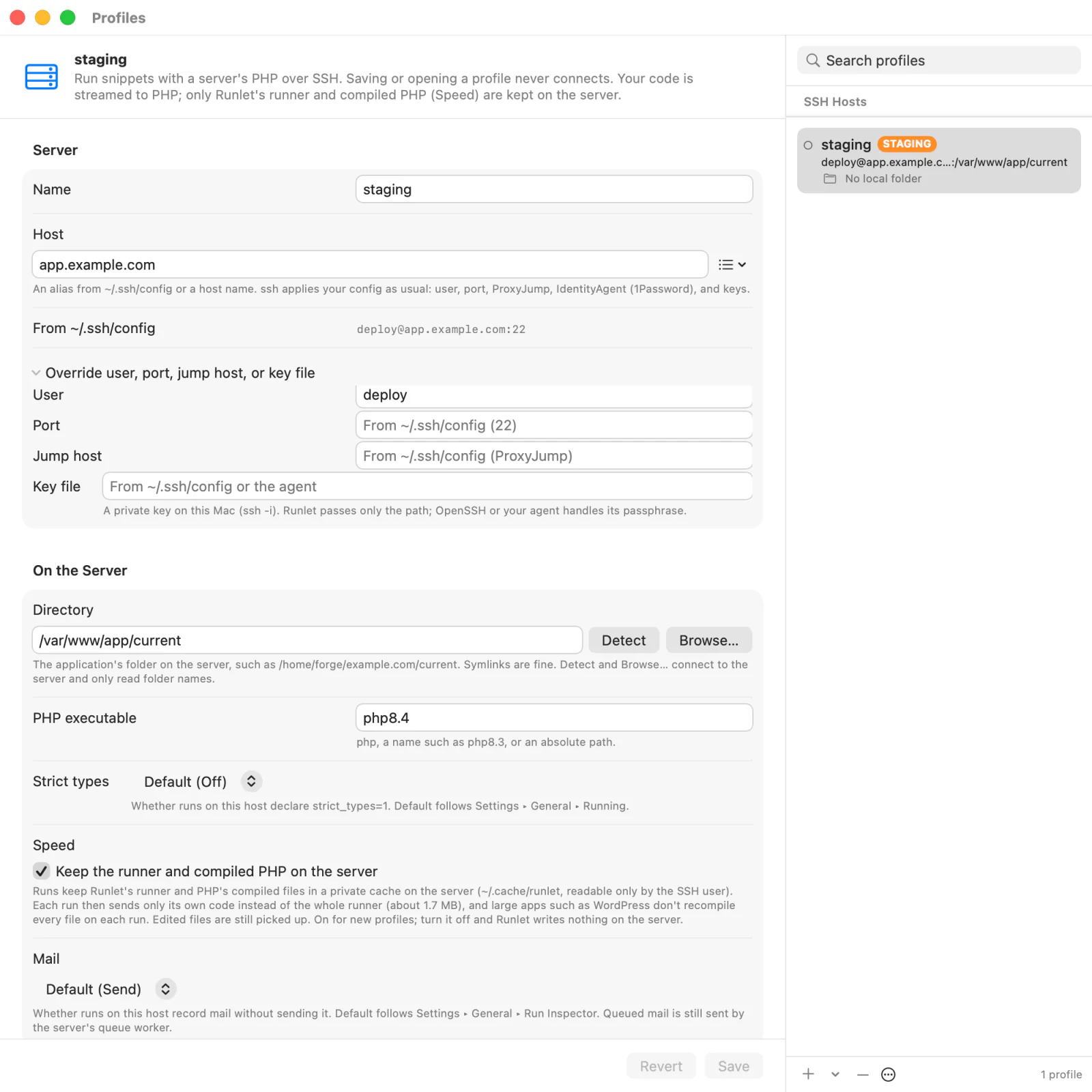
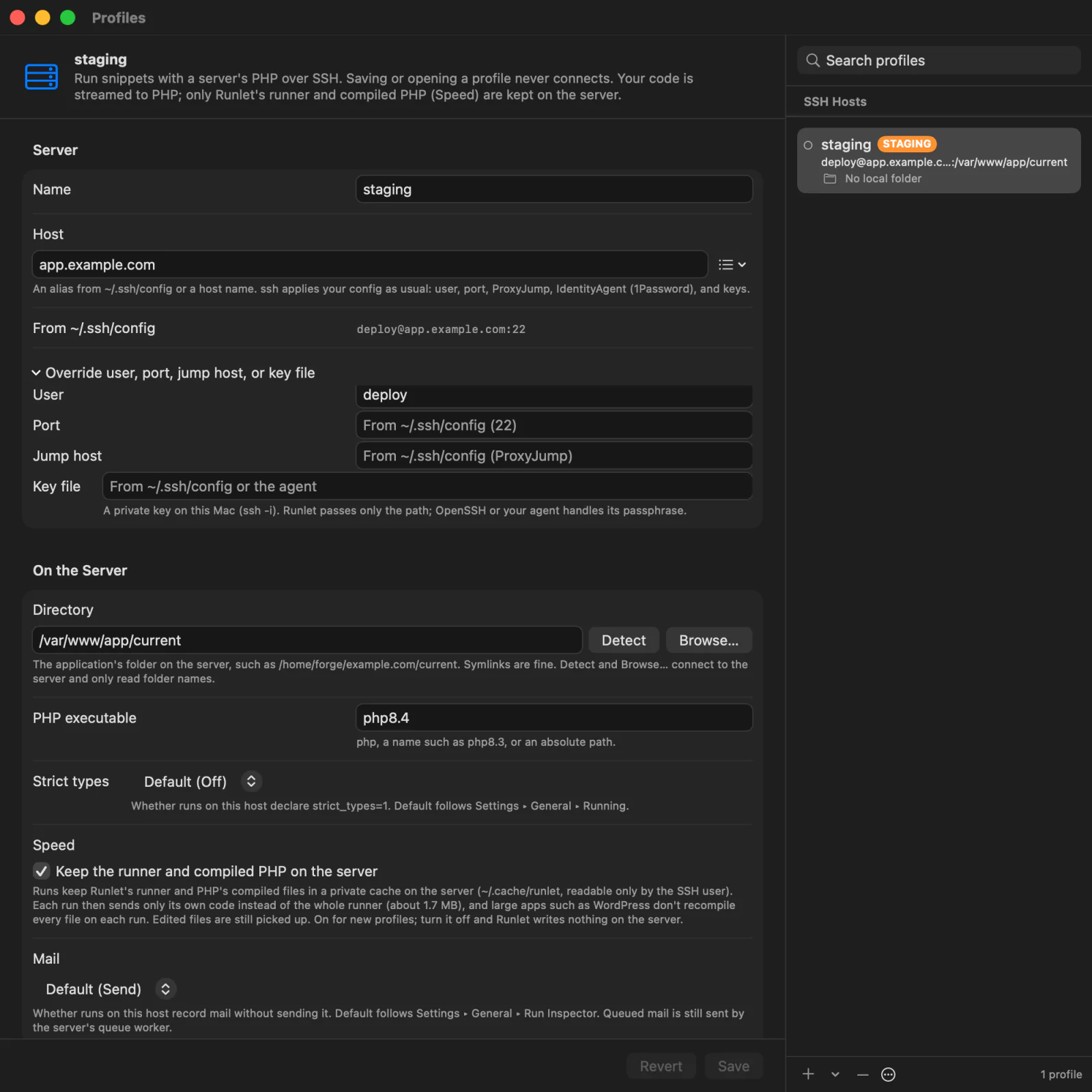
The form checks each value as you type. Spaces around a value and a trailing / don't matter, and an empty field only shows a grey example.
NOTE
Saving, opening, or switching to an SSH profile never connects, and neither do launching Runlet or restoring tabs. Runlet connects only when you press Run, Test Connection, Detect, Browse…, or Connect…, or ask the Commands panel to list the host's commands.
Finding the Directory
- Detect connects (without prompts, like Test Connection) and runs a short PHP check that only reads folder names. It fills in your home folder if Directory is empty, and lists folders that look like PHP applications (with
artisan,bin/console,wp-config.php,composer.json, or a.runletfolder) in~/*,~/*/current,/var/www/*,/srv/*,/home/*/*, and/opt/*. Click one to use it. - Browse… opens a folder picker on the server. Type a path (
~works there) or click through folders. Folders that look like PHP applications have badges, and symlinks show where they point. It writes nothing. - Symlinks stay as you chose them, so a profile on Forge's
currentfollows the next release. - Runlet doesn't expand
~in the Directory field: type the full path, or click Detect, which replaces a leading~with your home folder.
For a password or two-factor profile, log in first: Detect offers Connect…, and the form comes back with your values once you've logged in.
Importing Hosts from ~/.ssh/config
Library ▸ Import SSH Hosts from ~/.ssh/config… (also in the Profiles window's +, Settings ▸ Targets, and the command palette) lists the Host aliases of your config, with what each resolves to (user@hostname:port, and the jump host). Wildcard patterns are skipped, and Include is followed.
Tick the hosts to add. For each, enter the application's directory now, or leave it empty and use Detect later, and check the suggested environment: Runlet suggests production or staging from words in the alias or host name, such as prod or staging. Aliases that already have a profile are shown but skipped.
Importing reads your config only and connects nowhere. (Match exec lines in your config do run, as they do for ssh -G in Terminal.)
The Profiles Window
Library ▸ Manage Profiles… (also in the target menu, Settings ▸ Targets, and the command palette) shows every Docker and SSH profile. The list has a Docker section and an SSH Hosts section, with each host's connection status and environment; the form beside it edits the selected profile.
- Edits stay a draft until Save (Return or ⌘S); Revert goes back. Switching profiles or closing the window with unsaved changes asks first.
- + creates a Docker or SSH profile, or imports SSH hosts. − deletes the selected profile from Runlet: the server is untouched. ⋯ duplicates it, uses it in the current tab, or connects and disconnects.
- Connect… logs in with the profile's current values, saved or not, in a terminal tab of the main window.
Logging In
Keys, Agents, and 1Password
With SSH agent, 1Password, or key files, logins need no extra steps: keys in ssh-agent or the 1Password SSH agent, key files without a passphrase, and keys whose passphrase macOS keeps (UseKeychain). With 1Password, approve the request in 1Password's window.
The first run opens a shared connection, and later runs reuse it: each run then starts in tens of milliseconds, and 1Password asks only once. The connection closes after the Keep connection time without use.
A profile can name a Key file on your Mac. Runlet passes only its path to ssh: it never reads or copies the key, and OpenSSH or your agent asks for its passphrase.
Password or Two-Factor Code
For servers that ask for a password, a one-time code (OTP, Duo), or the passphrase of a key no agent holds:
- Set the profile's Authentication to Password or two-factor code.
- Click Connect…: in the banner above the editor, the target menu, the profile, or the command palette ("Connect to SSH Host…").
- A terminal tab opens below the editor, and OpenSSH asks its questions there, exactly as in Terminal. What you type goes straight to
ssh: Runlet never reads, stores, or logs it. - Once you're logged in, the tab closes, and the status bar and the profile show Connected.
Runs then reuse that login. They never try to log in themselves: a run on a disconnected profile stops at once with Connect…, without contacting the server.
The login stays until you choose Disconnect (in the target menu, the profile, or the command palette), even when you quit Runlet: after a restart, Runlet finds it again. It also ends when the network drops or the Mac sleeps long enough for the server to give up; the status then says Login ended, and the next run asks you to connect again. A wrong password keeps the terminal tab open, so you can read OpenSSH's message. Disconnecting while runs are in progress asks first, since they end with the connection.
Host Keys
Runlet never accepts a host key by itself. A run on a host that isn't in your ~/.ssh/known_hosts yet fails with "isn't in your known hosts yet" and offers Connect…: the terminal tab shows OpenSSH's own fingerprint question, and only your answer adds the key. A changed host key is refused with OpenSSH's own warning, and Runlet offers no way around it.
Agent and key profiles can use Connect… too, for example to accept a new server's host key once.
Test Connection
Test Connection in the profile logs in without prompts and runs one short PHP check in the directory, which only reads files. Your snippet and the project's code don't run. It shows:
- the PHP version and binary, the login user, and the server's operating system;
- whether the directory exists and is readable, and its real path (for symlinks such as Forge's
current); - the framework or
.runletdriver, found from files; - whether the tokenizer is there, and how Stop can signal PHP;
- the round-trip time;
- other application folders and PHP binaries on the server, each with a button to use it.
How Runs Work
- Nothing is written on the server unless you keep the runner there. Without Keep the Runner and Compiled PHP on the Server, Runlet's runner streams to PHP on its standard input with every run, so read-only homes and project folders work. With it (on for new profiles), Runlet writes only into
~/.cache/runleton the server, and a run that can't write there still works. - A run never asks for anything, and never accepts an unknown host key.
- A dead network link ends a run after about 45 seconds, instead of hanging.
- Any login shell works: bash, zsh, dash, and fish. (csh and tcsh are untested.) Text a login script prints, such as an
echoin.bashrc, shows up in the output. - Project drivers in
.runlet/are read from the server's directory, so commit or deploy them: a.runlet/folder that exists only on your Mac isn't sent.
Keep the Runner and Compiled PHP on the Server
Two things make a run on a server slower than one on your Mac: Runlet sends its runner, about 1.7 MB, with every run, and PHP compiles every file the application loads (thousands for WordPress with plugins; the Run Log's "WordPress boot" line shows how long that takes). With Keep the runner and compiled PHP on the server, on for new profiles, the server keeps both in a private cache:
- The runner, in
~/.cache/runlet/runner. A run then sends only its own code, a few kilobytes. On a slow connection that saves most of the time a run takes: about 1.3 seconds per run at 2 Mbit/s upload, and 0.3 seconds at 10 Mbit/s, with Compress the connection on. - PHP's compiled files, in
~/.cache/runlet/opcache. Runs reuse them. Edited files are still compiled again, because PHP checks their timestamps on every run.
The first run after you install or update Runlet sends the runner and keeps it there. Later runs, also after you restart Runlet, use the kept copy.
- Private. Both folders are readable only by the SSH user (mode
0700, files0600). - Checked before every run. Runlet uses the kept runner only when it's a regular file (not a symlink), owned by the SSH user and private to it, in a folder no one else can write, and when its SHA-256 hash is the one Runlet expects. Otherwise the run sends the runner again, and keeps the new copy.
- Your code and passwords stay off the disk. The run's own code, and a saved connection's password, still arrive on standard input, which neither cache stores.
- A run never fails because of the cache. When it can't be used (a read-only home, a full disk, or PHP without the opcache extension), runs go on without it, and the runner streams as it would with the setting off.
- Three runners at most. Runlet keeps the three it used last, so updates don't pile up.
- Only Runlet's runs use the cache: the server's
php.ini, PHP-FPM, WP-CLI, and cron are not affected. - Not with a Docker container step. The setting isn't offered there, and the runner streams into the container with every run.
The Run Log's launch line says what each run sent, such as "4,020 bytes on stdin: the request; the runner (8da5a95574a7) is read from ~/.cache/runlet/runner on the server".
Clearing the Cache
Delete the folder on the server at any time; the next run fills it again:
rm -rf ~/.cache/runletTurn the setting off if nothing may be written on the server: every run then sends the runner, and Runlet writes nothing there. Profiles saved by Runlet 0.1.0 or earlier keep their setting: off, unless you turned it on.
Docker on the Server
For an application that runs in Docker on the server, turn on Run inside a Docker container on this host in the profile's Docker on This Host section. Runs then use docker exec into that container, through the profile's SSH connection, instead of the server's own PHP.
| Field | What to enter |
|---|---|
| Container | Click List Containers…: Runlet lists the server's running containers, grouped by Compose project. Choose the application's container. |
| Working directory | The application's folder inside the container. It's filled in from the container, the menu suggests its mounts, and Browse… lists its folders. |
| PHP executable, Execution user, Temporary directory | As in a Docker profile: php, an optional docker exec --user, and the folder exported as TMPDIR. |
| Docker command | How the server calls Docker: docker, an absolute path, or sudo -n docker when your login may use Docker only through passwordless sudo. |
It works like a Docker profile, over SSH:
- The container is found again before each run, by its Compose project and service (or its name). When several replicas match, or a container without Compose labels was replaced, Runlet asks which one to use, and never switches silently.
- Stop signals PHP inside the container. The container keeps running.
- Test Connection also finds the container and checks PHP inside it. A server without PHP of its own is fine, since only the container's PHP runs (but Detect, Browse… for the server directory, and the drift warning need PHP on the server).
- File links map container paths to your local folder, through the server directory's mount into the container (for example,
/var/www/html/app/User.php→/home/forge/shop/app/User.phpon the server →~/Code/shop/app/User.php). - The server directory stays part of the profile: Detect, Browse…, and the drift warning use it, and it fills itself in from the container's mount when it's empty.
- Commands and Open REPL run inside the container. The terminal's + menu has Shell in
<container>on<host>(bash if the container has it, else sh) and Shell on<host>for the server itself. - Docker problems are explained: Docker not found as the Docker command, no permission on the Docker socket, sudo asking for a password (a run can't answer it), or the Docker daemon not running.
Commands, Shells, and REPLs
- Project commands. The Commands panel lists an SSH host's commands only when you click List Commands on
<host>: listing boots the application on the server, as a run does. Each command then runs on the server, in a terminal tab below the editor, in the profile's directory and with its PHP. A login shell'sPATHapplies, so Composer's global tools and PHP version managers are found. See Project Commands. - Shell on Host opens your login shell on the server, in the profile's directory: from the terminal's + menu, the target menu, the Commands panel's terminal button, or the command palette ("Open Shell on SSH Host").
- Open REPL opens the project's REPL on the server: Tinker, else PsySH, else
php -a. - Tests run the project's test suite on the server:
php artisan test, Pest, or PHPUnit.
Like runs, commands never ask for a password and never accept an unknown host key. A password or two-factor host must be connected with Connect… first. On production hosts, listing, every command, a shell, and a REPL ask first, and Tests are disabled.
Local Folder
The local folder is the project's checkout on your Mac. It's optional, but it powers what Runlet reads from your Mac:
| Feature | With a local folder | Without one |
|---|---|---|
| Completion and diagnostics | Your project's classes, and the variables your driver injects. | PHP's own functions and classes only. |
| The tab card's framework and driver | Read from the local files, with no network. | From Test Connection and runs. |
| Project snippets | .runlet/snippets/ in the local folder, and Save Snippet to Project…. | None. |
| Host commands | A driver's host commands run on your Mac, in the local folder. | Listed with "needs a local folder". |
| Open Project in Editor | Opens the local folder. | Disabled. |
| Terminal | New shells start in the local folder. | New shells start in your home folder. |
| File links | Server paths open the matching local file in your editor, also for Forge-style …/current and …/releases/<id>/ paths. | Plain text. |
| Source in error cards | The lines around a server path, from the local file, marked local copy (source excerpts). | "Source not available here". |
Suggestions. When a profile has no local folder, Runlet looks for one on your Mac and offers it with Use for Completion, above the editor and in the profile. It never applies one on its own. It looks at folders Runlet already knows, and at ~/Code, ~/Projects, ~/Sites, ~/Herd, ~/Developer, ~/src, ~/dev, and ~/www, reading only .git/config and composer.json. The best matches have the same Git remote as the server's checkout, then the same composer.json name (both after Test Connection), then the same folder name.
Drift warning. Turn on Warn when the local folder differs from the server to compare the two after Connect…, Test Connection, and the first run of a session. A difference shows a yellow banner, such as "Your local checkout (feature/x @abc1234) differs from forge@shop (main @def5678)…", with Check Again. It never blocks a run. It's off by default because it reads files on the server (its .git files, or composer.lock for deployments without Git), with a read-only PHP check.
Saved Database Connections
A database connection you save for an SSH profile opens on the server, in the server's PHP (or the container's), so a database that listens only on the server works. That PHP needs pdo_mysql or pdo_pgsql; Test Connection lists the drivers it has.
The password travels on the SSH connection's standard input, never on the server's command line, so it isn't in the server's ps, shell history, or logs. Such a run boots none of the project's code.
A connection can also open from your Mac: Connect from: This Mac never goes to the server, and Connect from: This Mac, through SSH profile uses an SQL tunnel.
SQL Tunnels
When the server reaches the database but its PHP can't open it, a saved connection can go through an SSH tunnel. Runlet adds a port forward to the profile's shared connection, and your Mac's PHP opens the database through it.
- Loopback only. The forward listens on
127.0.0.1on your Mac, on a free port. As with any SSH tunnel, other processes on your Mac can connect to that port while it exists; the database still asks for its password. - Only while needed. One forward per saved connection, reused by its runs, and removed 5 minutes after its last use, when no open SQL tab uses it, when you edit or delete the connection, when you disconnect, and when Runlet quits.
- Never connected silently. If the profile isn't connected, the run asks first ("Connect to “bastion” for the SSH tunnel?"). A password or two-factor profile opens Connect…, and you run again once you're logged in.
- The Run Log shows when a tunnel is added, reused, or removed, such as
127.0.0.1:50123 → postgres:5432 through bastion. - Production. A tunnel through a production profile asks before every run, and the confirmation names the profile.
The Connection Manager lists open tunnels, and closes them.
Stop
Stop ends the run's PHP on the server, and everything the snippet started there, even processes that left its process group. Runlet signals only processes of this run: SIGTERM first, then SIGKILL if they don't end.
Stop needs Linux's /proc. On a server without it (BSD, macOS), Runlet signals nothing it can't verify and reports the stop as unconfirmed: PHP may keep running until it finishes.
Connection Manager
Window ▸ Connections (⇧⌘C), or the connection count in the status bar, opens the Connection Manager. It lists every profile's open shared connection, since when it's open, and what uses it (runs, statements, tunnels). Its Close is the profile's Disconnect, and asks first when something uses the connection or when its login needed a password or a code. It reads the connections on your Mac only, and never connects.
Production Hosts
Mark live servers as production in the profile's Environment. Every run then asks first (⌘Return runs), and listing commands, each command, a shell, and a REPL ask every time. Tests are disabled. Environments & Production has the details, including Mark as Production for an application that says it's in production.
Troubleshooting
Runlet explains ssh failures in plain words, with OpenSSH's own message below:
| Message | What to do |
|---|---|
| isn't in your known hosts yet | Click Connect…, and compare the fingerprint OpenSSH shows with the server's. |
| The host key … changed | Find out why. If the server was rebuilt, remove the old key with ssh-keygen -R <host> in Terminal, then use Connect… to check the new one. |
| didn't accept a key from your SSH agent or key files | Try ssh <host> in Terminal. If the server needs a password or a code, set the profile's authentication to Password or two-factor code, and click Connect…. |
| Not connected / The login … has ended | Click Connect…. |
| could not be resolved / couldn't reach | Check the host, your VPN, and your network. |
| The directory … doesn't exist | Fix the profile's directory: Test Connection lists the applications it finds. |
| PHP was not found as … | Set the PHP executable: Test Connection lists the PHP binaries it finds. |
| Docker was not found on … | Set the profile's Docker command to an absolute path, or install Docker on the server. |
| may not use Docker (permission denied on the Docker socket) | Add your login to the docker group, or set the Docker command to sudo -n docker if passwordless sudo is allowed. |
| Several running containers … match | Choose the container in the sheet that opens: it stays chosen while it runs. |
| The SSH session … ended before the runner finished | The connection dropped, or PHP was killed on the server (for example, by the out-of-memory killer). |
| Runlet could not open the saved connection … The SSH server of "…" connects to the database for the tunnel | The tunnel reached the server, but the server couldn't reach the database. Check the host and port as the server sees them (ssh <host> nc -z <db host> <port> in Terminal), and that the server allows TCP forwarding (AllowTcpForwarding). |
| The SSH tunnel couldn't listen on a free port | Five free ports were taken before ssh could use them: run again. |
What Runlet Stores
- The profile, in Runlet's data folder: the host, overrides (including a key file's path), directory, PHP, options, and local folder. Never a key, a password, or a passphrase.
- The shared connections' control sockets, in Runlet's data folder (or, when its path is very long, in your temporary folder).
- Workspaces (
.runletfiles) name the host and directory of their SSH tabs: details of your infrastructure, but no secrets. - On the server, with Keep the Runner and Compiled PHP on the Server: Runlet's runner and PHP's compiled files in
~/.cache/runlet. Nothing else.