
Settings
Open Settings with Runlet ▸ Settings… (⌘,). It has a tab per area, and every change is saved at once. Each option explains itself in the window; this page is a map of where things are, and covers the parts that aren't visible at first.
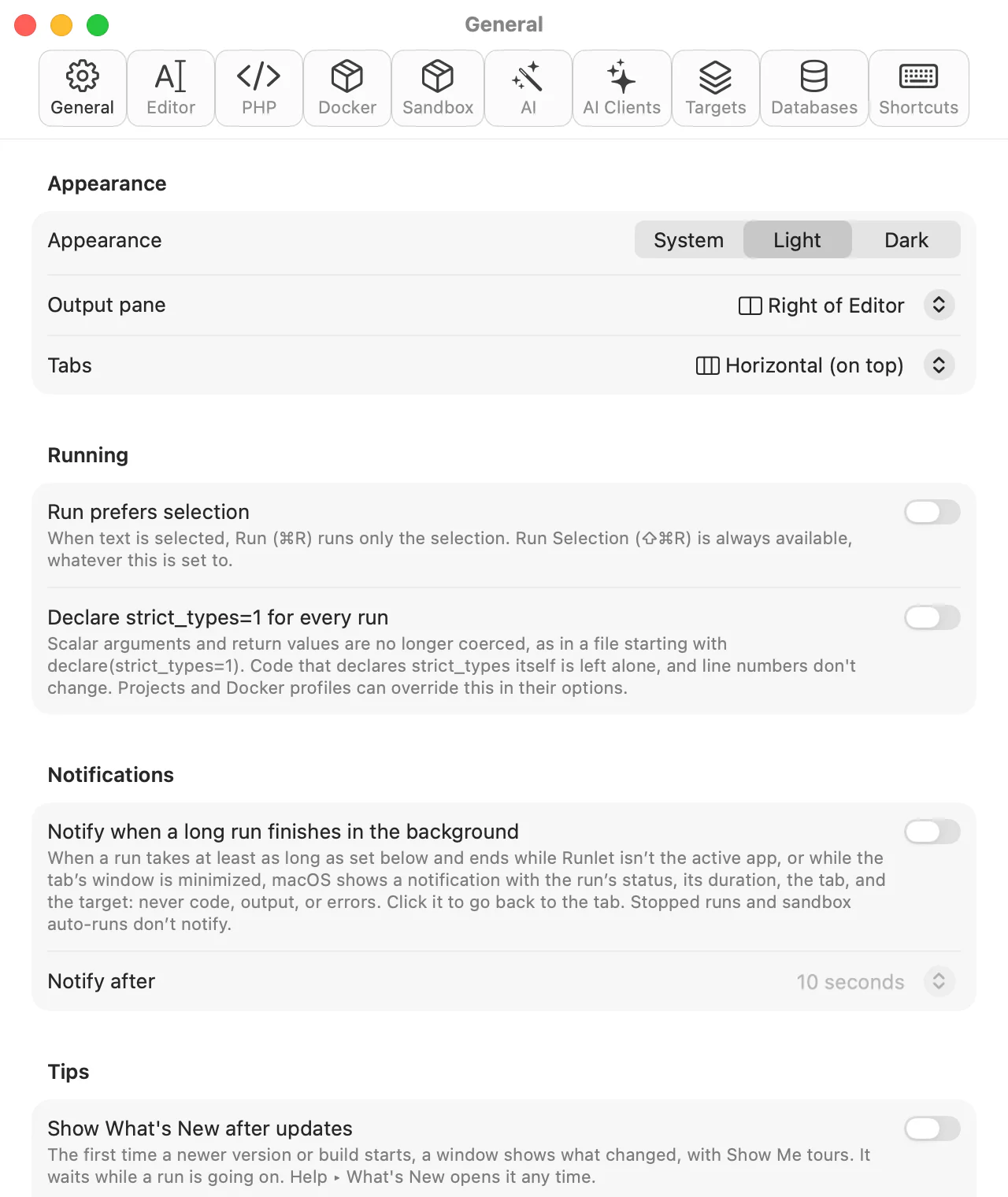
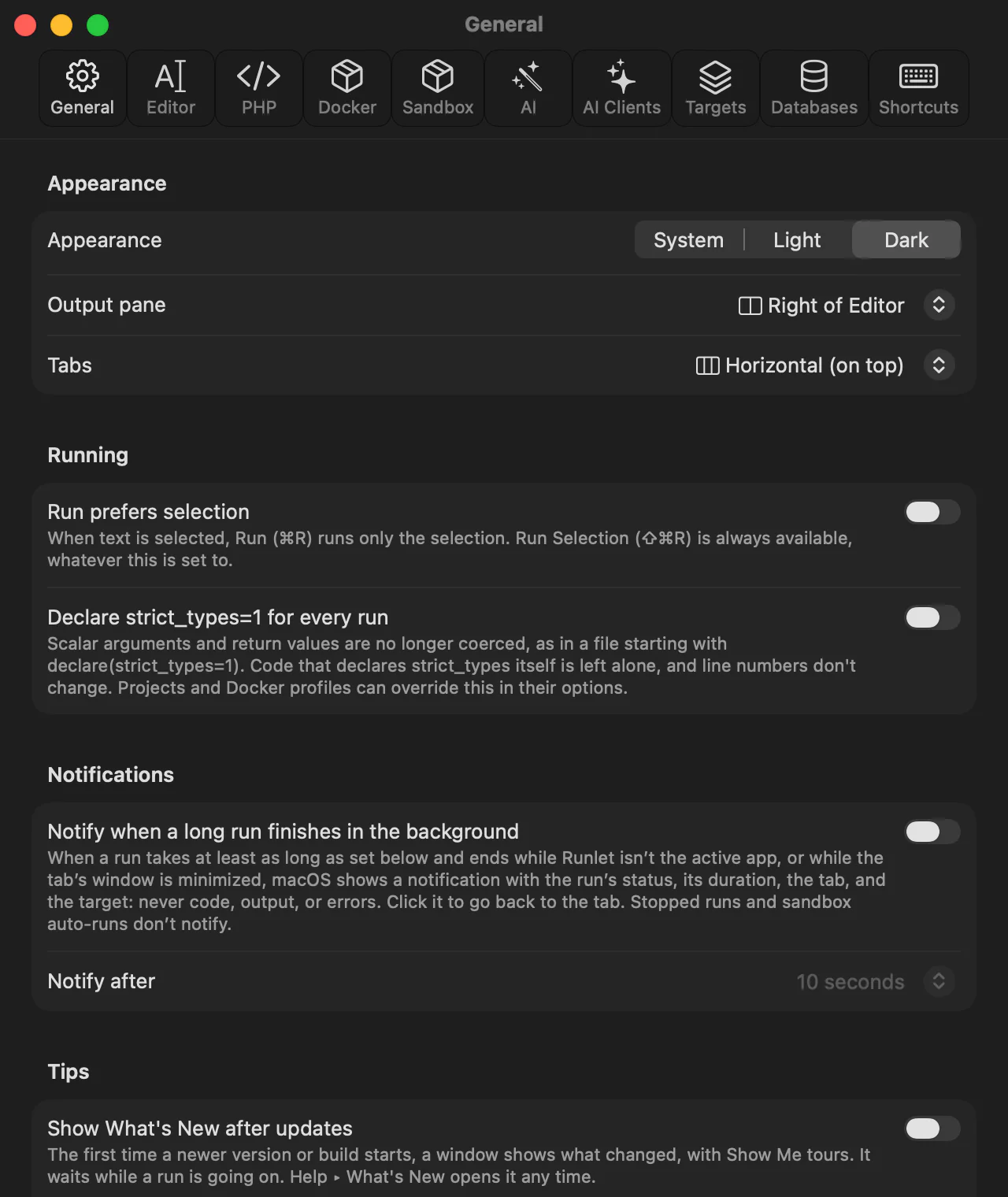
General
| Section | What it holds |
|---|---|
| Appearance | Appearance (System, Light, or Dark), where the Output pane goes (right of or below the editor), and the Tabs layout (horizontal, or vertical with details). |
| Running | Run prefers selection (⌘R runs only the selection when there is one) and Declare strict_types=1 for every run. See Running Code. |
| Notifications | A notification when a long run finishes while Runlet is in the background: one that took 10 seconds or more, or the 30 seconds, 1 minute, or 5 minutes you choose. See Notifications for Long Runs. |
| Tips | Show What's New after updates, Show tips on first launch, and Show shortcut tips, with buttons that open What's New and replay the tour. |
| Output | When a run's output appears (Realtime or At once), Hide the output pane until a run, and Escape hides the output pane. See The Output Pane. |
| SQL Results | Rows per page for SQL tabs: 1,000 (the default) to 10,000. See SQL Tabs. |
| Magic Comments | Show values of magic comments. See Magic Comments. |
| Run Inspector | Record queries, mail, and logs (on); Record HTTP requests (on) and Include request and response bodies (off); Record jobs (on); Record events (off); Intercept mail (off); and Preview returned mail, views, and HTML (on). Projects and profiles can override mail interception; the other switches apply to every target. See Choosing What's Recorded. |
| New Tabs | The Default target of new tabs: the sandbox, or one of your projects, Docker applications, or SSH hosts. |
| History & Snippets | What double-click (and Return) does in History and Snippets, how many runs History keeps (1,000 by default), and Clear History…. See Run History. |
| Command Palette | Clear Command History, which forgets the commands you chose in the palettes, so none come first, and the counts behind shortcut tips. See Frequently Used Commands. |
| Command-Line Tool | Installs the runlet command. See Command-Line Tool. |
| Updates | The update Channel (Stable or Beta), Check for updates automatically, and Check Now. See Updating Runlet. |
Editor
| Section | What it holds |
|---|---|
| Text | The editor's Font, Font size (13 pt by default), Line height, Ligatures, and Wrap long lines. |
| Indentation | Tab width (2, 4, or 8) and Insert spaces instead of tabs (on). |
| Formatting | The Style, Quotes, and Format before run of Format Code. |
| External Editor | The editor that file paths in the output open in, at their line: one that's installed, or a Custom Command… such as code --goto {file}:{line}. Test opens the current project in it. |
| Language Service | PHPantom code intelligence: completion, hover, signature help, diagnostics, and code navigation. |
Targets and Runtimes
| Tab | What it holds |
|---|---|
| PHP | The Default PHP for local projects that don't choose their own, the PHP installations Runlet found (with Rescan), and Runlet's PHP, which you can download, update, or remove. See Your First Run. |
| Docker | Whether Docker is running, and an optional path to the docker command. |
| Sandbox | The bundled Laravel sandbox: its version, where it's kept, Run sandbox with (Automatic, Local PHP, or Docker), and Reset Sandbox…, which restores a fresh copy and leaves your projects, snippets, and history alone. |
| Targets | Your local projects, Docker profiles, and SSH hosts, with Edit…, Manage Profiles…, and Import from ~/.ssh/config…. See SSH Targets. |
| Databases | Saved database connections for all targets and for each target. See Connections ▸ Saved Connections. |
AI, AI Clients, and Shortcuts
- AI holds your Anthropic and OpenAI API keys, kept in your Mac's Keychain and shown only masked once saved, with Test Key and Remove Key…; the model for each provider; and Send to, the provider AI features use. Nothing is sent until you click Send in a feature, and only Test Key sends the key on its own. See AI Assistance.
- AI Clients turns on the connection for AI clients such as Claude Code and Cursor (off by default), lists the connected clients with Revoke, and shows how to set up a client. See AI Clients (MCP).
- Shortcuts changes the shortcut of any command. See Keyboard Shortcuts. At the top, Open Quick Run from any app turns on the Quick Run panel's global shortcut (off by default; ⌃⌥R unless you record another), and says when another app, macOS, or one of Runlet's commands already uses it.
Tips
Settings ▸ General ▸ Tips has Show What's New after updates and Show tips on first launch, both on by default, with buttons that open What's New and replay the guided tour. Help ▸ What's New in Runlet and Help ▸ Show Tour open them too.
Show shortcut tips, also on by default, shows a command's keyboard shortcut in a small tip after you click its menu item or button, or choose it in a palette: at most once a day for each command, until you've used the shortcut three times. See Keyboard Shortcuts ▸ Learning Shortcuts.
Advanced (Feature Flags)
Settings ▸ Advanced lists feature flags: hidden or experimental features, each with a title, a short description, and a switch. Every flag is off by default.
- Showing the tab. It's hidden at first. Press ⌥⌘,, or hold ⌥ while you choose Runlet ▸ Settings…, and Settings opens on Advanced. The tab then stays until you click Hide Advanced Settings at its bottom. Nothing in the menus shows it.
- Turning a flag off hides the feature's buttons and sheets again. It never deletes what the feature created: connections imported from TablePlus, for example, stay.
| Flag | What it adds |
|---|---|
| Import connections from TablePlus | Import from TablePlus… in Settings ▸ Databases and Edit Connections. See Connections ▸ Import From TablePlus. |
Where Settings Are Kept
Settings are saved in State/settings.json in Runlet's data folder, ~/Library/Application Support/Runlet. They stay across updates.