
Keyboard Shortcuts
Everything in Runlet's menus can be reached from the keyboard. This page lists the default shortcuts, menu by menu, and the two palettes that find everything else: Open Anything (⌘P) and the command palette (⇧⌘P).
Changing Shortcuts
Settings ▸ Shortcuts lists every command, grouped like the menus, with a search field for commands or keys:
- Record a new shortcut: click it, then press the key combination. Esc cancels, and Delete clears the shortcut.
- Reset to Default and Clear Shortcut are next to a changed command, which shows its default below its name. Reset All puts every shortcut back.
- A shortcut used by two commands is marked with a warning: only one of them works.
The menus, the palettes, the tooltips of the toolbar and the window's buttons, and shortcut tips always show your current shortcuts. Commands without a default shortcut, such as New SQL Tab or Fold All, can get one here.
Quick Run From Any App
The top of Settings ▸ Shortcuts has the Quick Run panel's global shortcut, which works in every app, not only in Runlet. It's off by default; turn on Open Quick Run from any app, and press ⌃⌥R, or record another shortcut. See Quick Run ▸ The Global Shortcut.
Learning Shortcuts
When you click a menu item, a toolbar button, or a button in the window for a command that has a shortcut, or choose the command in a palette, a small tip above the status bar shows its shortcut:
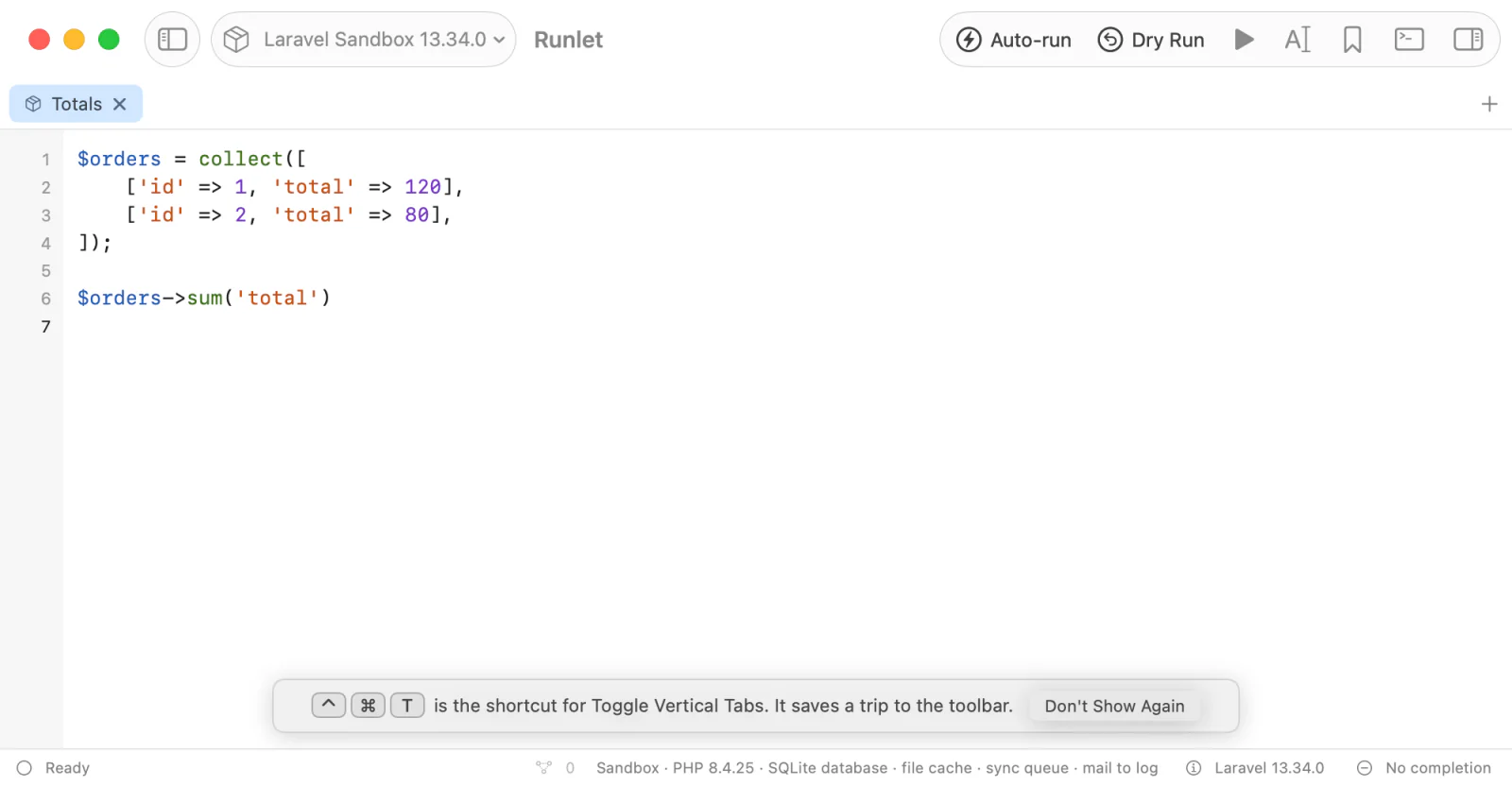
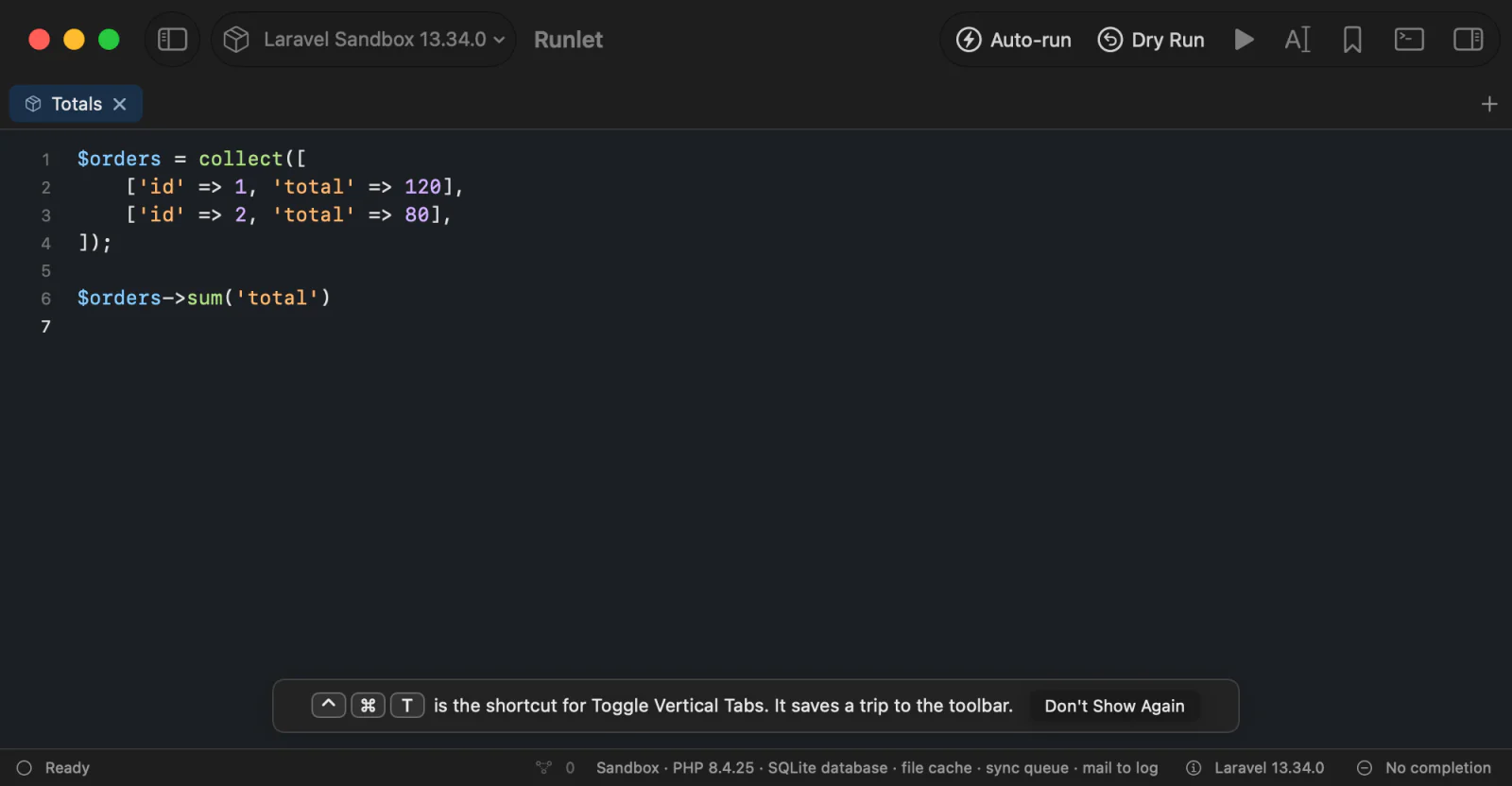
- It stays out of the way. The tip fades after a few seconds, or at your next command, and never takes the keyboard. When the cursor's line is at the bottom of the editor, the tip shows at the top instead. VoiceOver reads it out.
- Once a day at most for each command, however often you click it.
- It stops for good once you've used the shortcut three times, or when you click Don't Show Again on it.
- Your shortcuts. The tip shows the shortcut as you set it in Settings ▸ Shortcuts. A command without a shortcut has no tip, and pressing a shortcut never shows one.
- Turning tips off: Settings ▸ General ▸ Tips ▸ Show shortcut tips.
- What's kept: how often you ran each command with its shortcut, its menu item, a button, or a palette, and when its tip last showed; never the code, tab, or target. Settings ▸ General ▸ Command Palette ▸ Clear Command History clears the counts. Tips you turned off with Don't Show Again stay off.
Open Anything and the Command Palette
Open Anything (⌘P) finds targets, snippets, and recent files, along with a few windows such as Connections and Logs. Choosing a target switches the current tab to it. Choosing a snippet or a file opens it. A prefix narrows the search:
| Type | To search |
|---|---|
> | Commands (switches to the command palette) |
/ | Local projects |
@ | Docker and SSH profiles |
# | Snippets, personal and project |
! | Run History |
The command palette (⇧⌘P) runs any command by name, with its shortcut next to it. A command that can't run right now is still listed, with the reason. In the command palette, ⌫ in the empty field goes back to Open Anything.
In both, Return opens the selection, ⌘Return opens it in a new tab, and Esc closes the palette. Choosing something never runs code.
TIP
Type dark, light, or auto in Open Anything to switch Runlet's appearance.
Frequently Used Commands
The command palette learns which commands you use. With nothing typed, up to five of the commands you choose most often, and most recently, come first under Frequently Used, and the rest follow in their usual order. A command that can't run right now isn't moved up.
When you type, the best match still comes first. How often you use a command only decides between equally good matches, or lifts it past one that's barely better. Typing rename puts Rename Tab… first, however often you use Run. The commands Open Anything lists, such as Pin Tab and the Appearance commands, follow the same order among themselves; targets, snippets, and files keep their places.
- Recent use counts most. A use counts half as much after two weeks, so a command you stopped using drops back after a few weeks.
- Only choosing counts. Running a command from a palette is a use. Moving the selection to it isn't, and neither are its menu item and shortcut.
- Only the command is kept: which one you chose, and when, never the code, tab, or target it ran on.
- Starting over: Settings ▸ General ▸ Command Palette ▸ Clear Command History forgets every use, and the palette goes back to its usual order.
Default Shortcuts
Runlet
| Command | Shortcut |
|---|---|
| Settings… | ⌘, |
| Settings, opened on the Advanced tab | ⌥⌘, |
File
| Command | Shortcut |
|---|---|
| New Window | ⌘N |
| New Tab | ⌘T |
| Duplicate Tab | ⇧⌘D |
| Open… | ⌘O |
| Open Project… | ⇧⌘O |
| Open Project in Editor | ⇧⌘E |
| Close Tab | ⌘W |
| Close Window | ⇧⌘W |
| Save | ⌘S |
| Save Tab As PHP File… | ⇧⌘S |
| Save Workspace As… | ⌥⇧⌘S |
New SQL Tab, New Redis Tab, New MongoDB Tab, Reload from Disk, Save as Artisan Command…, and Save as Test… have no default shortcut.
Edit
| Command | Shortcut |
|---|---|
| Toggle Line Comment | ⌘/ |
| Lines ▸ Move Line Up / Down | ⌥↑ / ⌥↓ |
| Lines ▸ Duplicate Line Up / Down | ⇧⌥↑ / ⇧⌥↓ |
| Format Code | ⌥⇧⌘F |
| Show Completions | ⌥Esc |
| Go to Definition | F12, or ⌘-click |
| Find References | ⇧F12 |
| Show Code Actions | ⌥Return |
| Code Folding ▸ Fold | ⌥⌘← |
| Code Folding ▸ Unfold | ⌥⌘→ |
Find (⌘F), Undo (⌘Z), and the other standard macOS editing keys work in the editor too. Code Navigation covers moving lines, definitions, and folding.
Run
| Command | Shortcut |
|---|---|
| Run | ⌘R |
| Run Selection | ⇧⌘R |
| Run All Statements (SQL tabs) | ⌥⇧⌘R |
| Explain Statement (SQL tabs) | ⌥⌘E |
| Profile Run | ⌥⌘R |
| Stop (the run, or the chat's answer) | ⌘. |
| Copy Output | ⌥⌘C |
| Clear Output | ⌘K |
| Output: Structured | ⌃⌘1 |
| Output: Plain | ⌃⌘2 |
| Output: Raw | ⌃⌘3 |
Library
| Command | Shortcut |
|---|---|
| Open Anything… | ⌘P |
| Command Palette… | ⇧⌘P |
| Show History | ⌘Y |
| Show Snippets | ⇧⌘L |
| Show Database | ⇧⌘B |
| Show Project Commands | ⇧⌘K |
| Show/Hide History & Snippets | ⌥⌘L |
| Show/Hide Chat | ⇧⌘I |
| Save as Snippet… | ⌥⌘S |
| New Docker Profile… | ⇧⌘N |
View
| Command | Shortcut |
|---|---|
| Toggle Vertical Tabs | ⌃⌘T |
| Wrap Lines | ⌥⌘W |
| Show/Hide Output Pane | ⌃⌘O |
| Move Output Right/Below | ⌃. |
| Show/Hide Terminal | ⌃` |
| New Terminal | ⌃⇧` |
| Show Builder (Redis and MongoDB tabs) | ⌥⌘B |
| Logs | ⌘L |
Window
| Command | Shortcut |
|---|---|
| Connections | ⇧⌘C |
| Quick Run | None; ⌃⌥R from any app when its global shortcut is on |
| Next Tab | ⇧⌘] |
| Previous Tab | ⇧⌘[ |
| Reopen Closed Tab | ⇧⌘T |
| Select Tab 1 to 8 | ⌘1 to ⌘8 |
| Select Last Tab | ⌘9 |
Keys in Lists and Sheets
| Where | Keys |
|---|---|
| History and Snippets | Return or double-click opens the entry (see History), ⌘Return opens it in a new tab, ⇧Return inserts it at the cursor, and ⌫ deletes it (a personal snippet asks first). Typing searches. |
| A production confirmation | ⌘Return runs; Return and Esc cancel. |
| Renaming a tab | Return or Tab keeps the new name, and Esc the old one. See Tabs. |
| The editor | Esc closes completions and value panels, and can also hide the output pane. |
| The chat's message field | ⌘Return sends, Return starts a new line, and Esc goes back to the editor. While @ suggestions show, ↑ and ↓ choose one, Tab or Return adds it, and Esc closes them. ⌘. stops an answer. See AI Assistance. |
| The Quick Run panel | ⌘R runs, ⌘. stops, ⌘Return opens the code in a tab, and Esc or ⌘W closes it. See Quick Run. |