
Quick Run
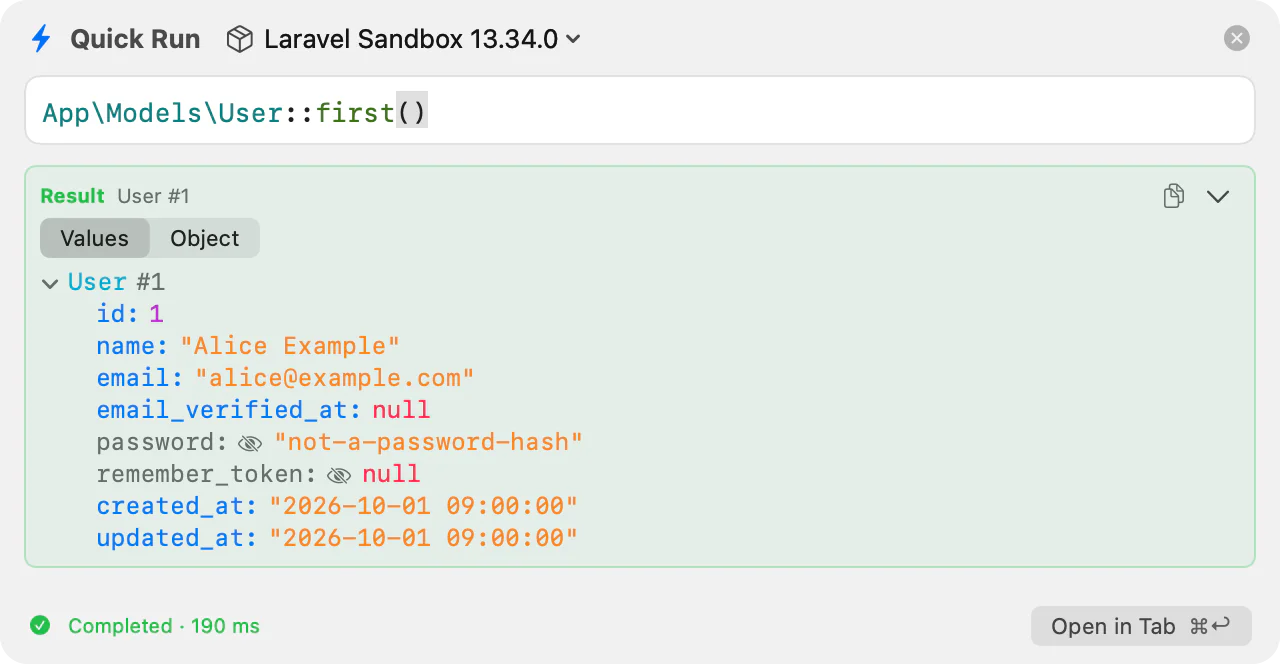
Quick Run is a small floating panel for a line or two of PHP: a slug, a date, a hash, a quick look at a model. Open it from any app, press ⌘R, read the result, and press Esc, without switching to Runlet's window.
Opening Quick Run
Open the panel from Runlet with Window ▸ Quick Run, from the command palette (⇧⌘P), or by typing quick run in Open Anything (⌘P). To open it from any app, turn on its global shortcut.
The panel floats above every app's windows, near the top of the screen with the pointer, like Spotlight. It takes the keyboard without bringing Runlet's windows forward, so the app you were in stays where it was. Drag the panel by its title to move it; it opens there again until Runlet quits.
Running Code
Type PHP in the panel's editor, then press ⌘R. As in a tab, the last expression is the result, so you need no return or echo:
Str::slug('Hello World')now()->addDays(3)->toDateString()The editor has PHP highlighting and completion, and grows with your code up to ten lines. Nothing else runs it: opening the panel, typing, and the code it kept from last time never run anything. ⌘. stops a run.
The result shows below the editor, compactly:
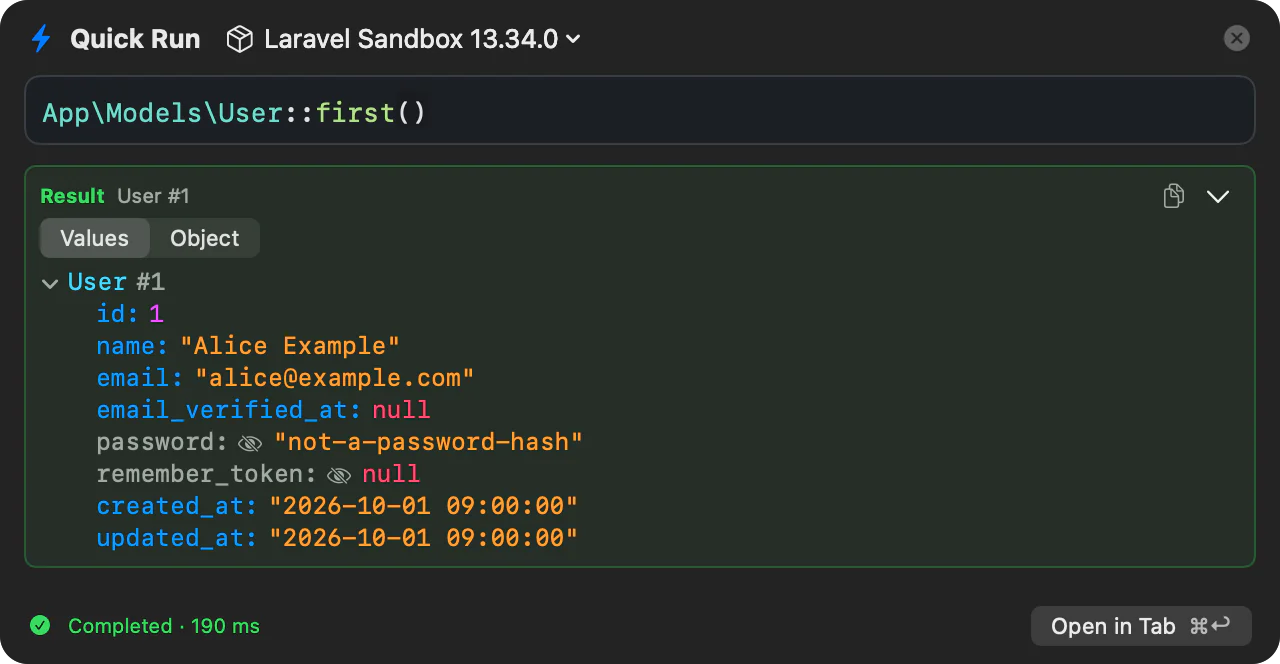
- The value, as a tree. Eloquent models show what they hold, in the Values view, with Values | Object to switch.
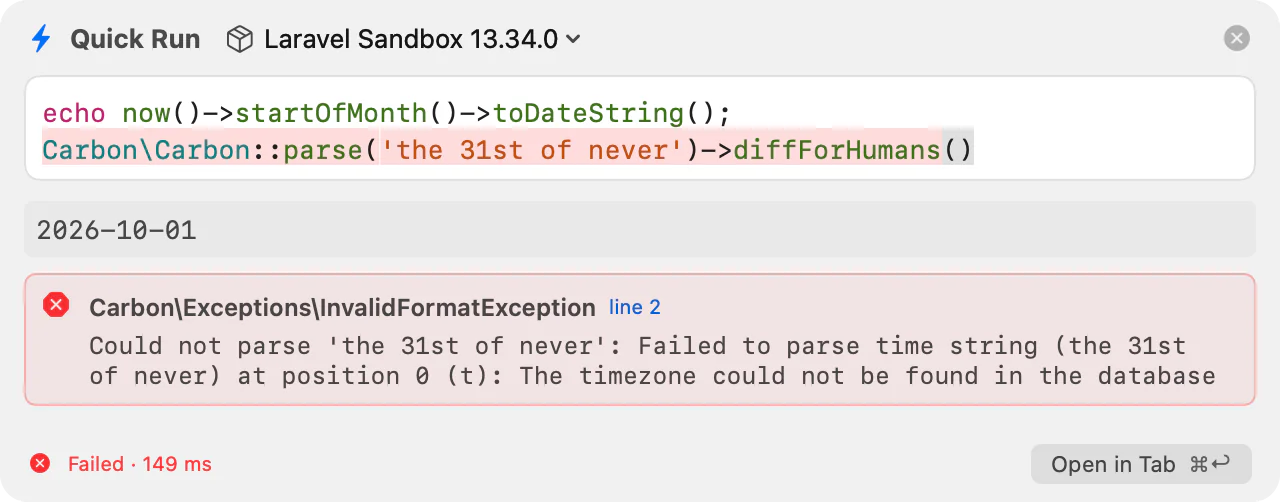
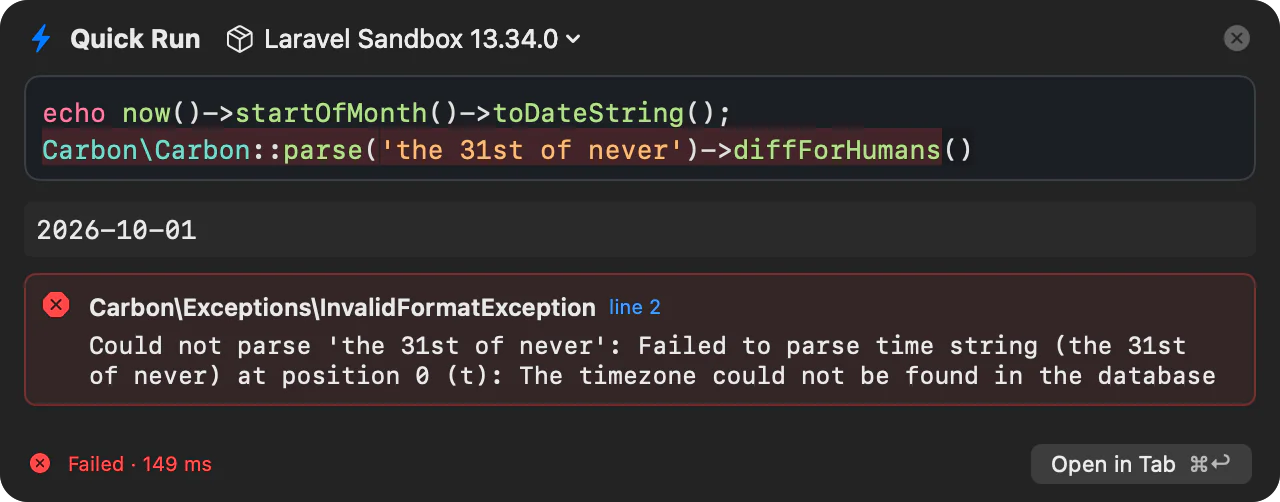
- An error, with its class, message, and line. Click the line to put the cursor there.
- Printed output and
dump()calls, in the order they happened.
The footer says how the run ended and how long it took. Runs work as a tab's do: the same runner, settings, and limits, and magic comments show their values in the editor. Each run goes into History.
Choosing a Target
The panel runs on the Laravel Sandbox. To run on one of your projects instead, choose it in the target menu next to the title: it lists the sandbox, your local projects, Docker profiles, and SSH hosts. The panel keeps its target until you choose another.
A staging target shows its STAGING badge and runs as usual.
Never on Production
WARNING
Quick Run never runs code on a production target.
- The target menu leaves out every target marked as production, and every target whose application said it runs in production on its last run (see When the Application Says It's Production).
- ⌘R checks again. If the panel's target was marked as production after you chose it, the panel says so in red, and nothing runs. Choose another target.
- To run the code there anyway, use Open in Tab: in the tab, a run on production asks first, as every run on production does.
Open in Tab
Open in Tab (⌘Return) moves the code into a new tab in Runlet's window, with its target and the last run's result, including its queries, mail, logs, HTTP requests, jobs, and events in the run inspector. Runlet's window comes forward; when none is open, a new one opens. Nothing runs.
The panel closes, and starts empty next time, on the same target.
Closing the Panel
Esc, ⌘W, or the panel's close button closes it. The panel keeps its code and its last result for next time, and Runlet keeps the code and the target when it quits. A run goes on after you close the panel; open it again to see the result.
History
Every run from the panel goes into History, like a tab's, marked with a bolt. Search History for quick run to find them. Opening one opens it in a tab, as with any History entry.
The Global Shortcut
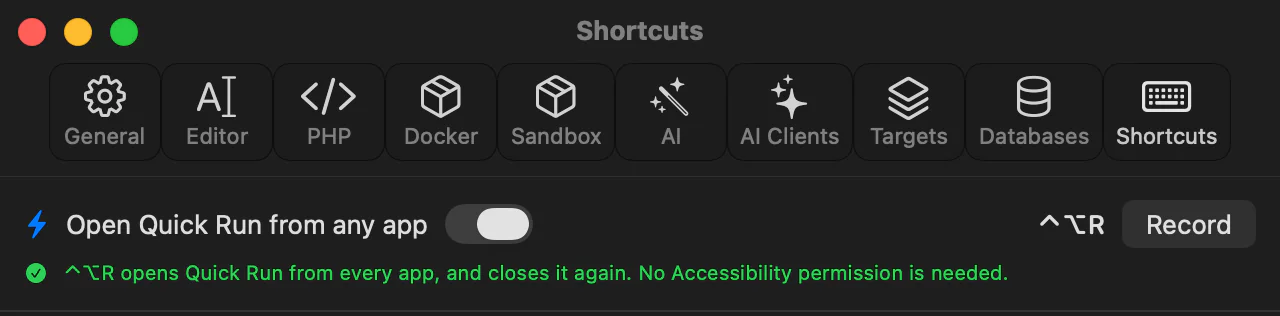
A global shortcut opens Quick Run from any app. It's off by default; turn it on in Settings ▸ Shortcuts, at the top:
- Open Quick Run from any app turns it on or off. The shortcut is ⌃⌥R until you record another.
- Record a new one: click it, then press the key combination. It needs ⌘, ⌃, or ⌥. Esc cancels.
Press the shortcut in any app to open the panel; press it again while the panel has the keyboard to close it. Runlet needs no Accessibility permission for it: macOS tells Runlet about this one shortcut, and never about other keys you type.
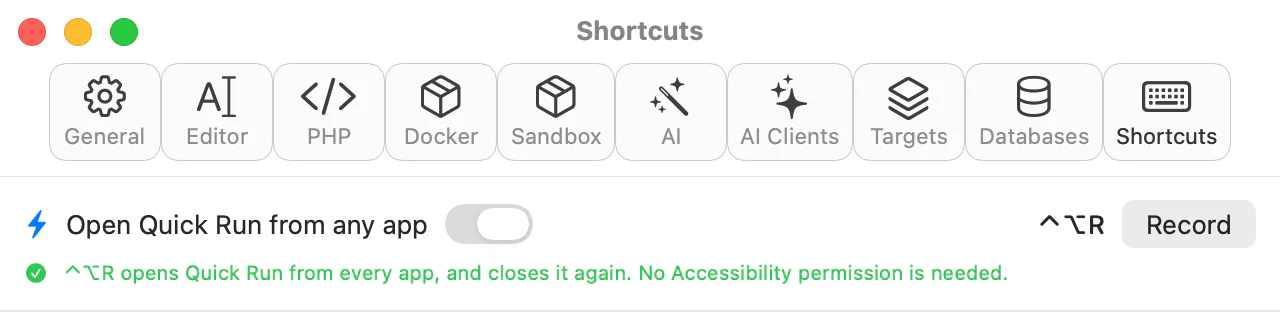
When the shortcut can't work, Settings says why, in orange, and Runlet leaves it alone:
| Reason | What to do |
|---|---|
| Another app already uses it as a global shortcut. | Record another one, or change it in that app. |
| macOS uses it for one of its own shortcuts. | Record another one, or turn macOS's off in System Settings ▸ Keyboard ▸ Keyboard Shortcuts. |
| One of Runlet's commands uses it. | Record another one, or change that command's shortcut in the list below. |
Keys in the Panel
| To | Press |
|---|---|
| Run | ⌘R |
| Stop | ⌘. |
| Open in Tab | ⌘Return |
| Close | Esc or ⌘W |
| Show completions | ⌃Space |