
AI Clients (MCP)
Runlet is a controlled way for AI tools to run PHP against your real projects. Claude Code, Claude Desktop, Cursor, and other MCP clients can propose PHP to run, while Runlet keeps every run visible and under your control. It isn't shell access for the agent: every run is a PHP snippet you have read, on a target you can see.
How It Works
- You turn it on in Settings ▸ AI Clients (it's off by default), and add
runlet mcpto your client. - The client can list your targets and snippets, read and save snippets, and ask to run PHP.
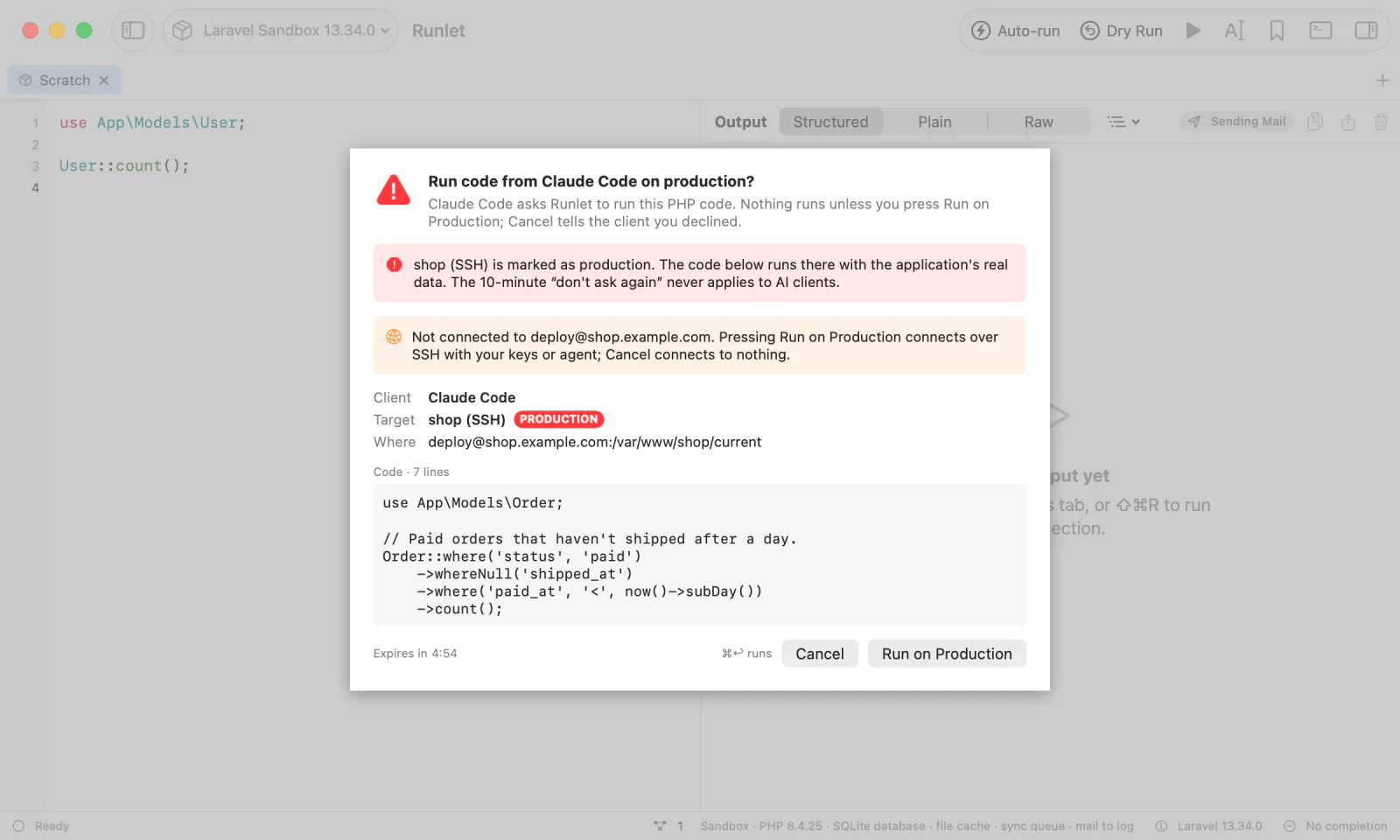
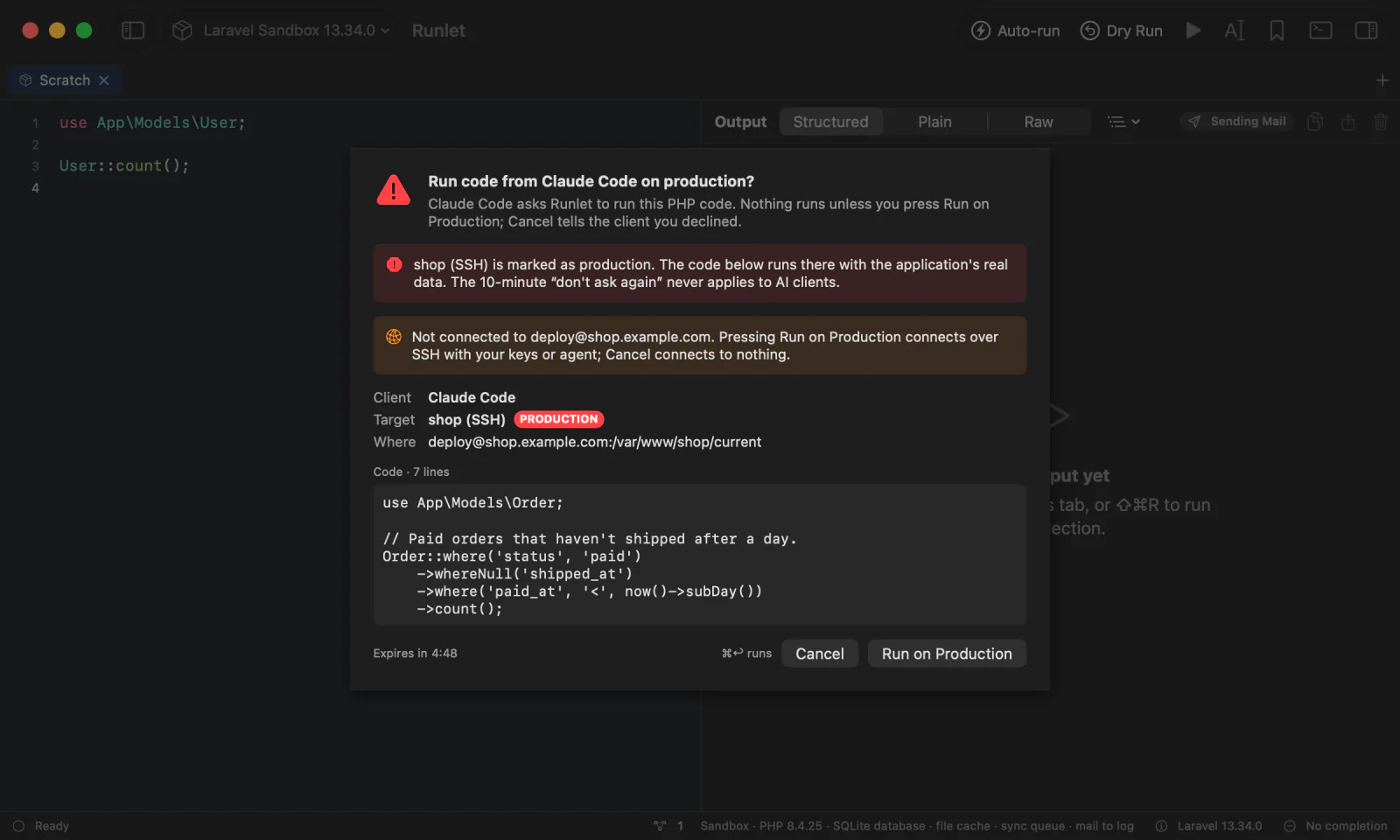
- Every run request opens a sheet in Runlet with the client's name, the target and its environment, where the code runs (a folder, a container, or
user@host:directory), and all of the code. Run (⌘Return) runs exactly that code on exactly that target. Cancel tells the client that nothing ran. - The client gets the output, dumps, result, and errors with their lines. The run also opens in a Runlet tab and is recorded in History.
WARNING
Approved code runs with the same power as any snippet you run yourself. Read it as you would a pull request.
Turning It On
Open Settings ▸ AI Clients and turn on Allow AI clients to connect. Until you do, AI clients can't reach Runlet; even then, nothing runs without your approval.
The same tab gives the exact client setup for your copy of Runlet, and lists the connected clients with the targets you allowed each one for the session. Revoke ends a client's allowances. The Connection Manager (Window ▸ Connections) lists connected clients too, and its Close drops one client's connection; that client connects again on its next call.
Setting Up a Client
The server is the runlet command inside the app, started with mcp. The examples use /Applications/Runlet.app; Settings ▸ AI Clients shows the path of the copy you're running.
Claude Code, for every project:
claude mcp add --transport stdio --scope user runlet -- /Applications/Runlet.app/Contents/Helpers/runlet mcpClaude Desktop reads ~/Library/Application Support/Claude/claude_desktop_config.json (Settings ▸ Developer ▸ Edit Config). Cursor reads ~/.cursor/mcp.json for every project, or .cursor/mcp.json in one. Add Runlet next to the servers already there, then restart the client:
{
  "mcpServers": {
    "runlet": {
      "command": "/Applications/Runlet.app/Contents/Helpers/runlet",
      "args": ["mcp"]
    }
  }
}
Other MCP clients take the same command and argument. If you move Runlet.app, update the path.
- When Runlet isn't running, the client's first call starts it in the background. Starting Runlet never runs code: it restores your tabs without running them, and a run still waits for your approval.
- When the setting is off, calls fail with a message that asks you to turn it on in Settings ▸ AI Clients. The client can show you that message.
What a Client Can Do
| Tool | What it does |
|---|---|
list_targets | Lists the Laravel sandbox, local projects, Docker applications, and SSH hosts: each one's name, environment, folder, container, or host, how its runs are approved (including whether you can allow them for the session), and whether an SSH host is connected. Nothing is contacted to find out. |
list_snippets | Lists your personal snippets, and a project's shared snippets. It can search their labels, descriptions, and code. |
get_snippet | Reads a snippet's code, label, description, and target. For a snippet with inputs, it also lists the inputs, so the client can fill them in. |
add_snippet | Saves a personal snippet, PHP or SQL. Nothing runs. |
run_php | Asks you to approve a run, runs it, and returns the result. |
get_last_output | The latest run_php run from any client: its output, or its progress while it still runs. |
Reading, listing, and saving never run code. Only an approved run_php, or a run on a target you allowed for the session, does. run_php runs PHP only: never an SQL, Redis, or MongoDB tab.
Targets are named the way the command-line tool names them: sandbox, local:<name>, docker:<name>, or ssh:<name>, ignoring case. A project can also be named by its folder. A name that matches several targets is an error that lists them, and list_targets always gives names that match exactly one.
run_php results read like the output pane: where the run happened, the PHP and framework versions, printed output, dumps with their lines, the value of the last expression, errors with their line in the code that was sent, your \Runlet\notice(), warning(), and error() cards, and how the run ended. The text is capped at 60,000 characters; the Runlet tab keeps everything. Results never include the run inspector's sections (queries, mail, logs, HTTP requests, jobs, or events): they stay in Runlet's window (What AI Clients Get). The code may start with <?php or not, and can be up to 200 KB, so the sheet can show all of it.
Approving Runs
Every run_php request, unless you allowed its target for the session, brings Runlet's window to the front with a sheet that shows:
- the client's name, as the client reports it (for your information; it never decides anything);
- the target, its environment badge, and where the code runs;
- all of the code.
Run (⌘Return) runs exactly that code on exactly that target. Cancel (Return or Esc) tells the client you declined, and nothing runs.
The Rules
- Allowing a target for the session. On every target that isn't production, the sheet offers Allow runs on target from client for this session. Tick it and press Run, and that client's later runs on that target go ahead without a sheet until the client disconnects (for example, when you quit it or start a new session) or Runlet quits. Use it when a client debugs with many small runs.
- One target, one client. Allowing
docker:lease-apiallows nothing on another target, and nothing for another client or for the same client after it reconnects: those ask again. - Edits end it. Edit or remove an allowed target, or mark it production, and its next run asks again. Settings ▸ AI Clients lists what each client is allowed, and Revoke ends all of a client's allowances.
- Production targets ask every time, with a red warning and a Run on Production button, and never offer the session allowance. The production guard's 10-minute "don't ask again" never applies to AI clients.
- SSH hosts are never connected silently. When pressing Run would connect, the sheet says so, and Cancel connects to nothing. An allowed host skips the sheet only while it is connected; otherwise its runs ask again, and approving connects. A host that needs a password or a one-time code is refused without a sheet: Runlet never logs in for an AI client. Log in with Connect… first, and runs reuse that login.
- No answer: a sheet waits 5 minutes. Then the request expires, and the client is told nothing ran.
- One at a time: requests wait in line, each with its own sheet, and approving one approves nothing else. A client can have at most 4 requests waiting.
- The client gives up: a request still waiting is withdrawn and its sheet closes. A run that already started finishes in its tab, and
get_last_outputreturns it. - Something changed: if the target is removed, changes environment, or its SSH connection changes while the sheet is up, Run doesn't run anything. The client is told to try again, and the next request asks with the new facts.
Where Runs Appear
An approved run opens in a tab named after the client, in the window that showed the sheet, so you see what ran and its output. The client's next run reuses that tab while you haven't edited it, and opens a new one otherwise. The output starts with a line that says which client asked and how the run was approved. Runs are recorded in History like any other, and the tabs are restored at launch without running.
Security Model
- No network. Runlet listens only on a private Unix socket on your Mac, never on a network port.
- Only you. Runlet accepts only processes running as your user, and
runlet mcpchecks that the socket belongs to you and is private. Any process running as you can reach it, just as it could run PHP itself: the approval sheet protects you from an AI client acting without your consent, not from malware already running as you. - Approvals live in the app. Nothing in a request can approve a run, reuse another connection's session allowance, or stretch an allowance to another target. Runlet resolves the target name once, shows that target on the sheet, and runs on it.
- What a client learns is what the tools return: target names, project folders, container names, SSH users and hosts, snippet code, and run output.
- Database credentials stay out of reach. Clients can't list, use, or read saved database connections or their passwords,
runlet mcpnever reads the Keychain, and an SQL snippet shows at most the name of the connection it opens on. Passwords typed in Redis snippets show as•••. - Off means off. Turn the setting off in Settings ▸ AI Clients to disconnect every client.
Safety & Privacy covers the rest of Runlet.