
Running Code
Press ⌘R to run the current tab. Runlet runs your snippet on the tab's target, in a fresh PHP process with your application booted, and shows what happened in the output pane next to the editor. Every run is kept in History, so you can open it again later.
Nothing runs by itself. Opening a project, a file, a snippet, or a History entry, switching tabs, and restoring your session after a relaunch never run code: it runs when you press Run.
TIP
For a line of PHP without switching windows, use Quick Run: a floating panel you can open from any app.
Running a Snippet
| Action | How | What runs |
|---|---|---|
| Run | ⌘R, Run ▸ Run, or Run in the toolbar | The whole tab. |
| Run Selection | ⇧⌘R, Run ▸ Run Selection, or Run Selection in the toolbar | Only the selected code. Errors, dumps, and magic comments point at the lines you see in the editor. |
| Stop | ⌘., Run ▸ Stop, or Stop in the toolbar while the tab runs | Ends the run. Whatever arrived before Stop stays in the output. |
| Profile Run | ⌥⌘R, Run ▸ Profile Run | The whole tab, sampled every millisecond, with a flame graph in the output. It needs the Excimer extension in the target's PHP; Runlet's own PHP includes it. |
The last expression is the result, as in Tinker, so you don't need return or a final semicolon:
use App\Models\Order;

Order::where('status', 'pending')->latest()->take(10)->get()
Snippet API lists everything a snippet can use, and what each kind of output looks like.
TIP
Turn on Settings ▸ General ▸ Running ▸ Run prefers selection and ⌘R runs only the selection when there is one. ⇧⌘R always works.
Before a Run
A few options change what happens when you run:
- Production asks first. On a target marked as production, Runlet shows what will run and where before it runs: ⌘Return runs it, and Return or Esc cancels. See Production hosts.
- Dry Run (Run ▸ Dry Run (Roll Back Database Changes), or the toolbar button) makes the tab's runs roll back their database changes.
- Run ▸ Toggle Strict Types and Run ▸ Toggle Mail Interception turn the defaults from Settings ▸ General on or off. Projects and profiles can override them.
- Format before run (Settings ▸ Editor ▸ Formatting) formats a PHP tab before Run and Profile Run. See Format Code.
In the Laravel sandbox, you can also turn on auto-run for a tab, so it runs a moment after you stop typing.
The Output Pane
The output pane shows the run as it goes: printed output, dump() calls, the result, errors with their line, and Runlet's notices. The status bar shows the run's state and its elapsed time, and a run ends as completed, failed, or stopped.
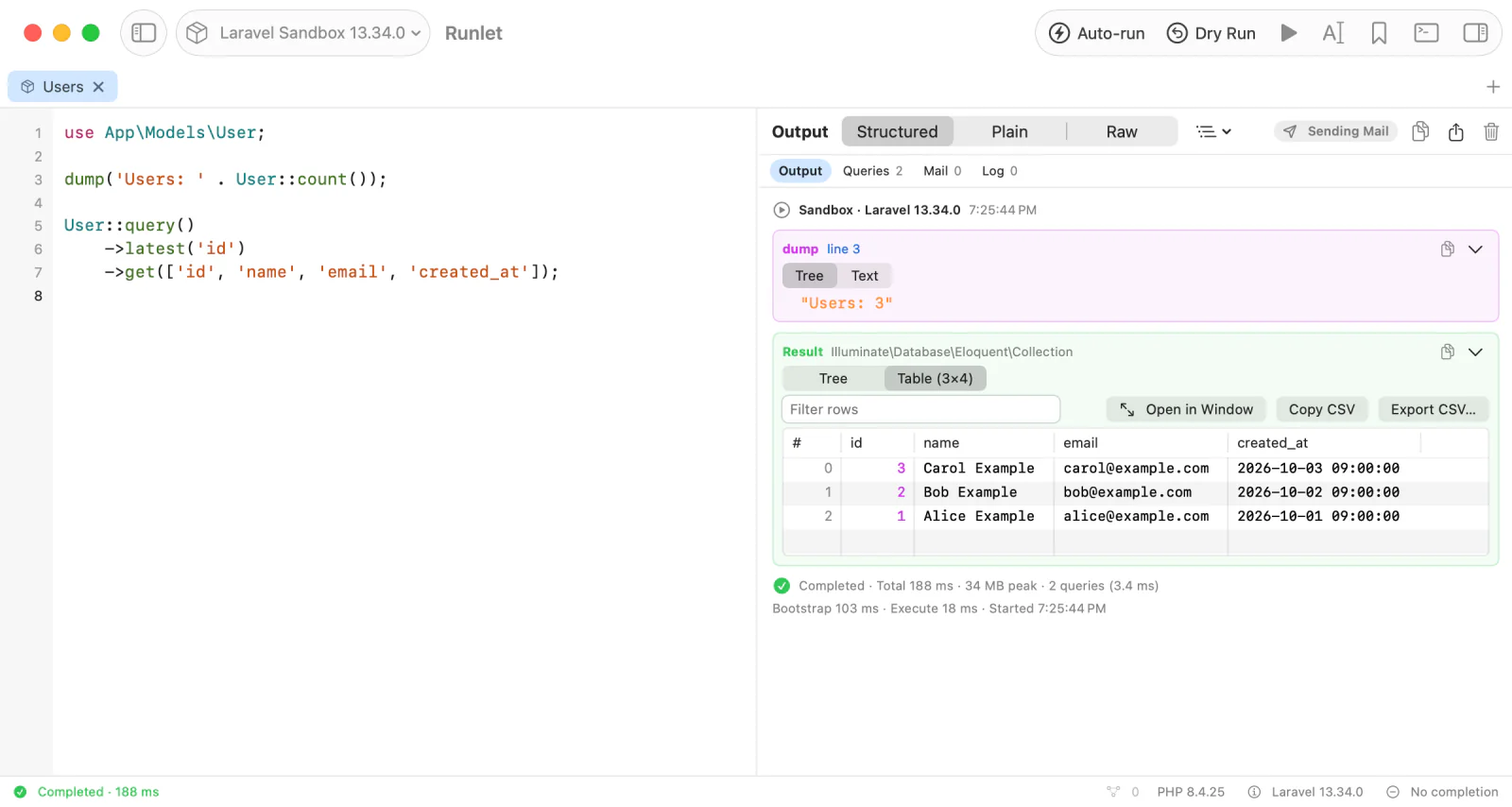
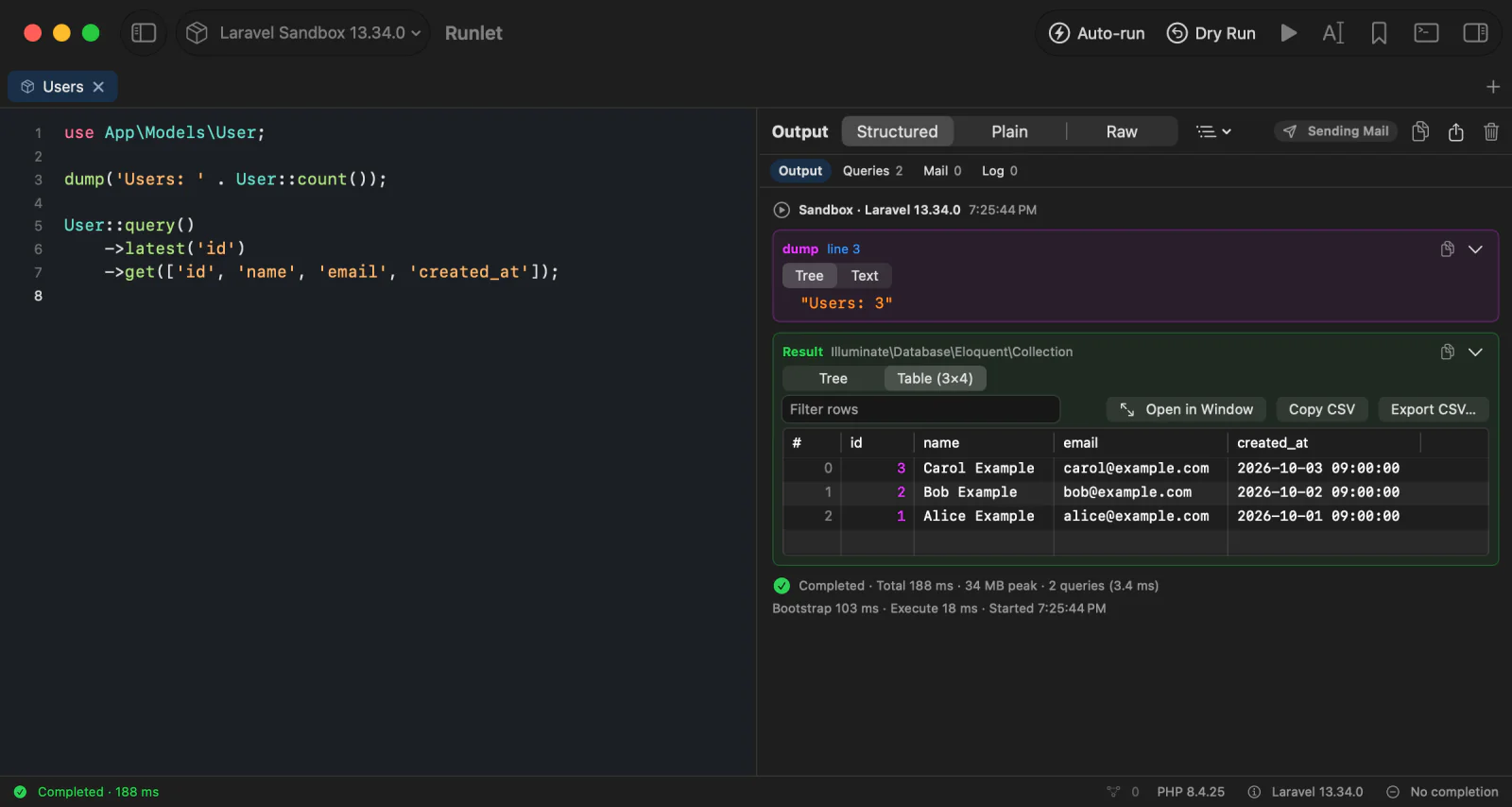
Values open as expandable trees, and rows and collections as tables. A wand after an object's class means your project's driver chose how it shows, with a caster; click the wand to see the raw object. A value card can switch views: Tree, Table, and, for strings, the string viewers (JSON, Text, Image, and Preview). The Expand values menu in the pane's header decides how far values open on their own: Collapsed, First level (the default), or Expand all.
Eloquent Models: Values or Object
An Eloquent model shows what it holds: its class and key, its attributes, and the relations you loaded. So do collections and paginators of models, and arrays of them. That's Values, the default. The Values | Object switch on a result or dump card shows the whole object instead, as PHP holds it.
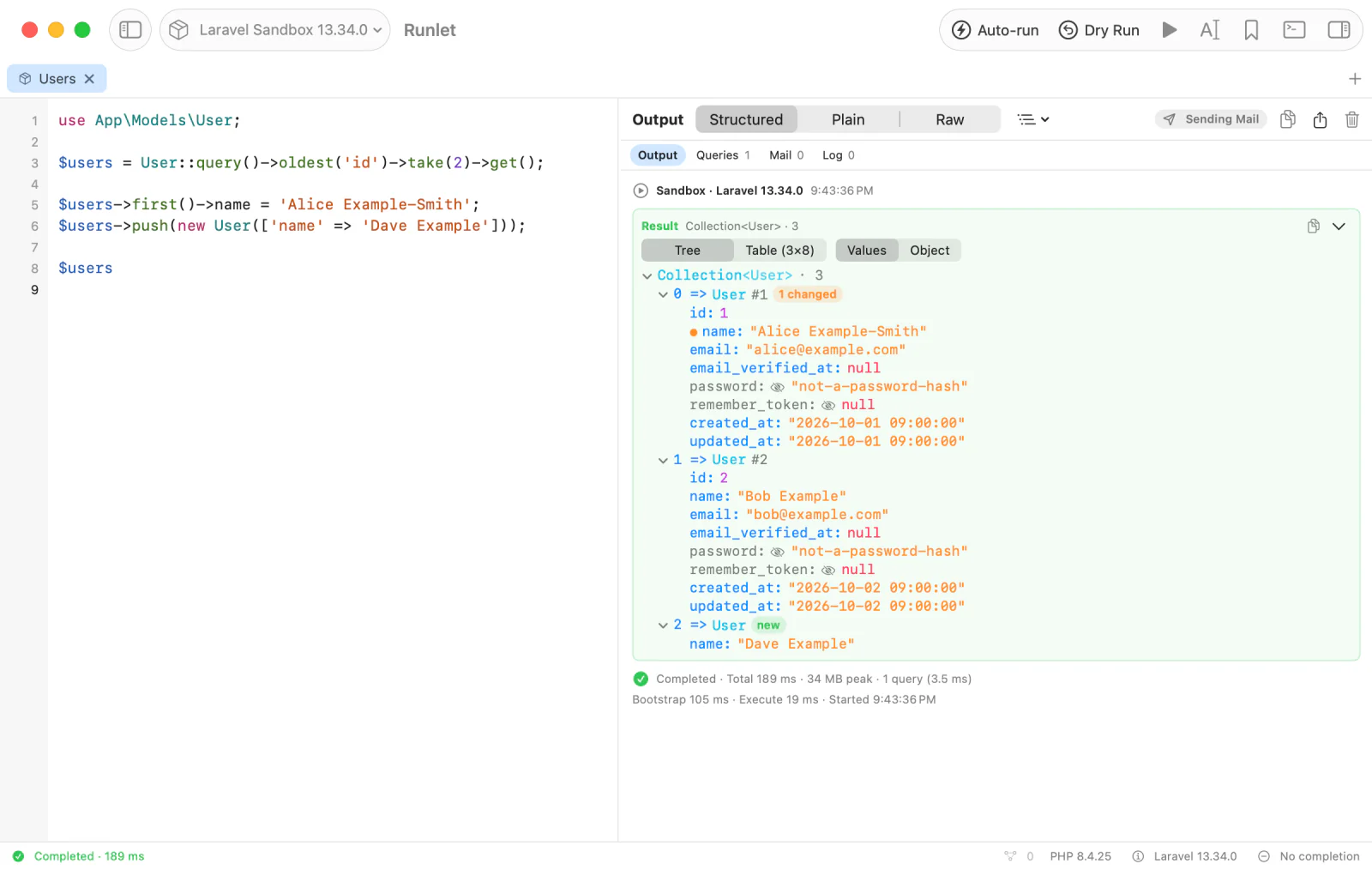
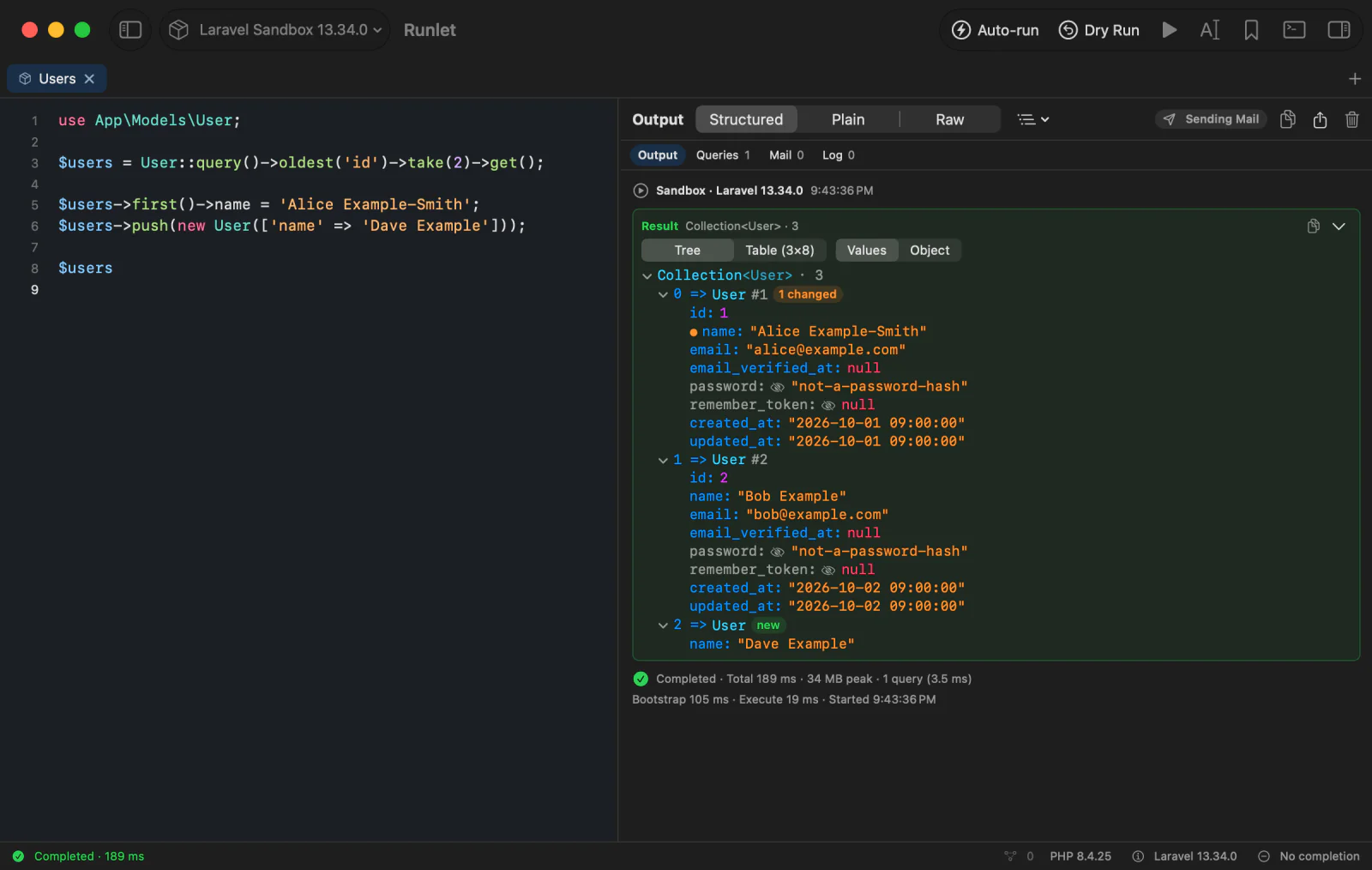
In Values:
- A model is its class and key, such as
User #1, with its attributes below it. Its loaded relations follow, marked with a link, and show their models the same way. - A changed attribute has an orange dot: it differs from the value the model was loaded with. Hover over the dot for the original. The model says how many changed, and a model that isn't saved yet says new.
- Hidden attributes (in the model's
$hidden, or left out by$visible) still show, marked with a crossed-out eye: their values are often what you're debugging. - A collection shows the models' class and the count, such as
Collection<User> · 312. A paginator adds its total and page:LengthAwarePaginator<User> · 15 of 312 · page 2 of 21. - Dates show their moment. Arrays, MongoDB ObjectIds and embedded documents, and enums show as anywhere else.
Values shows the attributes as the model stores them. Casts, accessors, and appended attributes aren't applied, because Runlet doesn't call toArray(), getters, or __toString() to show a model: none of your code runs. A caster your project's driver declares for a model class still decides how that model shows. Switch to Object to see the casts, the connection, the table, and everything else the object holds:
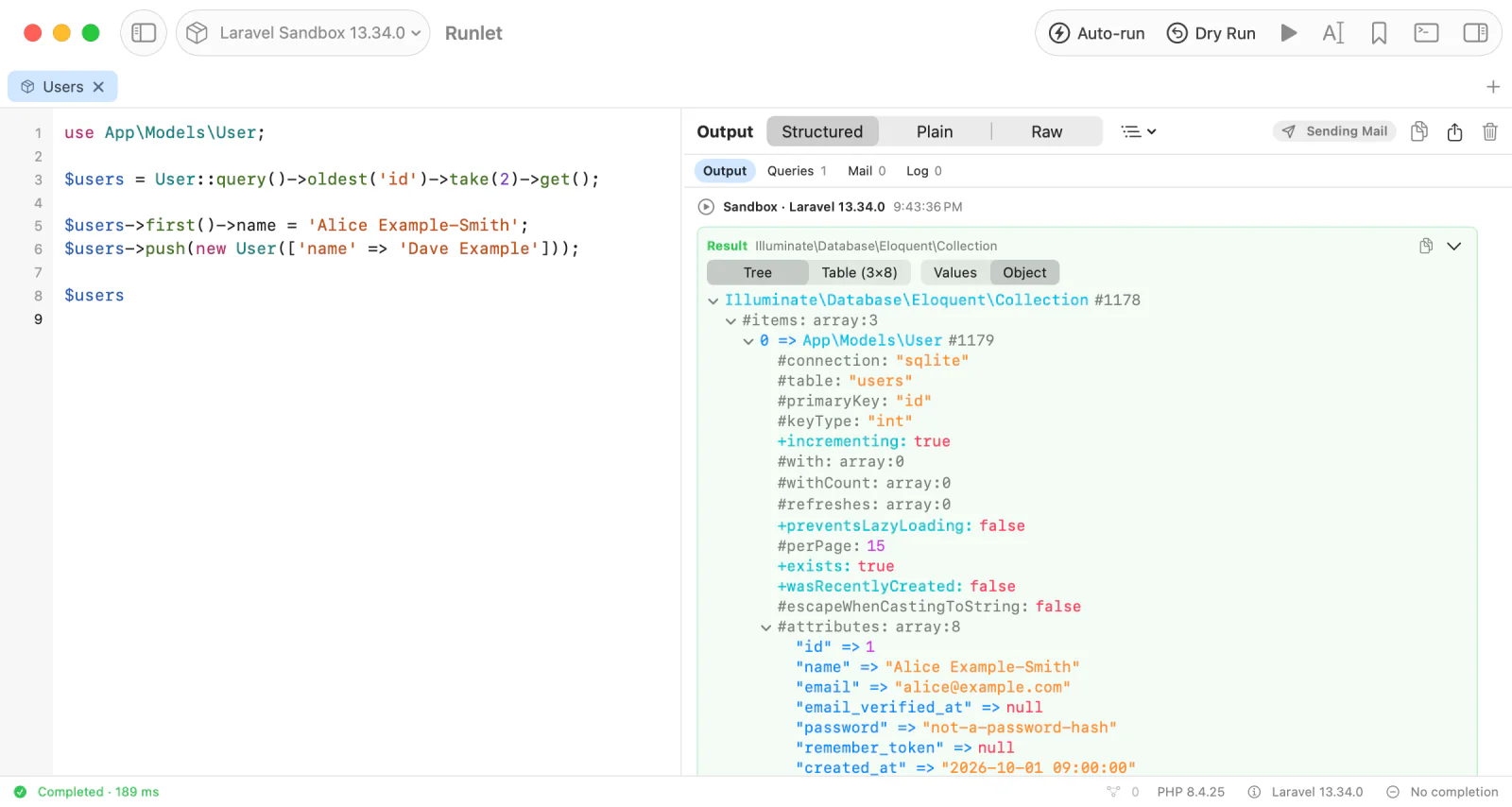
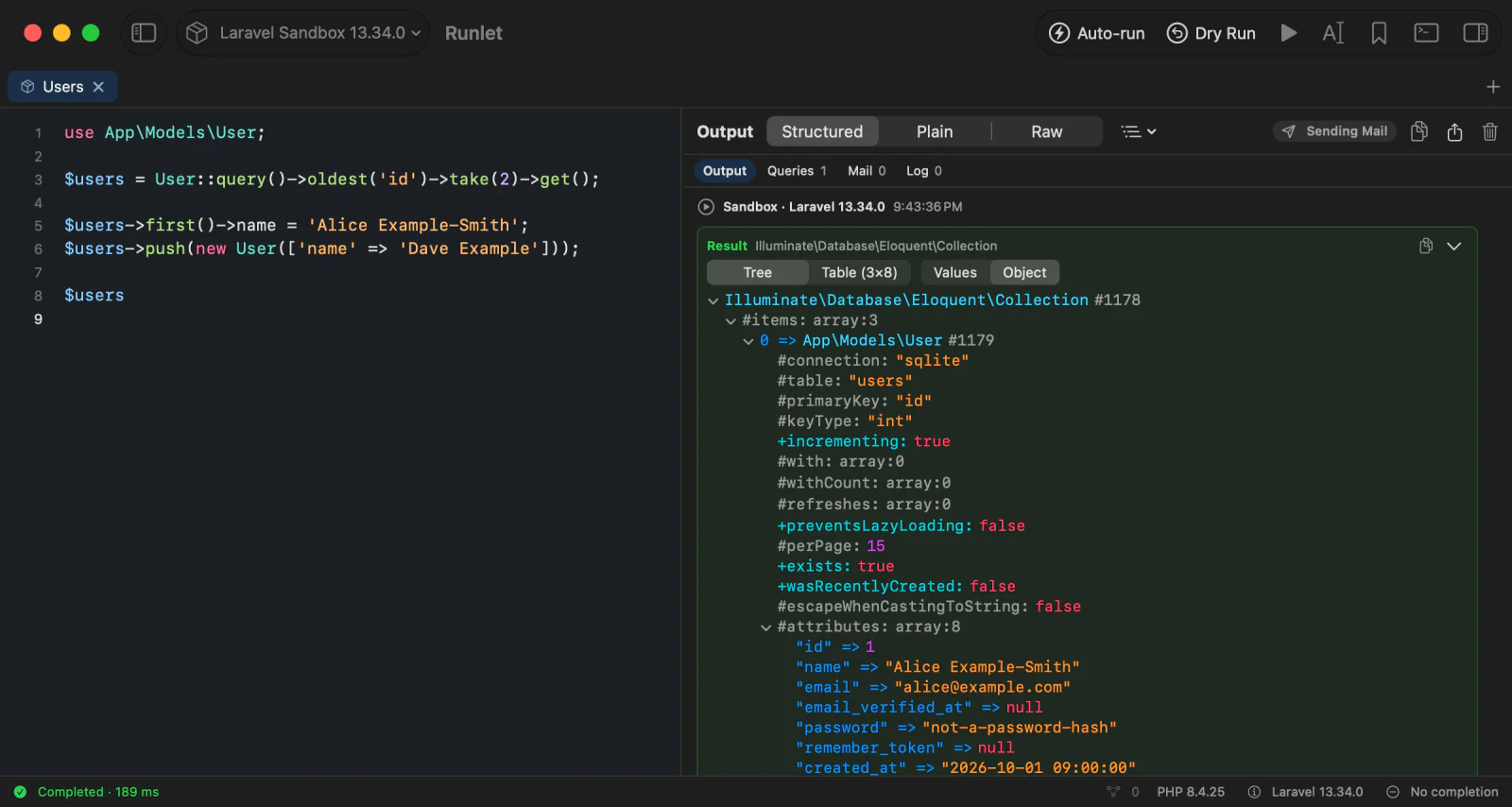
The switch is the tab's: it changes every card in the tab, the Table view, Copy and Copy Output, the Plain view, and the magic comments' values and their hover panel. A table you open with Open in Window has a switch of its own. The tab remembers its choice; new tabs start with Settings ▸ General ▸ Output ▸ Show Eloquent models as.
Values leaves out what every model repeats (the connection, casts, and other settings), so large collections fit more rows: up to 1,000 models in a list, within the same size limit as any value. When the limit cuts a list, the card's title says how many models it left out, and the Table shows the same rows: each model whole, or not at all.
Above the output, the run inspector adds a section for each kind of record, with its count: Queries for the SQL your code ran, Mail for the mail it sent, Log for what it logged, HTTP for its requests, Jobs for the jobs it queued or ran, Events when you turn them on, and sections your project's driver adds. Run ▸ Show Queries, Show Mail, Show HTTP Requests, Show Jobs, and Show Events jump to them. See Run Inspector. The footer has the run's timings.
When a run fails, its error card shows the exception, the line it points at, the source around it, and the stack trace. Explain or Fix… on the card asks an AI model, with your own API key, why the run failed and how to fix it. It shows exactly what it would send first, and changes your tab only when you apply a fix. See AI Assistance.
Display Modes
| Mode | Shortcut | Shows |
|---|---|---|
| Structured | ⌃⌘1 | Cards you can expand, with tables, previews, and links to lines. The default. |
| Plain | ⌃⌘2 | A transcript, as a command-line run would print it. |
| Raw | ⌃⌘3 | Exactly what PHP wrote to standard output and standard error. |
Switch with the picker in the pane's header, the shortcuts, or the Run menu. The mode applies to every tab.
Realtime or At Once
Settings ▸ General ▸ Output ▸ Show a run's output decides when output appears:
- Realtime (the default) shows printed output, dumps, magic-comment values, and the inspector's queries, mail, and logs as the code runs. That helps with long loops and slow queries.
- At once shows everything together when the run ends: completed, failed,
dd(),exit, or stopped. While it runs, the status bar shows the time and Stop still works.
Both work the same on every target. AI clients always get the whole result.
Copying and Saving
| To | Do |
|---|---|
| Copy the whole output as text | Copy Output (⌥⌘C), or the copy button in the pane's header |
| Copy it as Markdown | Copy Output as Markdown, in the copy button's menu or the Run menu |
| Save it to a file | Save Output As… |
| Copy one value | The value card's copy menu: Copy as JSON, Copy as PHP, or Copy as Markdown |
| Copy or export a table | Copy CSV and Export CSV… above the table (the rows shown), or Open in Window for a larger view with search and sorting |
| Clear the output | Clear Output (⌘K) |
File paths in dumps, errors, and stack traces open at their line in your editor. Choose it in Settings ▸ Editor ▸ External Editor.
Showing and Hiding the Pane
- Show/Hide Output Pane (⌃⌘O, in the View menu) shows or hides it.
- Move Output Right/Below (⌃.) moves it beside or under the editor. Settings ▸ General ▸ Appearance ▸ Output pane sets the default. Drag the divider to resize it.
- Hide the output pane until a run (Settings ▸ General ▸ Output, off by default) gives the editor the whole window until you run the tab. The pane then opens where it was, at its last size. Tabs that haven't run, or whose output you cleared, hide it again.
- Escape hides the output pane (Settings ▸ General ▸ Output, off by default) lets Esc in the editor hide the tab's pane until its next run. Completions and value panels still close first, Esc leaves the pane alone while the find bar is open, and ⌘. still stops a run.
Large Output
The output pane stays responsive with large runs:
- Structured shows a run's last 1,000 cards, with Show All to see every card, and the last 5,000 lines of printed output.
- Plain, Raw, Copy Output, and Save Output As… always have everything, up to 8 MiB of output per run.
- Values are bounded in depth and size; Snippet API has the limits.
Run History
History keeps every run's code, target, time, and final status. Open it with Library ▸ Show History (⌘Y), in the library panel next to the editor; Show/Hide History & Snippets (⌥⌘L) shows or hides that panel.
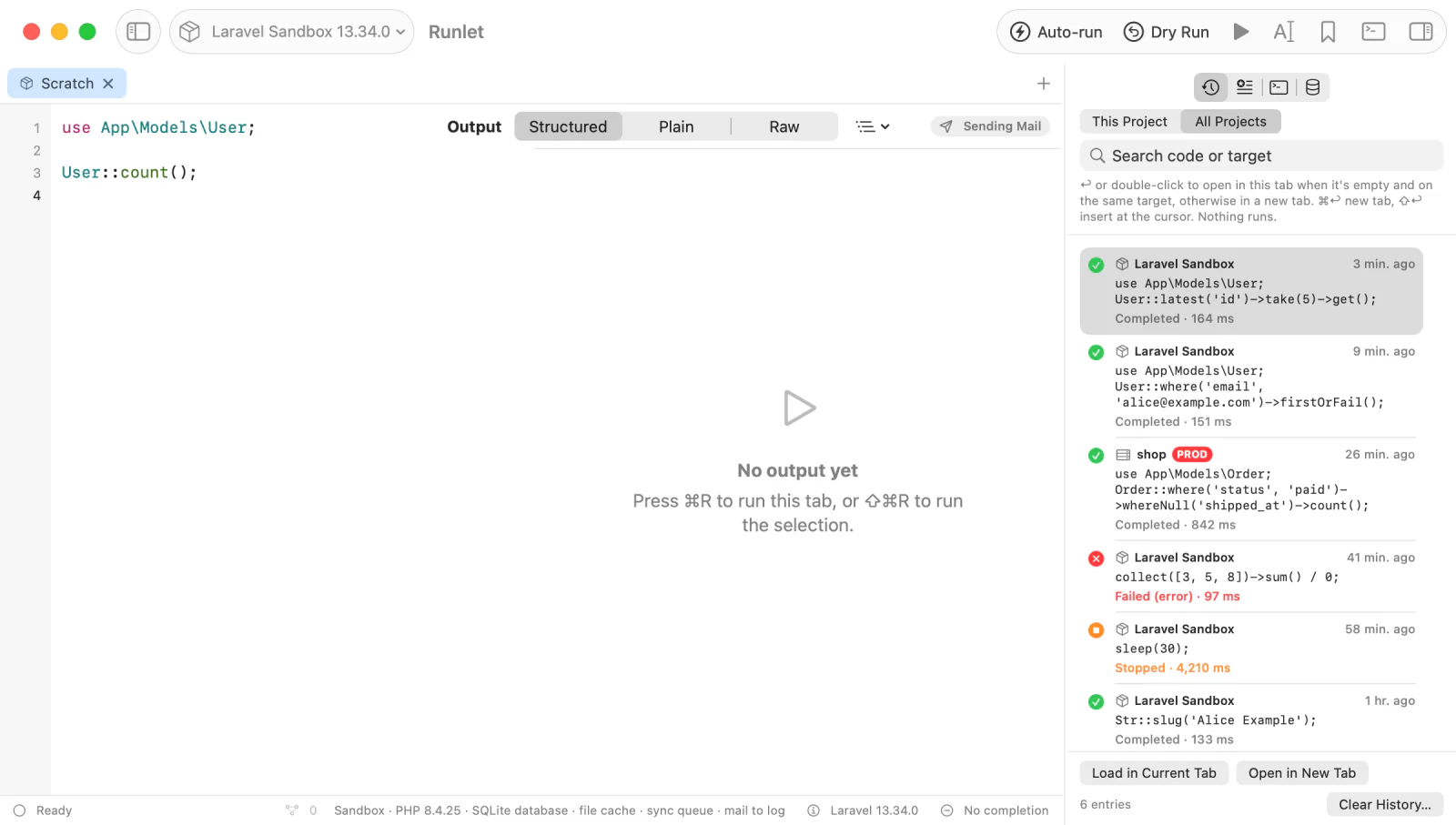
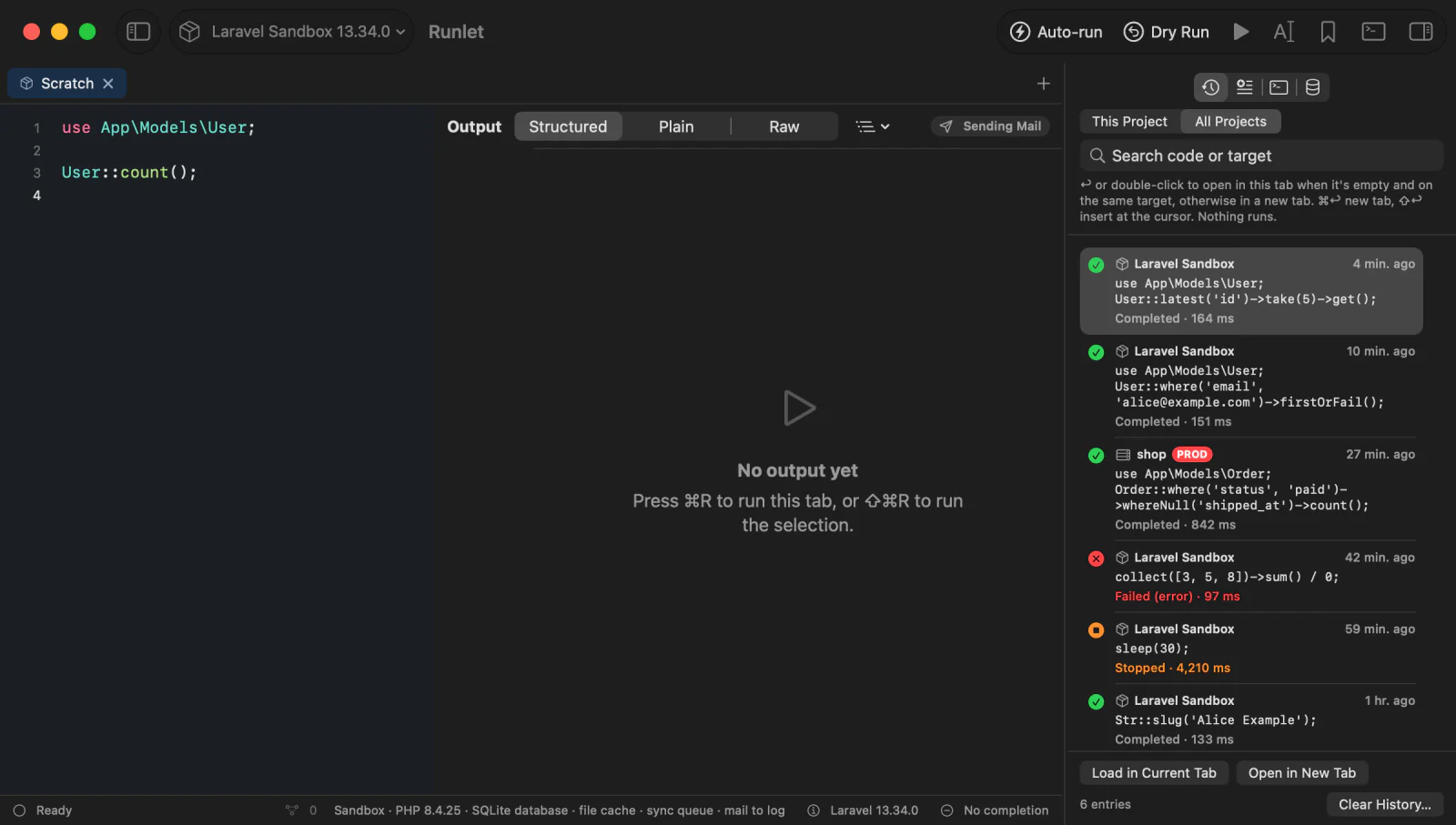
- This Project or All Projects. History starts with the runs on the current tab's target. All Projects shows every run, and its search also matches target names.
- Search matches the code. For SQL tabs, a Connection menu shows the runs on one connection.
- Each entry shows its status, its target, when it ran, and its first lines. A run on a production target keeps a PROD badge (STAGING for staging), even after you change the target's marking. Searching for
productionfinds those runs. - Running the same code again moves its entry to the top.
- Runs from Quick Run have a bolt. Search for
quick runto find them.
Opening an entry never runs it:
| To | Do |
|---|---|
| Open an entry | Return or double-click. By default, it opens in the current tab when that tab is empty and on the same target, and in a new tab otherwise; change this in Settings ▸ General ▸ History & Snippets ▸ Double-click opens in. |
| Open it in a new tab | ⌘Return, or Open in New Tab |
| Replace the current tab's code | Load in Current Tab (⌘Z undoes it) |
| Insert its code at the cursor | ⇧Return |
| Keep it | Save as Snippet in its context menu. See Personal Snippets. |
| Remove it | Delete in its context menu, or ⌫ |
You can also type ! in Open Anything (⌘P) to search History.
History keeps the most recent 1,000 runs; change that (50 to 10,000) in Settings ▸ General ▸ History & Snippets ▸ Keep the most recent. Clear History… in the pane's footer or in that section removes every entry, and can't be undone. Snippets aren't affected.