
Notifications for Long Runs
Start a long data fix or import, switch to another app, and Runlet tells you when it ends. Click the notification to go straight back to the tab.
The notification says only how the run ended, how long it took, and where it ran. It never contains your code or its output.
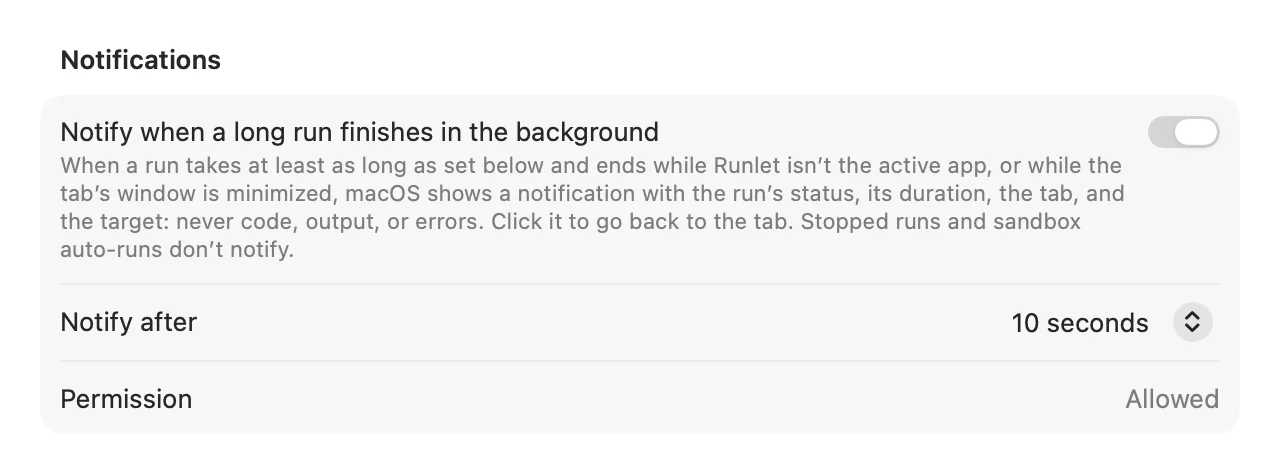
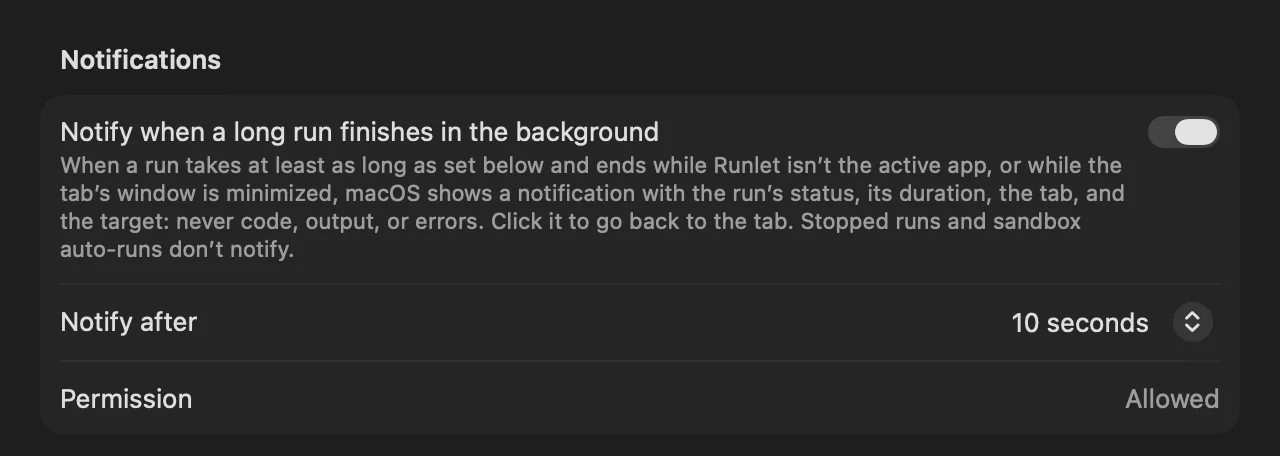
When Runlet Notifies
A run posts a macOS notification when all of these are true:
- Settings ▸ General ▸ Notifications ▸ Notify when a long run finishes in the background is on. It's on by default.
- The run took at least as long as Notify after: 10 seconds (the default), 30 seconds, 1 minute, or 5 minutes. The time counts from pressing Run (or confirming a production run, or approving an AI client's request) until the run ends, including connecting to an SSH host or finding a container.
- You couldn't see it end: Runlet wasn't the active app, or the tab's window was minimized. A run that ends while you're looking at Runlet, even at another of its windows, doesn't notify.
These count: Run, Run Selection, Profile Run, an SQL tab's Run and Run All Statements, and runs an AI client asked for. So does a run that couldn't start after a long wait, such as an SSH connection that timed out.
These never notify:
- a run you stopped;
- a sandbox auto-run;
- App Info, schema loads, the Commands pane's command lists, and commands in the terminal: they aren't runs.
What the Notification Says
Four facts, and nothing else:
- the status: completed, failed, ended unexpectedly, or couldn't start;
- the duration;
- the tab's title;
- the target's name.
For example: Run completed in 1 min 5 s, with Import users · Shop (Docker) below it.
Your code, its output, error messages, SQL, and values stay in the tab. Each tab has at most one notification: a newer run's replaces the previous one.
Click the notification and Runlet comes forward with the window and tab that ran, even if the window was minimized or you selected another tab meanwhile. If you closed the tab, Runlet just comes forward.
Allowing Notifications
macOS asks whether Runlet may show notifications the first time Runlet has one to show, or when you turn the switch on in Settings. Runlet asks only then, and never again once you've answered.
Under the switch, Settings shows macOS's answer:
| Settings shows | Means |
|---|---|
| Allowed | Notifications are on. |
| macOS asks the first time there's one to show | macOS hasn't asked yet. |
| Notifications are off for Runlet | You declined, or turned Runlet off in System Settings. Open Notification Settings… opens System Settings ▸ Notifications: turn on Allow notifications for Runlet there. Settings shows the change when you come back. |
| macOS can't show Runlet's notifications | macOS refuses them for this copy of Runlet, with its reason. Runs go on as usual. |
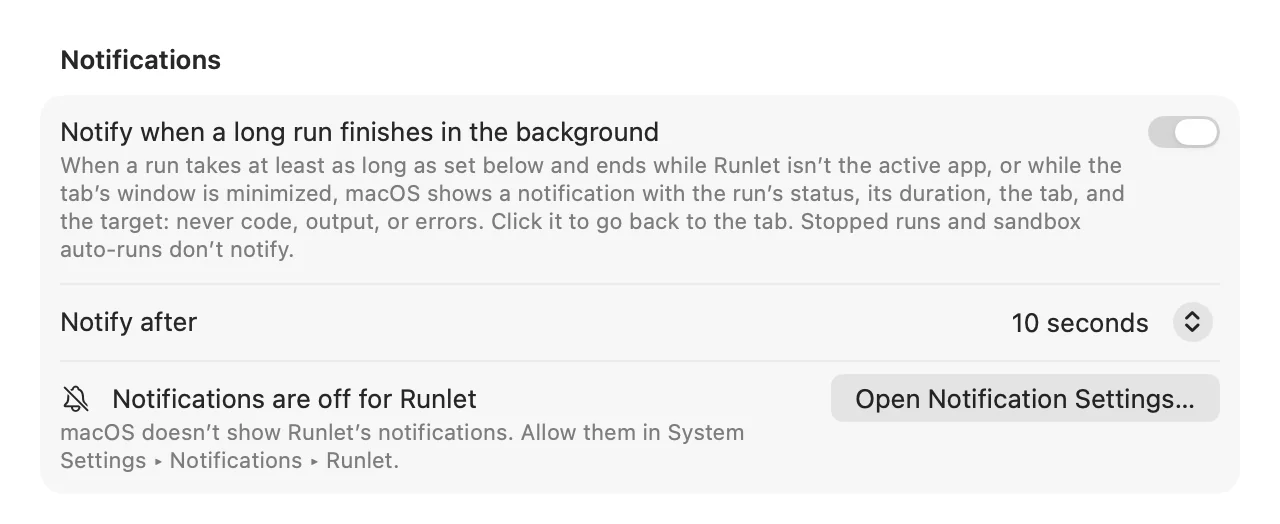
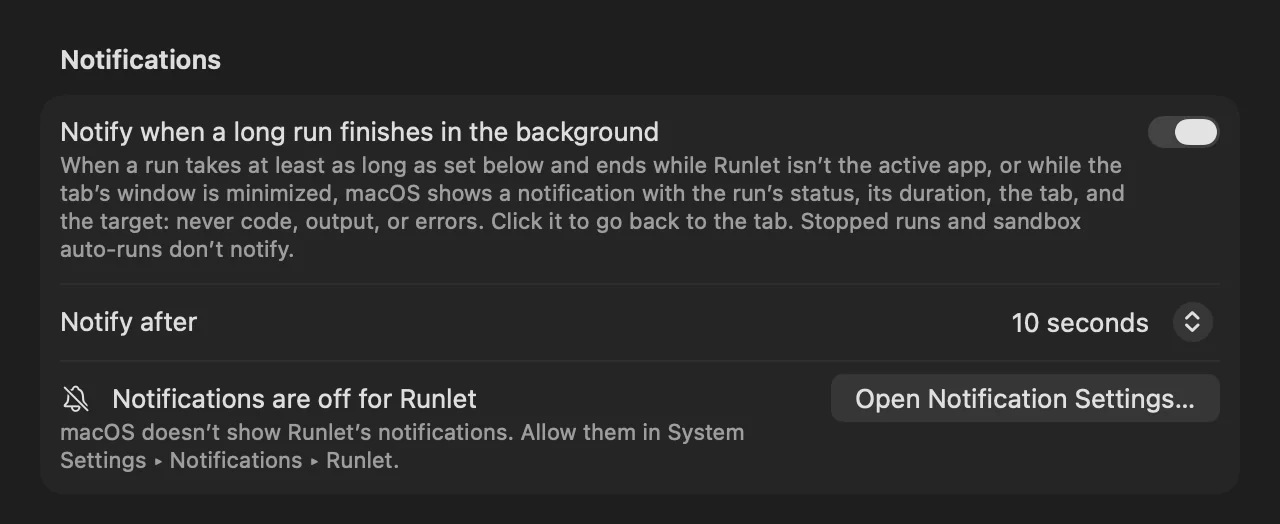
Banners, sounds, and the Notification Center list follow your choices for Runlet in System Settings ▸ Notifications.
NOTE
Runlet isn't signed with an Apple Developer ID yet. macOS keeps the notification permission per app identifier, so a copy of Runlet with another identifier (such as a development build) is a separate entry in System Settings.