
Targets
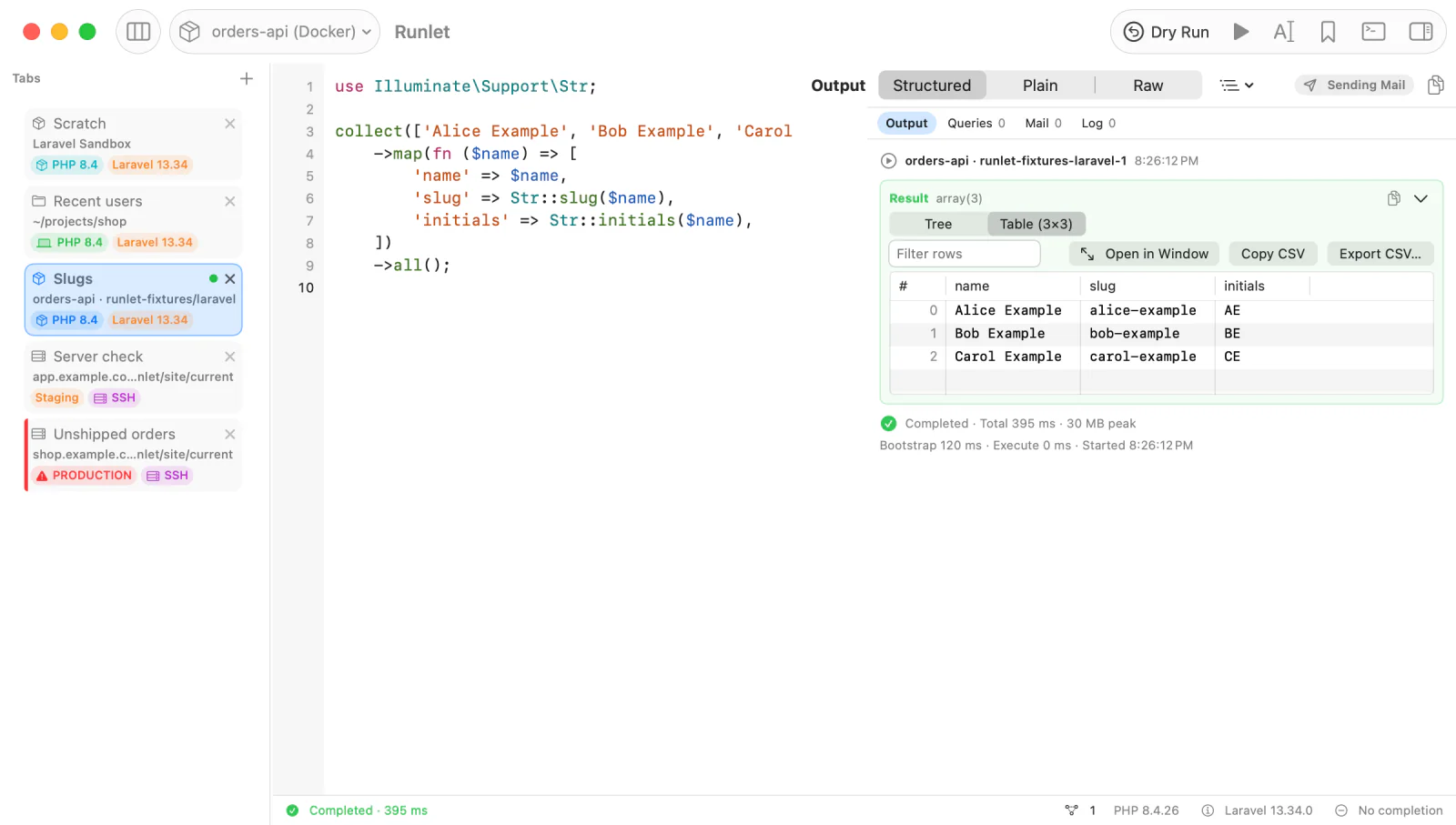
Every tab runs its code on a target: the place where PHP starts and your application lives. Switch the tab's target, and the same snippet runs in the bundled Laravel sandbox, in a project on your Mac, in a Docker container, in a Kubernetes pod, or on a server over SSH. The output, dumps, errors, and Stop work the same way everywhere.
Kinds of Targets
| Target | Where the code runs | Use it for |
|---|---|---|
| Laravel Sandbox | A fresh Laravel app on SQLite, bundled with Runlet, with PHP on your Mac or in Docker. | Trying things without a project. |
| Local project | A folder on your Mac, with PHP 7.4 or later: Herd, Homebrew, the php on your PATH, or Runlet's own PHP. | Projects whose PHP runs on your Mac. |
| Docker | A running container or Compose service, with the container's own PHP. | Projects that run in Docker, Sail, or OrbStack. |
| Kubernetes | A Ready container in an explicitly selected pod, context, and namespace. | Applications deployed to Kubernetes. |
| SSH | A server's own PHP, in your application's folder, or a Docker container on that server. | Staging and production servers. |
No PHP on your Mac? Runlet can download its own PHP 8.5.8 (about 26 MB) with the usual Laravel, Symfony, and WordPress extensions, Excimer for profiling, and mongodb. Installed PHP always comes first. See Choosing PHP.
Switching a Tab's Target
The target menu in the toolbar shows the tab's target. Click it to pick another one: the sandbox, then your local projects, Docker applications, Kubernetes applications, and SSH hosts, most recently used first.
You can also press ⌘P (Open Anything) and type a target's name. Type / to list only projects, or @ for Docker, Kubernetes, and SSH targets. Return switches the current tab, and ⌘Return opens the target in a new tab.
Switching a target never runs code, and never connects to an SSH server. New tabs start on the target in Settings ▸ General ▸ New Tabs ▸ Default target: the sandbox, unless you choose another one.
Adding Targets
| Target | How |
|---|---|
| Local project | File ▸ Open Project… (⇧⌘O), or runlet . in a terminal |
| Docker | Library ▸ New Docker Profile… |
| SSH | Library ▸ New SSH Profile…, or Library ▸ Import SSH Hosts from ~/.ssh/config… |
The target menu has these commands too, and the command palette (⇧⌘P) finds them by name.
Settings ▸ Targets lists every local project, Docker profile, and SSH host, with Edit… and a delete button. Library ▸ Manage Profiles… opens the Profiles window, where you edit Docker and SSH profiles side by side.
Deleting a target removes only Runlet's entry: the folder, the container, and the server are untouched. Tabs that used it switch to the Laravel Sandbox.
Choosing a Target
- To try something in Laravel, without a project, use the sandbox. It has a
userstable and aUserfactory ready. - When PHP runs on your Mac (Herd, Valet, Homebrew), open the project as a local project.
- When your app runs in Docker (Sail, Compose, OrbStack), use a Docker profile. Snippets then get the container's PHP, extensions, environment variables, and network, so a database host such as
mysqlresolves as it does for the app. - When the app lives on a server, use an SSH profile. Give it a local folder with the same checkout, so completion and file links work.
The same project can be several targets: a local project for development, and SSH profiles for staging and production.
What Every Target Shares
- A fresh PHP process per run. The driver boots your application, the snippet runs, and the process ends. Variables don't carry over between runs; use Open REPL when you want that.
- The same output. Dumps, the returned value, errors, the run inspector, magic comments, and Run History work on every target, and output streams in while the code runs.
- Nothing written into your project. Runlet streams its runner to PHP on standard input. It writes no files into your project, container, or server (except the optional cache of the runner and compiled PHP on SSH hosts), and it never runs Composer.
- Stop ends the run where it runs: on your Mac, in the container, or on the server.
Environments and Production
Every target except the sandbox has an environment: development, staging, or production, and an optional colour. A target marked as production shows a red badge, and every run on it asks first:
- ⌘Return runs the code, while Return and Esc cancel, so a reflexive Return never runs code on production.
- Project commands, shells, and REPLs on production ask every time, and the Commands panel's Tests group is disabled there.
- When a run shows that the application itself says it's in production, and the target isn't marked, the tab offers Mark as Production.
Environments & Production has the details.